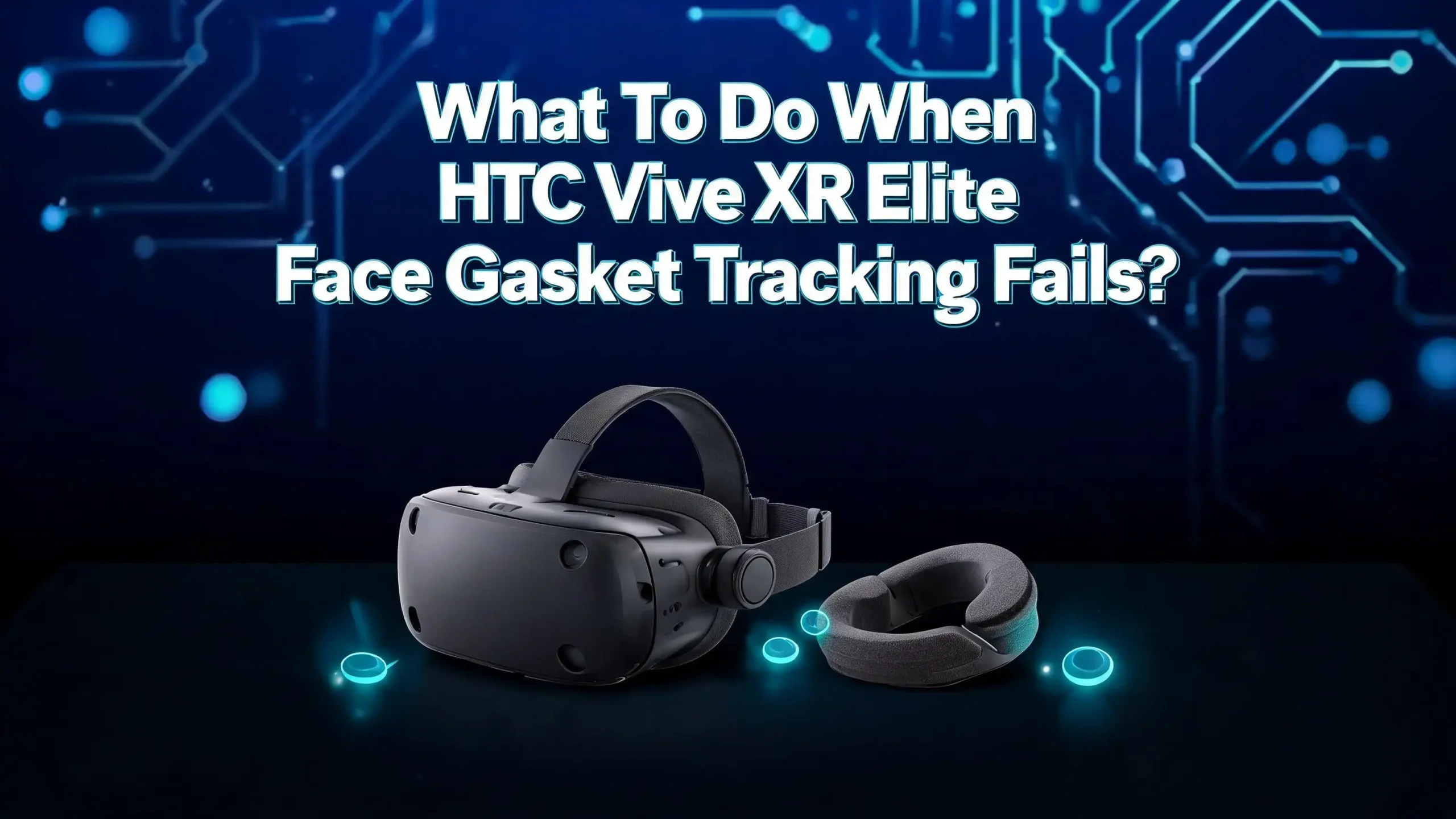
What To Do When HTC Vive XR Elite Face Gasket Tracking Fails?
You just loaded up your favorite VR app, put on your HTC Vive XR Elite, and the face gasket tracking refuses to cooperate. Your avatar’s face is frozen, the expressions stutter, or the tracker keeps disconnecting.
This is a frustrating problem that many Vive XR Elite owners face, and it can ruin an otherwise incredible VR experience. The good news? Most face gasket tracking failures have clear causes and straightforward fixes.
Whether your Full Face Tracker keeps dropping its connection, your eye tracking calibration loops endlessly, or your expressions jitter like a broken puppet, this guide covers every angle.
By the end of this post, you will know exactly what to check, what to adjust, and how to get your face tracking running smoothly again. Let’s get right into it.
Key Takeaways
- Firmware matters more than you think. Several firmware updates have introduced face tracker bugs, and keeping your headset updated to the latest stable version often resolves persistent tracking issues.
- The face gasket must be properly seated. The VIVE Face Gasket 2.0 uses magnets to align with the headset. If the top middle section does not click into place, the tracker can shift and lose contact with the sensors it needs.
- OSC port conflicts cause expression stuttering. If you use VRChat, ChilloutVR, or similar social VR apps, the Vive software can clash with OSC ports used by those apps. Manually editing port settings is a proven fix.
- Overheating causes disconnections. The face tracker can disconnect after just a few minutes if heat builds up. Improving airflow or using a USB C extension cable has helped many users resolve this.
- A factory reset is a reliable last resort. Multiple users on the HTC Vive forum have confirmed that a full factory reset resolved face tracker bugs that no other fix could address.
- Clean your cameras regularly. The four tracking cameras on the outside of the headset and the sensors inside the face tracker need clean surfaces to function properly. A dry microfiber cloth is all you need.
Understanding How Face Gasket Tracking Works on the Vive XR Elite
The HTC Vive XR Elite uses a combination of hardware and software to deliver face tracking. The VIVE Full Face Tracker is an accessory that attaches to the headset and captures both eye and mouth movements. It uses infrared cameras to read your facial expressions and translate them to your VR avatar in real time.
The face gasket plays an important role in this system. It creates a seal between your face and the headset, blocking external light. This light seal matters because the infrared sensors inside the tracker need consistent lighting conditions. If the gasket is loose, light leaks in and confuses the sensors.
The Face Gasket 2.0 was designed specifically for use with the battery cradle and the Full Face Tracker. It uses magnetic alignment to snap into the correct position on the headset. This alignment ensures the tracker’s cameras sit at the right angle relative to your eyes and mouth.
The headset also relies on four external tracking cameras for positional tracking. These cameras use an inside out tracking system, which means they look outward to map your environment. A poorly fitted face gasket can sometimes shift the headset position on your face, which indirectly affects how these cameras perceive your surroundings.
Understanding this setup helps you troubleshoot more effectively. Problems can come from the face gasket itself, the Full Face Tracker hardware, the software running on the headset, or the connection to your PC.
Check the Face Gasket Installation First
The simplest fix is often the right one. A face gasket that is not properly attached will cause inconsistent tracking. The VIVE Face Gasket 2.0 must be installed correctly for the Full Face Tracker to work as intended.
Start by removing the original face cushion if it is still attached to the headset. HTC recommends removing it completely before attaching the Face Gasket 2.0. Next, align the gasket with the headset and press the top middle part inward until you hear it click into place. The magnets will help guide the gasket, but you still need to apply firm pressure at the top.
If the gasket feels loose or pops off during use, you may have a fitment issue. Some users report that the gasket comes loose from the bottom during active sessions. This happens because the gasket rests against the forehead first and can shift with sweat or movement. Make sure your face is dry before putting on the headset.
To remove the gasket for inspection, grip the top and gently pull it away from the headset. Check both the gasket and the headset for debris, dust, or damage to the magnetic contacts. Even a small piece of lint can prevent a secure connection.
If you are using a third party or custom face gasket, be aware that it may not align properly with the Full Face Tracker. The official Face Gasket 2.0 was designed to work with the tracker’s camera angles. A non standard gasket can block the infrared sensors or shift the tracker out of its optimal position.
Update Your Firmware and Software
Outdated firmware is one of the most common causes of face tracking failures on the Vive XR Elite. HTC has released several updates that directly address face tracker bugs. Some firmware versions have actually introduced tracking problems, making it critical to stay on the latest stable release.
To check for updates, go to Settings > General > Auto update from the Home screen. You can enable automatic updates and set a preferred update time. If you suspect a recent update caused your problem, check the VIVE Release Notes page online to see if others have reported similar issues.
On the PC side, make sure you have the latest version of VIVE Console for SteamVR installed through Steam. This software package now includes the SRanipal face tracking runtime, so you no longer need to install SRanipal separately. In fact, having an old version of SRanipal installed alongside VIVE Console can create conflicts.
Uninstall any old Vive face tracking software before updating. This includes standalone SRanipal installers. Conflicting software versions are a frequent source of stuttering, jittering, and complete tracking loss.
After updating, restart both your headset and your PC. Some updates require a full power cycle to apply correctly. If the face tracker was already connected during the update, disconnect it and reconnect it after restarting. The headset should detect the tracker and prompt you to recalibrate.
Recalibrate the Eye and Face Tracker
Calibration errors are a direct cause of poor face tracking performance. The Vive XR Elite requires individual calibration for each user because everyone’s face shape and eye spacing are different. If calibration data becomes corrupted or outdated, tracking accuracy drops significantly.
To recalibrate, open Settings > Inputs > VIVE Full Face Tracker from the Home screen. You will see options to enable or disable both Facial tracking and Eye tracking. Select Calibrate next to the calibration option and follow the on screen instructions.
You can also access calibration through the VIVE Menu. Press the VIVE button on your right controller, select Devices, and tap the eye and facial tracker button in the upper left corner. This shortcut is faster if you are already in a VR session.
You must recalibrate after any of these events: changing the IPD setting, adjusting the headset position on your face, switching to a different face gasket, or installing a new Full Face Tracker unit. The first calibration after installing a new tracker may take longer than usual. Give it time to complete fully.
If calibration seems to loop endlessly or keeps prompting you to recalibrate, this is a known bug associated with certain firmware versions. A factory reset often resolves this loop. Some users also report success by disabling eye tracking temporarily, completing facial tracking calibration, and then re enabling eye tracking separately.
Fix OSC Port Conflicts for VRChat and Social VR Apps
If your face tracking works in the headset settings but fails or stutters in VRChat, ChilloutVR, or other social VR applications, you likely have an OSC port conflict. This is a well documented issue where Vive’s software forces its ports to overlap with ports used by other apps.
Symptoms include expression stuttering, jittering between facial expressions, extremely high ping values in VRCFT (the VRChat Face Tracking module), or no expressions showing at all. The root cause is that Vive’s streaming software copies VRChat’s OSC code and forwards data on the same ports.
Here is the fix. First, install the latest VIVE Console for SteamVR and VRCFT (VRChat Face Tracking). Open both programs and let SteamVR launch. In VRCFT, install the SRanipal module and enable both Calibration and Continuous Calibration in the settings. Then close everything.
Next, go to this folder on your PC: C:\ProgramData\HTC\ViveSoftware\ViveRR\RRServer. Open both “serverSettings.settings” and “serverSettings.settings.sync” in a text editor. At the bottom of each file, after the “RAPILPS” line, add the following port configuration values: set VRCSP to 9012, VRCRP to 9013, VRCHN to localhost, and PL to 0.
Reboot your PC after making these changes. Start SteamVR with the Vive connected, then open VRCFT and your social VR app. The first few minutes may show limited expressions while continuous calibration adjusts. Give it time, and the tracking should smooth out.
Address Overheating and Disconnection Issues
Heat is a real problem for the Vive XR Elite’s face tracker. Multiple users report that the tracker works fine for about five minutes and then starts disconnecting and reconnecting in rapid cycles. The face plate area generates heat during use, and excessive warmth can cause the tracker’s electronics to malfunction.
The first thing to try is improving airflow around the headset. Point a small desk fan at your face while using VR. This may sound low tech, but users who tested this approach found that their tracker stayed connected for 40 minutes or longer compared to just five minutes without the fan.
Another proven solution is using a USB C extension cable between the headset and the face tracker or between the headset and your PC. Some users discovered that the short default cable creates a tight connection that traps heat. An extension cable provides a bit more slack and reduces heat transfer.
Room temperature matters too. If your play space is warm, the tracker will overheat faster. Try to keep the room at a comfortable temperature, ideally below 75°F (24°C). VR sessions generate body heat, and the headset adds to that.
If disconnections continue despite these efforts, the tracker itself may have a hardware fault. Contact HTC support to discuss warranty replacement options. A tracker that consistently disconnects after a few minutes of use, regardless of conditions, likely has a manufacturing defect.
Clean the Tracking Cameras and Sensors
Dirty cameras are an overlooked cause of tracking failure. The Vive XR Elite has four tracking camera lenses on the outside of the headset and a passthrough camera lens. Inside the face tracker, infrared cameras capture your facial movements. All of these surfaces need to stay clean.
HTC recommends using a clean, dry microfiber cloth to wipe the tracking camera lenses. Do not use any liquids, cleaning solutions, or alcohol on the lenses. For the main headset lenses, wipe in a circular motion from the center outward to avoid smudging.
Fingerprints, dust, and condensation are the main culprits. If you take the headset off between sessions and set it facedown, the inside lenses can pick up dust or oils from whatever surface you place it on. Always store the headset with the lenses facing upward or in a protective case.
The face cushion area also needs attention. Sweat and skin oils accumulate on the cushion and can migrate to nearby sensor surfaces. Remove the face cushion periodically and wipe it with a cool, damp cloth. Do not soak it, wring it, or expose it to direct sunlight. Let it air dry completely before reattaching.
If you share the headset with other people, clean the sensors after each user. Different skin types produce varying amounts of oil, and buildup accelerates with shared use. A quick wipe between sessions takes seconds and can prevent hours of troubleshooting.
Perform a Factory Reset as a Last Resort
When nothing else works, a factory reset often solves persistent face tracker bugs. Multiple users on the HTC Vive forums have confirmed that a full factory reset resolved issues that no other troubleshooting step could fix. This includes the calibration boot loop bug, random disconnections, and video artifacts.
To perform a factory reset from the headset settings, go to Settings > General and look for the reset option. Follow the on screen prompts to complete the process.
If your headset is unresponsive or stuck in a loop, you can force a factory reset manually. Power off the headset completely. Then hold both volume down buttons and the headset button simultaneously. Keep holding them until the reset process begins. This hardware reset method works even when the software interface is frozen.
Back up any important data before resetting. A factory reset erases all settings, downloaded apps, and calibration data. You will need to set up the headset from scratch, including pairing controllers, adjusting IPD, and recalibrating the face tracker.
After the reset, install the latest firmware update before reconnecting the face tracker. This gives you a clean slate with the newest software. Many users report that the face tracker works perfectly after a reset and fresh update, even if it was completely non functional before.
Check for Compatibility Between Accessories
The Vive XR Elite supports several accessories, and not all combinations work smoothly together. The Face Gasket 2.0 is specifically designed for use with the battery cradle. If you try to use it without the battery cradle installed, the gasket may not seat properly and tracking can fail.
The VIVE Full Face Tracker replaces the standard face cushion or gasket. It comes with its own gasket that is built to accommodate the tracker’s cameras. Many users report that the tracker’s included gasket provides a better fit than the original cushion. Using the wrong gasket with the tracker can obstruct the infrared cameras.
If you use a VIVE Deluxe Strap or other head strap accessory, make sure it does not put additional pressure on the face gasket area. Excessive downward pressure from a tight strap can push the gasket out of alignment. Adjust the strap so the headset weight is distributed across the top and back of your head rather than pressing forward against your face.
Third party accessories like custom gaskets or aftermarket cushions may not maintain the precise alignment that the Full Face Tracker requires. Even a millimeter of offset can affect where the infrared cameras look. If you recently installed a new accessory and tracking stopped working, try reverting to the official HTC accessories to see if the problem goes away.
Adjust Your Play Environment for Better Tracking
Your physical environment affects both positional tracking and face tracking performance. The Vive XR Elite’s inside out tracking cameras need a well lit room with distinct visual features. A room that is too dark, too bright, or filled with reflective surfaces can confuse the cameras.
Avoid direct sunlight hitting the headset or the tracking cameras. Sunlight contains infrared light that can interfere with the face tracker’s infrared sensors. Close blinds or curtains if sunlight is entering your play area. Overhead LED or fluorescent lighting works best.
Mirrors and glass surfaces create reflections that confuse inside out tracking systems. If your play space has large mirrors, glass doors, or shiny furniture, consider covering them during VR sessions. Even a bedsheet draped over a mirror can make a noticeable difference.
The room should have enough visual variety for the tracking cameras to map. A plain white room with no furniture or decorations gives the cameras nothing to anchor on. Add some posters, shelves, or furniture to give the tracking system reference points. The cameras need stable visual landmarks to maintain accurate tracking.
Avoid infrared light sources near your play area. Some TV remotes, security cameras, and space heaters emit infrared light. This light can bleed into the face tracker’s sensors and create noise in the tracking data. Move these devices away from your VR space or turn them off during sessions.
Troubleshoot the PC Connection for PCVR Face Tracking
If you use the Vive XR Elite for PC VR streaming, your connection setup plays a big role in face tracking reliability. The face tracking data travels from the headset to your PC, and any bottleneck in that connection can cause lag, stuttering, or complete tracking failure.
Make sure VIVE Console for SteamVR is up to date. This is the primary software bridge between your headset and your PC. It includes the latest face tracking runtime and driver components. Open Steam and check for updates to the VIVE Console app.
If you use a wired connection, check your USB C cable. A damaged or low quality cable can cause intermittent disconnections. Use a cable that supports USB 3.0 or higher data transfer rates. Some users found that switching to a different USB port on their PC resolved tracking dropouts, especially when moving from a front panel USB port to a rear motherboard port.
For wireless PCVR streaming, network stability is critical. Face tracking data adds to the bandwidth requirements. Use a dedicated Wi Fi 6 router for your VR setup if possible. Keep the router in the same room as your play area and minimize other devices using the same network during VR sessions.
Check your firewall settings as well. Some firewalls block the ports that Vive’s streaming software uses for face tracking data. If you recently installed a new firewall or antivirus program, try temporarily disabling it to see if tracking improves. If it does, add exceptions for VIVE Console and SteamVR in your firewall rules.
Disable and Re enable Tracking Features Individually
Sometimes the face tracking system gets stuck in a bad state, and the quickest fix is to toggle the tracking features off and back on. This clears the current tracking session and forces the system to reinitialize.
Go to Settings > Inputs > VIVE Full Face Tracker on the headset. Turn off Eye tracking first and wait about 10 seconds. Then turn it back on. Do the same for Facial tracking. This simple toggle has resolved frozen tracking for many users.
If you use VRChat, you can also reset the tracking configuration from inside the app. Press and hold the Y button on the left controller to open the Action Menu. Select Options > OSC > Reset Config. This clears VRChat’s cached tracking data and forces it to rebuild the connection with the face tracker.
Some firmware bugs cause the eye tracker to loop through the setup process repeatedly. As a workaround, try disabling eye tracking entirely and use only facial (mouth) tracking. If facial tracking works fine without eye tracking enabled, the problem is isolated to the eye tracking component. This helps you determine whether the issue is software based or hardware based.
You can also try switching between standalone mode and PCVR mode. Some tracking bugs only appear in one mode. If tracking works perfectly in standalone but fails in PCVR, the issue is with your PC connection or software configuration rather than the headset hardware.
Contact HTC Support for Hardware Issues
If you have tried every software fix and your face tracking still fails, you may be dealing with a hardware defect. The Full Face Tracker contains delicate infrared cameras and sensors that can be damaged by drops, pressure, or manufacturing flaws.
Before contacting support, gather your information. Note your headset firmware version, the serial number of both your headset and face tracker, and a clear description of the problem. Include what troubleshooting steps you have already completed. This speeds up the support process significantly.
HTC offers warranty coverage for manufacturing defects. If your face tracker disconnects constantly, produces no tracking data, or fails to be recognized by the headset despite being properly connected, these are signs of a hardware issue. Intermittent problems that correlate with heat exposure also suggest a hardware fault.
Visit the official HTC Vive support page to submit a ticket or start a live chat. Community forums can also be helpful, as HTC staff occasionally respond to posts on the official Vive Forum. Other users who have experienced the same issue may share solutions that worked for them.
Document the problem with video if possible. A short clip showing the tracking failure, the setup you are using, and the error behavior helps support staff diagnose the issue faster than a text description alone.
Prevent Future Face Gasket Tracking Failures
Prevention is easier than troubleshooting. A few simple habits will keep your face tracking system running reliably over time and reduce the chances of encountering these problems again.
Store your headset properly. Keep it in a case or on a stand with the lenses and sensors protected from dust and sunlight. Direct sunlight can damage both the display lenses and the infrared sensors in the face tracker.
Clean the cameras and sensors before every session. A quick wipe with a dry microfiber cloth takes five seconds and prevents buildup that degrades tracking accuracy over time. Make this part of your VR routine.
Enable automatic firmware updates. This ensures you always have the latest bug fixes. Check the VIVE Release Notes occasionally to stay informed about known issues and planned fixes.
Avoid extreme temperatures. Do not leave the headset in a hot car, near a heater, or in direct sunlight. Heat damages electronic components and accelerates the overheating issues that cause tracker disconnections.
Handle the face gasket carefully. The magnetic attachment system is durable but not indestructible. Do not force the gasket into place or yank it off aggressively. Grip the top gently and pull straight out when removing. Press firmly but evenly when attaching. This preserves the magnetic contacts and ensures a consistent fit every time.
Keep your PCVR software up to date as well. Old versions of VIVE Console, SteamVR, and social VR apps can all introduce tracking issues when they fall out of sync with the headset firmware.
Frequently Asked Questions
Why does my HTC Vive XR Elite face tracker keep disconnecting?
The most common cause is overheating. The face tracker’s electronics are sensitive to heat buildup, especially around the faceplate area. Try improving airflow with a small fan, using a USB C extension cable, and keeping your room temperature cool. If disconnections happen within the first five minutes regardless of conditions, you may have a hardware defect that requires warranty replacement through HTC.
Do I need the Face Gasket 2.0 for face tracking to work?
You do not strictly need the Face Gasket 2.0, but it is strongly recommended. The Full Face Tracker comes with its own gasket that is designed to work with the tracker’s camera positioning. The standard face cushion may block the infrared sensors or allow light leaks that reduce tracking quality. The Face Gasket 2.0 also requires the battery cradle to be installed.
How do I fix face tracking stuttering in VRChat?
Face tracking stuttering in VRChat is usually caused by OSC port conflicts. Edit the server settings files in the VIVE Console directory to assign unique port numbers. Install the latest VRCFT module, enable continuous calibration, and reboot your PC after making changes. The tracking should smooth out after a few minutes of use.
Can a factory reset fix face tracking problems?
Yes. A factory reset has resolved face tracking bugs for many Vive XR Elite users, including the calibration boot loop and persistent disconnection issues. Power off the headset, hold both volume down buttons and the headset button simultaneously, and follow the reset prompts. Update your firmware after the reset before reconnecting the face tracker.
How often should I recalibrate the face tracker?
Recalibrate after any physical change to the headset setup. This includes adjusting the IPD, changing the face gasket, switching users, or repositioning the headset on your face. If tracking feels inaccurate during a session, a quick recalibration through the VIVE Menu usually fixes it. There is no set schedule, but checking calibration every few weeks is a good practice.
Does room lighting affect face gasket tracking?
Room lighting primarily affects the headset’s positional tracking cameras rather than the face tracker itself. However, strong infrared light sources such as direct sunlight or security cameras can interfere with the face tracker’s infrared sensors. Use consistent, moderate indoor lighting and avoid direct sunlight in your play area for the best results.

Hi, I’m Simmy — the creator and writer behind ScaleMyPic.com. I’m a tech enthusiast who loves breaking down complex products into simple, honest reviews and guides. My goal? To help you make smarter tech decisions without the confusion. Got a question? Feel free to reach out!