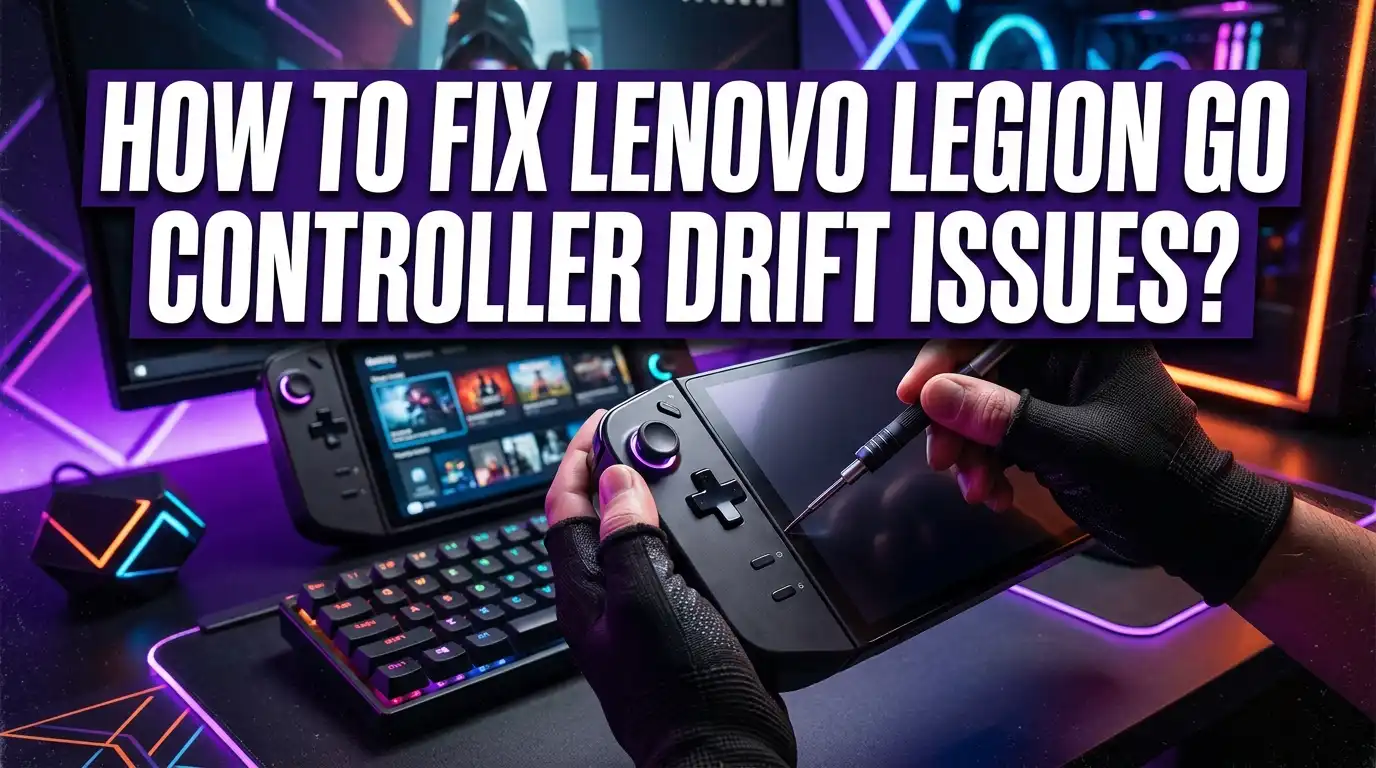
How To Fix Lenovo Legion Go Controller Drift Issues?
Stick drift on the Lenovo Legion Go is one of the most frustrating issues a player can face. Your character moves on its own, your aim drifts off target, and gameplay becomes nearly impossible. It ruins the experience fast.
The left stick is the most commonly affected, but right stick drift happens too. Some users also notice the L3 button stops responding after a soft reset. These problems can feel random, but they usually have a clear cause and a clear fix.
The good news is that most drift issues can be resolved at home without any special tools. Calibration, soft resets, and factory resets fix the majority of cases. For persistent drift, there are also hardware-level solutions worth knowing about.
This guide walks you through every fix, starting with the simplest steps and moving toward more advanced options. You will learn the exact button combinations and timing needed to make each fix work correctly.
In a Nutshell
- Stick drift means your in-game character or cursor moves on its own, even when you are not touching the stick.
- The fastest first step is recalibration. Hold the trigger and L3 or R3 for at least 7 seconds until the light swirls, then spin the stick slowly.
- A soft reset using a SIM tool in the pinhole on the connector side can clear minor glitches causing drift.
- For deeper issues, a factory reset (hold Legion L + LB + Menu for 4 seconds) can restore default controller settings.
- Common mistakes include not holding buttons long enough and accidentally touching the stick during calibration, both of which cause the process to fail.
- If all software fixes fail, hardware replacement or a joystick upgrade may be the only permanent solution.
What Is Controller Drift and Why Does It Happen on the Lenovo Legion Go?
Controller drift happens when your analog sticks register movement without you touching them. Your character walks forward, your camera spins, or your cursor drifts across the screen on its own. This is one of the most annoying issues you can face while gaming.
The Lenovo Legion Go experiences drift for a few key reasons. First, the analog sticks use sensors that measure stick position. Over time, dust and debris can accumulate inside the stick mechanism. This buildup interferes with the sensor readings, causing false movement signals to reach your device.
Second, repeated use wears down the internal components. The stick’s contact points gradually lose their precision. When this happens, the sensor sends incorrect data even during normal gameplay. The left stick is more prone to drift because most games use it for character movement, which means more frequent use and faster wear.
Third, calibration can drift naturally. Your device learns the stick’s center point during setup. If this calibration becomes inaccurate, the system thinks the stick is moving when it sits at rest. Environmental factors like temperature changes can also affect sensor sensitivity.
The Lenovo Legion Go’s design makes sticks particularly vulnerable because they experience constant pressure during intense gaming sessions. Unlike traditional controllers that sit in your hands, the Legion Go’s sticks are positioned for handheld play, which creates different stress patterns.
Understanding these causes helps you choose the right fix. Software solutions work best for calibration problems, while hardware issues may require deeper intervention. Most drift problems start small and worsen over time, so addressing them early prevents frustration during your gaming sessions.
How To Identify If Your Legion Go Has Stick Drift
Stick drift shows itself in specific ways on your Legion Go. The most obvious sign is unintended movement on screen when you are not touching the analog stick. Your character walks forward, your camera pans sideways, or your cursor drifts across menus without any input from you.
Pay attention to which stick causes problems. The left stick drifts more often than the right one, but both can fail. Test each stick separately by opening a game or the calibration menu and watching for movement.
Another sign is the L3 button not responding correctly. This button sits under the left stick, and drift issues sometimes affect it too. You might press it and nothing happens, or it registers presses randomly.
Check if drift happens immediately or after warming up your device. Some controllers drift right away, while others only show problems after extended play sessions. This detail helps you understand if it is a software or hardware issue.
Test in multiple games or apps. Drift that appears everywhere suggests a serious problem. Drift limited to one game might mean that game needs controller calibration adjustments.
Watch for consistency patterns. Does the stick drift in one direction only, or multiple directions? Does it happen constantly or intermittently? These observations matter when you choose your fix.
Finally, notice if the drift worsens over time or stays the same. Progressive drift usually points to hardware wear, while sudden drift often indicates a calibration problem.
Document what you observe before moving to fixes. This information helps you determine whether recalibration, a soft reset, or a factory reset will solve your specific issue.
How To Recalibrate the Lenovo Legion Go Analog Sticks
Recalibration is your first and most effective software fix for analog stick drift. This process resets your sticks to their neutral position and tells the system where they should sit when untouched.
Start by accessing the controller settings on your Legion Go. Navigate to the system menu and find the controller calibration option. You will see options for both the left and right analog sticks.
For each stick, you need to hold the trigger button plus either L3 or R3 for at least 7 seconds minimum. This is crucial. Many people stop too early and the calibration fails. Wait until you see a light swirl or animation on your screen. This visual confirms the device is ready for input.
Once the light swirls appear, release the buttons immediately. Now you must slowly spin the affected stick in a complete circle. Move it smoothly from top to bottom to left to right and back again. Complete at least one full rotation, moving slowly and deliberately.
Do not touch the stick during the waiting period before you start spinning. Even slight contact can interfere with the calibration sequence and cause it to fail.
After completing the circle, the system saves your new calibration data. Test the stick in a game or app right away. Move it around to check if drift has stopped.
Important note: Recalibration sometimes provides only temporary relief. If drift returns within days or weeks, the internal components may need hardware attention. However, recalibrating regularly can extend your controller’s life and keep drift manageable between deeper repairs or replacements.
How To Perform a Soft Reset on the Legion Go Controllers
A soft reset clears temporary controller data without erasing your settings. This fix often resolves drift when calibration alone doesn’t work.
To perform a soft reset, you need a SIM ejection tool or a thin pin. Locate the small pinhole on the connector side of your Legion Go controller. This pinhole is your access point to the reset mechanism.
Insert the tool gently into the pinhole. Push straight in without forcing it. You should feel slight resistance, then a small click. Hold the tool in place for about 3 to 5 seconds. This triggers the reset process internally.
Remove the tool slowly and wait 10 seconds. Your controller will power cycle automatically. You may see the LED indicator flash or dim briefly, which confirms the reset is working.
Reconnect your controller to the Legion Go device. The system will recognize it as a fresh connection. Test the analog sticks immediately in the controller settings menu to check if drift has improved.
Important note: A soft reset may temporarily disable the L3 button in some games until you recalibrate. If this happens, run the full calibration sequence again (hold trigger plus L3 or R3 for 7 seconds until the light swirls, then spin the stick).
If drift returns within hours or days, the soft reset provided only temporary relief. This suggests your hardware may need professional attention or replacement. Persistent drift after soft resets typically indicates internal wear that software fixes cannot address permanently.
How To Factory Reset the Legion Go Controllers
A factory reset returns your Legion Go controllers to their original settings. This process erases all custom configurations and resets the controller firmware.
To perform a factory reset, press the Legion L button, LB button, and Menu button simultaneously. Hold all three buttons for exactly 4 seconds. You’ll see a confirmation light or message on your device. Release the buttons once the reset begins.
Wait at least 30 seconds after the reset completes before using your controllers again. This allows the firmware to reinitialize properly.
After the factory reset finishes, your controllers return to default settings. You’ll need to recalibrate the analog sticks using the standard calibration process. Hold the trigger button plus L3 or R3 for 7 seconds until the light swirls appear. Then spin each stick in a complete circle.
Important notes about factory resets: This process removes any custom button mappings or sensitivity adjustments you created. You’ll lose all personalized controller profiles. The factory reset works best when drift persists after recalibration and soft resets fail.
If drift returns shortly after the factory reset, your issue is likely hardware related. The analog stick mechanism itself may need replacement. Software fixes cannot permanently solve mechanical wear or component failure.
Some users report that factory resets provide only temporary relief lasting days or weeks. If this happens to you, the stick components are probably deteriorating. At that point, hardware replacement becomes necessary for a permanent solution.
A factory reset is your last software option before considering hardware repairs. If drift returns quickly after resetting, contact support about replacement options.
Hardware-Level Fixes for Persistent Stick Drift
When software fixes don’t eliminate stick drift, your controller likely has a hardware problem. The analog stick mechanism wears down over time from regular use. This physical degradation causes the persistent drift you’re experiencing.
Hardware replacement is the most reliable permanent solution. The joystick module itself can be upgraded with a higher tension version. This increased tension prevents the stick from registering unintended movements. Many users find this fix eliminates drift completely.
You have two main options for hardware solutions. First, you can send your controller to Lenovo for professional repair or replacement. This ensures the work meets manufacturer standards. Second, you can perform a DIY controller repair if you’re comfortable with electronics.
The DIY approach requires careful disassembly of your controller. You’ll need to remove the outer casing and locate the joystick module. Once exposed, you can either clean the internal components or replace the module entirely. Replacement modules are available separately and often cost less than professional repair.
Before attempting any hardware work, document your specific drift pattern. Note whether it’s the left stick, right stick, or both. Record when drift occurs and how severe it is. This information helps you understand if the problem is truly hardware related.
Take your time during disassembly. One mistake can damage other controller components. Work in a clean, organized space with good lighting. Keep all screws and small parts organized so you don’t lose them.
If hardware replacement seems too risky, professional repair remains your safest option. Lenovo technicians have the right tools and experience for this work. They can also diagnose whether your issue is truly hardware or something else entirely.
Common Mistakes To Avoid When Fixing Legion Go Drift
When fixing Legion Go controller drift, you need to avoid several critical mistakes that make the problem worse.
Incomplete calibration sequences cause most recalibration failures. Many users rush through the calibration process and don’t hold the trigger and L3 button long enough. You must hold these buttons for at least 7 seconds minimum until you see the light swirl pattern. Releasing too early means the calibration never completes properly.
Moving your stick during calibration is another common error. Once you begin the calibration sequence, keep your analog stick completely still and centered. Any movement during this time interferes with the sensor readings and produces inaccurate calibration data.
Not waiting between reset attempts leads to confusion about what actually fixed the problem. After performing a soft reset or factory reset, wait at least 10 to 30 seconds before reconnecting or using your controllers. This waiting period allows the controller systems to fully restart and stabilize.
Expecting permanent fixes from software solutions is unrealistic. If drift returns within hours or days after calibration, your issue is hardware related, not software related. Continuing to recalibrate repeatedly wastes your time when you actually need hardware replacement.
Ignoring the L3 button issue after soft resets causes frustration in gameplay. Some games won’t register the L3 button properly after a soft reset until you recalibrate. Plan for this temporary limitation and recalibrate immediately if you notice button problems.
Finally, avoid forcing tools into the reset pinhole. Use gentle pressure with your SIM ejection tool or thin pin. Forcing it can damage the connector permanently.
When To Escalate: Signs You Need a Deeper Repair
Your Lenovo Legion Go controller drift might need professional attention if software fixes haven’t worked. Knowing when to escalate saves you time and frustration.
Persistent drift after calibration is your first red flag. If you’ve completed the calibration sequence multiple times and the stick still moves on its own, a hardware problem exists. Software solutions won’t fix physical wear inside the joystick module.
Drift that returns within days signals hardware failure. When the problem comes back quickly after a factory reset, your controller has internal damage. The joystick components have worn out and need replacement.
L3 button malfunction combined with drift means escalate now. If your stick drifts and the L3 button stops responding during gameplay, both issues point to hardware damage. This combination rarely resolves with software fixes alone.
Uncontrollable stick movement in all directions requires professional help. When your stick drifts constantly regardless of your input, the analog stick sensor is failing. This level of malfunction won’t respond to recalibration.
Multiple controllers showing the same drift pattern suggests a deeper issue. If both your left and right controllers drift, something beyond normal wear is happening. This could indicate a firmware problem or a manufacturing defect affecting your entire unit.
At this point, contact Lenovo support or visit an authorized repair center. They can diagnose whether your controller needs a replacement joystick module or if your entire controller requires replacement. Professional repair ensures your Legion Go functions properly without risking further damage through DIY attempts.
Final Thoughts
Lenovo Legion Go controller drift is a frustrating but fixable problem for most users.
Start with the simplest solutions first. Run through the calibration sequence by holding the trigger and L3 or R3 for at least 7 full seconds. Many users fix their drift issue at this stage alone.
If calibration doesn’t hold, move to a soft reset using the pinhole on the connector side. Then try a factory reset with Legion L + LB + Menu held for 4 seconds.
Always wait between attempts so you can clearly identify what actually worked.
Software fixes are often temporary. If your drift returns within a few days, your joystick module likely has physical wear that no amount of recalibration will solve permanently.
In that case, a hardware solution becomes necessary. A joystick upgrade increases tension and provides a more lasting fix than software patches alone.
Watch out for common mistakes throughout this process. Don’t touch the stick during calibration, don’t rush through button sequences, and don’t expect one fix to solve everything immediately.
Pay attention to your L3 button as well. A soft reset can sometimes disable it, so test it after every reset attempt.
If you’ve tried every fix in this guide and drift persists, that’s a clear sign to escalate. Professional repair or full controller replacement is the right move at that point.
The key takeaway here is simple. Work through fixes in order, from calibration to reset to hardware, and don’t skip steps.
Most Legion Go drift problems are solvable. Patience and the right sequence make all the difference.
Frequently Asked Questions
Why does my left stick drift more than the right stick?
The left stick experiences drift more often because it handles more input during gameplay. Players press and move the left stick constantly while using the right stick less frequently. This uneven wear causes the left stick’s sensors to fail first. Hardware degradation happens faster on the most used component.
Can I fix drift with just calibration, or do I need a reset?
Calibration alone works for temporary drift issues. Hold the trigger and L3 button for 7 or more seconds until you see light swirls. Then release and spin the stick in full circles. If drift returns within days, calibration won’t solve your problem permanently. You’ll need to try a soft reset using the pinhole tool next.
What happens to my L3 button after a soft reset?
The soft reset can disable your L3 button during gameplay. This is a known side effect that frustrates many players. Your button may stop responding in games even though the drift improves. If this happens, you’ve found a trade off between fixing drift and losing button function.
How do I know when to stop trying software fixes?
Stop trying software solutions after your third attempt fails. If drift persists after calibration and a factory reset, your controller needs hardware repair. Drift that returns within days signals real hardware failure. Uncontrollable stick movement in all directions means escalation is necessary. At this point, a hardware upgrade or replacement becomes your only real option.

Hi, I’m Simmy — the creator and writer behind ScaleMyPic.com. I’m a tech enthusiast who loves breaking down complex products into simple, honest reviews and guides. My goal? To help you make smarter tech decisions without the confusion. Got a question? Feel free to reach out!