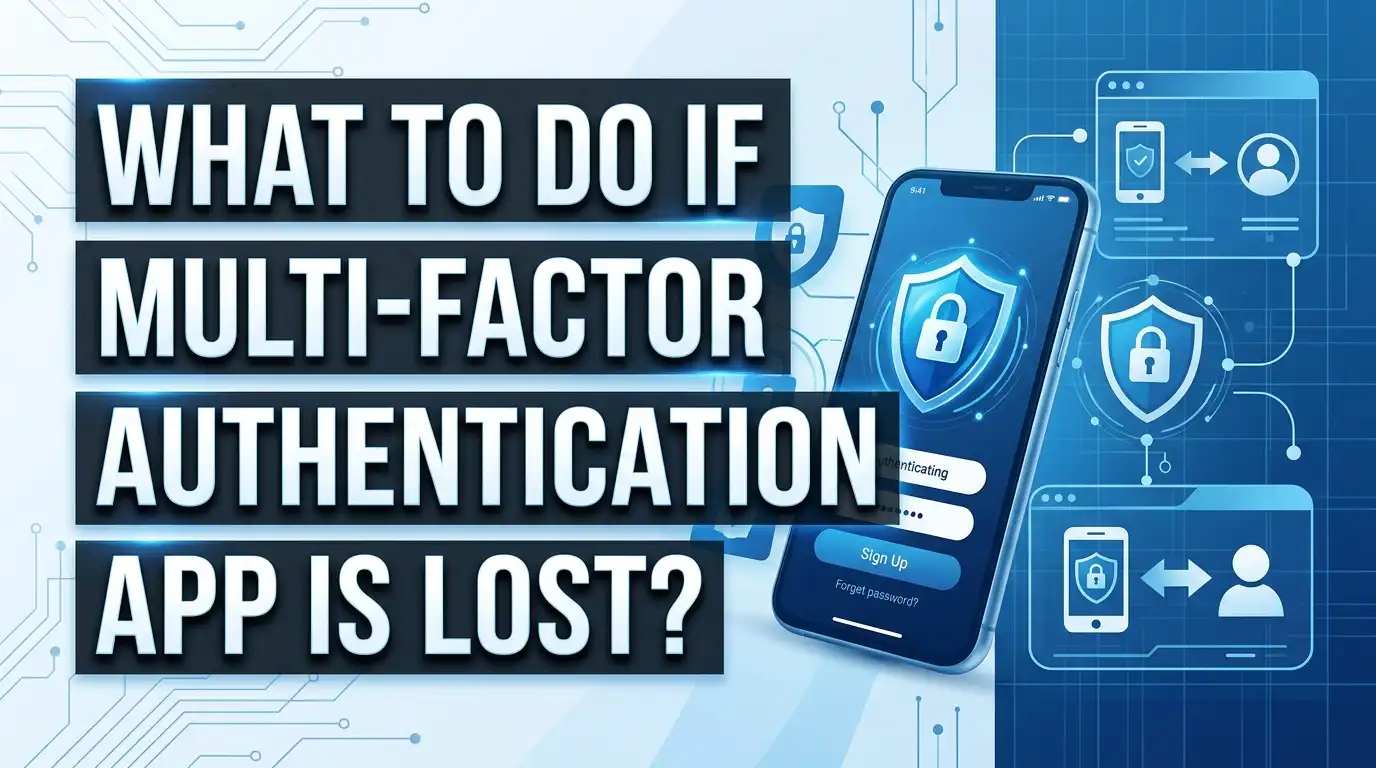
What to Do If Your Multi-Factor Authentication App Is Lost?
You just picked up a new phone or realized your old one is gone. Then it hits you. Your authenticator app with all your two-factor codes is on that device. Every login attempt now shows a screen asking for a code you cannot generate. Panic sets in.
This is more common than you think. Millions of people lose access to their MFA apps every year due to lost phones, broken devices, factory resets, or simple upgrades gone wrong. The very tool designed to protect your accounts can lock you out completely.
The good news? You are not permanently locked out. There are clear, practical steps you can take right now to regain access to your accounts. This guide walks you through every recovery method available, from backup codes to contacting support teams. It also covers how to prevent this situation from ever happening again.
In a Nutshell
- Backup codes are your first line of recovery. Most services provide one-time backup codes during MFA setup. Check your email, downloads folder, or printed documents for these codes before trying anything else.
- Cloud-synced authenticator apps make recovery much easier. Apps like Authy and the updated Google Authenticator now sync codes to the cloud, which means you can restore them on a new device with just your account credentials.
- Account recovery forms exist for every major platform. Google, Microsoft, Apple, Facebook, and other services all have dedicated identity verification processes to help you regain access without your MFA codes.
- Acting quickly matters when your phone is lost or stolen. You should attempt remote wipe options and contact your mobile carrier immediately to prevent unauthorized access to your accounts and authenticator app.
- Prevention is the best strategy. Setting up multiple authentication methods, exporting QR codes, and storing backup codes in a secure location will save you from this problem in the future.
- A hardware security key serves as an excellent backup. Devices like YubiKey provide a physical second factor that does not depend on any phone or app and can be stored safely as an emergency backup.
Understanding Why Losing Your MFA App Is a Serious Problem
Multi-factor authentication adds a second layer of security to your online accounts. It requires something you know (your password) and something you have (a code from your app). When the “something you have” disappears, you lose half of the login equation.
The authenticator app generates time-based one-time passwords (TOTP). These codes change every 30 seconds and are tied to secret keys stored locally on your device. If that device is gone, those secret keys are gone with it.
This situation affects every account linked to that app. We are not talking about one locked account. You could lose access to your email, banking apps, social media, cloud storage, work tools, and more all at once. The average person has MFA enabled on five to ten accounts, according to recent surveys on authentication usage.
The frustration is real because MFA was supposed to protect you. Now it feels like a trap. But the system does have safety nets built in. You just need to know where to find them and how to use them effectively.
Check for Backup Codes You Already Have
Before you try anything complicated, look for backup codes. Most platforms generate a set of one-time recovery codes when you first enable MFA. These are usually presented as a list of eight to ten alphanumeric codes.
Search your email inbox for terms like “backup codes,” “recovery codes,” or “two-factor.” Many people screenshot these codes or receive confirmation emails that reference them. Check your downloads folder, Google Drive, Dropbox, or any note-taking app where you might have saved them.
If you printed them out, check your filing cabinets, desk drawers, or safe. Some security experts recommend storing backup codes in a physical location precisely for situations like this one.
Each backup code typically works only once. Enter one on the login screen where the platform asks for your MFA code. Most services have a link that says “Try another way” or “Use a backup code” on the verification page. Click that link and enter your code.
If you find your backup codes, use one immediately to log in. Then go straight to your security settings and reconfigure MFA with your new device or app. Generate a fresh set of backup codes and store them safely this time.
Use Cloud Sync Features in Your Authenticator App
Some authenticator apps offer cloud backup and sync features. This is the easiest recovery path if your app supports it.
Authy stores encrypted backups of your tokens in the cloud by default. If you install Authy on a new device and log in with your phone number and backup password, all your codes will reappear. This is one of the biggest advantages of using Authy over other options.
Google Authenticator added cloud syncing in 2023. If you were signed into your Google account within the app, your codes may already be backed up. Install Google Authenticator on your new device, sign in with the same Google account, and check if your tokens restore automatically.
Microsoft Authenticator also supports cloud backup. For iOS users, it backs up to iCloud. For Android users, it uses your Microsoft account. Go to the app settings on your new device and look for the recovery or restore option.
If you never enabled cloud sync, this method will not work. But it is worth checking before you move on to more involved recovery steps. Many users enabled these features without realizing it during initial app setup.
Recover Access to Your Google Account
Google has one of the most thorough account recovery processes available. If you are locked out of your Google account due to a lost authenticator app, visit the Google Account Recovery page at accounts.google.com/signin/recovery.
Google will try several verification methods. It may send a prompt to another device where you are still signed in. It may send a code to your recovery phone number or recovery email address. It will ask you security questions or request that you verify your identity by confirming details about your account.
Make sure you are using a device and browser you have used before to access your Google account. Google tracks trusted devices and locations, and using a familiar one increases your chances of successful recovery.
If all automated methods fail, Google provides a form where you can explain your situation. This process can take several days. Be as detailed as possible when describing your account ownership. Include information like when you created the account, what services you use, and recent emails you sent or received.
Once you regain access, immediately go to Security settings. Remove the old authenticator and set up a new one. Also add a recovery phone number and recovery email if you have not already.
Recover Access to Your Microsoft Account
Microsoft offers multiple recovery paths for accounts protected by MFA. Start by visiting account.live.com/acsr to begin the account recovery process.
If you have a backup email or phone number on file, Microsoft will send a verification code there. Enter the code, and you can access your account and reset your MFA settings.
Microsoft Authenticator users who enabled cloud backup can restore accounts on a new phone. Install the app, sign in, and select the option to recover from cloud backup. Your accounts should appear within minutes.
If you do not have access to any recovery options, Microsoft provides an identity verification form. You will need to provide details about your account, including recent email subjects, contacts you have emailed, and other account-specific details. Microsoft typically reviews these requests within 24 to 48 hours.
For work or school accounts, contact your organization’s IT administrator. They have the ability to reset your MFA directly from the admin portal. This is usually the fastest solution for corporate Microsoft 365 accounts.
Recover Access to Social Media Accounts
Each social media platform handles MFA recovery differently. Here is what to do for the most popular ones.
Facebook and Instagram allow you to use backup codes, request a code via SMS if you added a phone number, or submit a photo ID for identity verification. Visit the login page, select “Need help?” and follow the prompts. Facebook’s identity verification process may ask you to upload a government-issued ID and a selfie.
X (formerly Twitter) lets you disable MFA via SMS code if a phone number is on file. You can also use backup codes. If those options fail, contact X support through their help center and explain your situation.
LinkedIn provides backup codes during MFA setup and also allows SMS-based recovery. If you cannot access either method, LinkedIn’s support team can help verify your identity through your professional information and connected email addresses.
Discord is known for being particularly strict about MFA recovery. If you do not have backup codes, recovery is extremely difficult. Discord support may ask for account details, but success is not guaranteed. This makes backup codes absolutely critical for Discord users.
For all platforms, check if you are still logged in on any other device, such as a tablet, laptop, or old phone. If you are, you can often disable and reconfigure MFA from within the active session.
Contact Customer Support as a Last Resort
When self-service recovery options fail, direct contact with customer support becomes necessary. Most major services have dedicated teams for account recovery issues.
Prepare the following information before reaching out: your full name, email address, phone number, account creation date, recent activity details, and any payment information associated with the account. The more proof of ownership you provide, the faster the process moves.
Be patient with response times. High-security platforms like banks and cryptocurrency exchanges may take one to two weeks to process identity verification. They may require notarized documents or video calls to confirm your identity.
Write clear and specific messages to support teams. Explain that you lost access to your authenticator app and cannot generate MFA codes. Mention which recovery methods you have already tried. This helps the support agent skip redundant troubleshooting steps.
Some services, like banking apps, may require you to visit a physical branch with your identification. While this is inconvenient, it is the most secure way for financial institutions to verify your identity and restore access.
Keep records of all your support interactions, including ticket numbers and agent names. If your first request is denied, you can escalate with context from previous conversations.
What to Do If Your Phone Was Stolen
A stolen phone creates urgency beyond just losing your MFA codes. Someone else now has physical access to your authenticator app and potentially your accounts.
Act immediately. Use another device to remotely lock or wipe your phone. For iPhones, use iCloud’s Find My iPhone feature. For Android devices, use Google’s Find My Device tool. This will erase your authenticator app and its stored codes from the stolen device.
Contact your mobile carrier right away. Ask them to suspend your SIM card or phone number. This prevents the thief from receiving SMS verification codes sent to your number.
Change passwords for your most critical accounts first. Start with your primary email, banking apps, and any accounts with financial access. Use a computer or trusted device that you know is secure.
If you are still logged into any accounts on other devices, use those sessions to disable MFA temporarily, change your passwords, and then set up MFA again on a new device or app.
File a police report for the stolen phone. Some account recovery processes, especially for financial institutions, may require a police report number as part of their identity verification procedure.
Set Up MFA Again on a New Device
Once you regain access to your accounts, you need to set up MFA fresh on a new phone or device. This process is straightforward but requires attention to detail.
Log into each account and go to the security or privacy settings. Find the two-factor authentication section. Remove or deactivate the old authenticator app connection. Then add a new authenticator app.
The platform will display a QR code. Open your new authenticator app and scan this code. The app will begin generating time-based codes for that account. Enter the current code to confirm the setup works.
Repeat this process for every account that used your old authenticator app. Make a list of all affected accounts so you do not miss any. Common ones include email providers, social media, banking, cloud storage, work tools, gaming platforms, and cryptocurrency exchanges.
This is also the perfect time to upgrade your setup. Consider switching to an authenticator app with cloud backup if you were using one without it. Also consider enabling multiple authentication methods per account, such as both an authenticator app and SMS as a backup.
Take screenshots of the QR codes or copy the secret setup keys and store them securely. This makes future device transitions much smoother.
Store Backup Codes Safely for the Future
Backup codes are worthless if you cannot find them when you need them. Create a reliable storage system now so you are prepared for any future device loss.
Print your backup codes and store the printed sheet in a safe, fireproof lockbox, or another secure physical location. This is the most reliable method because it does not depend on any digital service being accessible.
Store a digital copy in an encrypted password manager. Tools like Bitwarden, 1Password, and KeePass allow you to save secure notes alongside your passwords. Since you access your password manager with a master password, your backup codes remain available even if your phone is lost.
Do not store backup codes in plain text files on your desktop or in unsecured notes apps. This creates a security risk that defeats the purpose of having MFA in the first place.
Consider sharing a sealed envelope containing your backup codes with a trusted family member. In extreme situations where you cannot access anything, having a trusted person who can read you a backup code over the phone could save you hours or days of waiting for account recovery.
Review and refresh your backup codes every six months. Some platforms let you regenerate new codes, which invalidates old ones. Make this part of a regular security checkup routine.
Use Multiple Authentication Methods
Relying on a single MFA method creates a single point of failure. The smartest approach is to enable multiple authentication methods on every account that allows it.
Most platforms let you add several second-factor options. You can typically enable an authenticator app, SMS codes, email codes, hardware security keys, and biometric options all on the same account. If one method becomes unavailable, you simply use another.
Hardware security keys like YubiKey or Google Titan provide a physical backup that never runs out of battery and does not depend on a phone. Store one on your keychain for daily use and keep a second one in a safe as an emergency backup. Many platforms, including Google, Microsoft, and GitHub, support hardware keys.
SMS-based codes are less secure than authenticator apps because of SIM-swapping attacks. However, having SMS as a fallback method is better than having no backup at all. The risk of SIM-swapping is lower than the risk of being permanently locked out of your accounts.
Some platforms also support passkeys, which are cryptographic credentials stored on your device or in a password manager. Passkeys offer strong security and can serve as another backup authentication method alongside your authenticator app.
Create an MFA Recovery Plan
Treat your MFA setup like any other important part of your digital life. A written recovery plan ensures you know exactly what to do if you lose access again.
Start by creating a document that lists every account protected by MFA. For each account, note which authenticator app you use, whether backup codes exist and where they are stored, and what alternative recovery methods are available.
Keep this document updated. Every time you enable MFA on a new account or change your authenticator app, update the list. Store it in your password manager or in a physical notebook kept in a secure location.
Test your recovery process annually. Try logging into a low-risk account using a backup code to confirm the codes still work. Check that your recovery email addresses and phone numbers are current. Verify that cloud sync is functioning in your authenticator app.
Share the basics of your recovery plan with a trusted person. They do not need your passwords or codes. But they should know where your backup codes are stored and which platforms to contact if you are unable to do so yourself, such as during a medical emergency.
A recovery plan takes about 30 minutes to create and can save you days of stress and lost access in the future.
Avoid Common Mistakes During MFA Setup
Many people make avoidable errors when setting up MFA that make future recovery harder. Being aware of these mistakes helps you build a more resilient security setup.
The biggest mistake is skipping the backup codes. When a platform shows you recovery codes during setup, do not click past them. Copy them immediately and store them safely. This step takes 60 seconds and can save you from a major headache later.
Another common error is using only one device for all MFA codes. If that single device breaks, gets lost, or is stolen, you lose access to everything at once. Spread your authentication across multiple methods and devices.
Some users forget to update their MFA settings after getting a new phone. They transfer everything else but leave their authenticator app behind. Before you factory reset or trade in an old phone, transfer your authenticator accounts to your new device first or ensure cloud sync is active.
Avoid linking MFA solely to a phone number that could change. If you switch carriers or numbers, SMS-based recovery codes will go to the wrong number. Always have at least one recovery method that does not depend on your phone number.
Finally, do not assume your employer or IT department will handle MFA recovery for personal accounts. Work accounts and personal accounts are separate systems. Take responsibility for both.
Frequently Asked Questions
Can I recover my authenticator app codes without my old phone?
Yes, but it depends on your app. If you used an app with cloud sync like Authy or the updated Google Authenticator, you can restore codes on a new device by logging into the same account. If your app did not have cloud sync, you will need to use backup codes or go through each platform’s account recovery process individually. The codes themselves cannot be retrieved from a device you no longer possess unless they were backed up to the cloud.
What happens if I never saved my backup codes?
You will need to contact each service’s customer support team directly. Most platforms have an identity verification process for users who lose all MFA access. This typically involves confirming personal details, providing government-issued ID, or answering security questions. The process varies by platform and can take anywhere from a few hours to several weeks depending on the service.
Is SMS verification a safe backup for my authenticator app?
SMS verification is less secure than an authenticator app because of vulnerabilities like SIM-swapping. However, it is still a useful backup method. The risk of being permanently locked out of your accounts is generally greater than the risk of a SIM-swap attack for most users. Use SMS as a secondary backup rather than your primary MFA method for the best balance of security and accessibility.
How do I transfer my authenticator app to a new phone?
Most authenticator apps now offer a transfer or export feature. In Google Authenticator, go to Settings and select “Transfer accounts” then “Export accounts.” This generates a QR code that your new phone can scan. Microsoft Authenticator uses cloud backup for transfer. Always complete the transfer before wiping or selling your old phone. If you already lost the old phone, you will need to set up each account’s MFA from scratch.
Can someone access my accounts if they find my lost phone?
If your phone has a lock screen with a strong passcode or biometric lock, the risk is lower. However, if the phone is unlocked or the lock is bypassed, anyone can open the authenticator app and view current codes. Remotely wipe your phone as soon as possible through Find My iPhone or Find My Device. Also change passwords for critical accounts from another device immediately to reduce the window of exposure.
How often should I update my backup codes?
Review your backup codes every six months as part of a regular security checkup. Some platforms automatically invalidate old codes when you generate new ones, so make sure you replace stored copies with the new set. If you use a backup code to log in, generate a fresh set immediately afterward since that code is now used and will not work again.

Hi, I’m Simmy — the creator and writer behind ScaleMyPic.com. I’m a tech enthusiast who loves breaking down complex products into simple, honest reviews and guides. My goal? To help you make smarter tech decisions without the confusion. Got a question? Feel free to reach out!