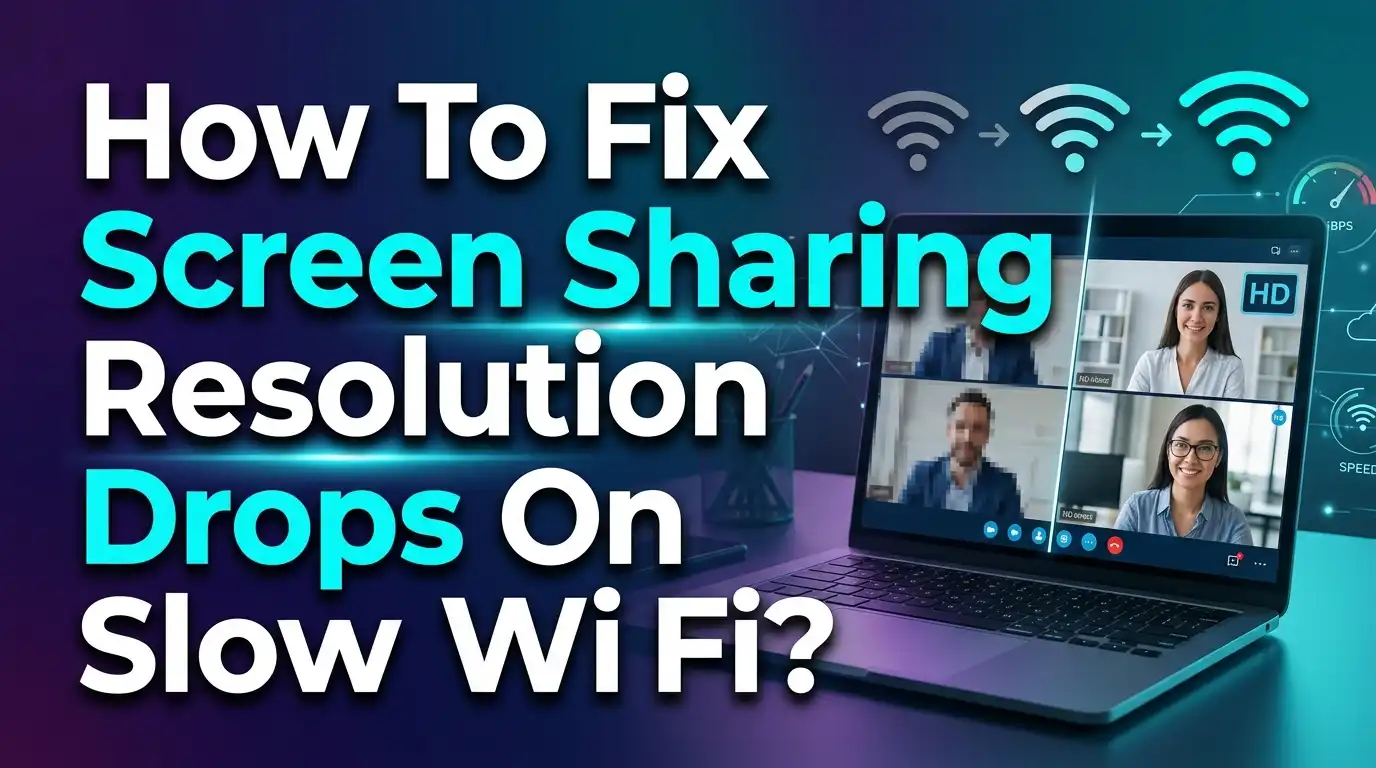
How To Fix Screen Sharing Resolution Drops On Slow Wi-Fi?
You are in the middle of an important presentation. Your screen share looks sharp and clear. Then suddenly, the resolution drops. Text becomes blurry. Images turn into pixel blocks. Your audience squints at their screens. Sound familiar?
Screen sharing resolution drops on slow Wi-Fi are one of the most common frustrations for remote workers, students, and business professionals. The problem is simple. Your Wi-Fi connection cannot keep up with the data your screen share needs.
The good news? You do not need to be a tech expert to fix this. Most resolution drops come from a handful of predictable causes. A crowded Wi-Fi channel, too many background apps, wrong router settings, or a poorly placed device can all trigger the issue. Each of these problems has a clear, practical fix.
This guide walks you through 15 actionable solutions to stop resolution drops during screen sharing. You will learn how to optimize your Wi-Fi, adjust your app settings, and make smart hardware choices that keep your shared screen looking crisp.
Key Takeaways
- Switch to the 5GHz Wi-Fi band instead of 2.4GHz for faster speeds and less interference during screen sharing sessions. The 5GHz band offers significantly higher throughput, which directly prevents resolution drops.
- Close all unnecessary apps and browser tabs before starting a screen share. Background programs consume both bandwidth and CPU resources, leaving less power for your video conferencing tool to maintain high resolution.
- Lower your display resolution to 1080p before sharing your screen. Sharing a 4K or 1440p display forces the app to transmit far more data, and on slow Wi-Fi, the platform will aggressively downscale the image quality.
- Use Quality of Service (QoS) settings on your router to prioritize video conferencing traffic. This ensures your screen share gets bandwidth priority over other devices and activities on your network.
- Limit the frame rate of your screen share in your app’s advanced settings. Reducing from 30fps to 10fps on static content like slides or documents dramatically lowers bandwidth use without a noticeable quality loss.
- Consider a wired Ethernet connection as the most reliable fix. A direct cable connection eliminates Wi-Fi interference entirely and provides consistent bandwidth for smooth, high resolution screen sharing.
Why Does Screen Sharing Resolution Drop On Slow Wi-Fi
Screen sharing works by capturing your display and encoding it as a video stream. Your device sends this stream over your internet connection to other participants. The process demands a steady flow of upload bandwidth.
When your Wi-Fi slows down, the video conferencing app detects the reduced available bandwidth. It then automatically lowers the resolution of the shared content to prevent freezing or disconnection. This is called adaptive bitrate scaling. The app sacrifices image quality to maintain a continuous connection.
Microsoft Teams requires at least 1.5 Mbps of upload bandwidth for screen sharing at acceptable quality. Zoom recommends similar speeds. For HD screen sharing at 1080p with 30 frames per second, you may need 2 to 3 Mbps of steady upload speed. If your Wi-Fi cannot provide this consistently, resolution drops will happen.
Several factors cause Wi-Fi to slow down. Signal interference from walls, furniture, and other electronics reduces your connection speed. Network congestion from too many connected devices splits available bandwidth. Distance from the router weakens the signal. Even microwave ovens and Bluetooth devices can disrupt the 2.4GHz frequency band that many routers use by default.
Check Your Current Internet Speed And Latency
Before you try any fixes, you need to know your actual connection speed. Many people assume their internet is fast because they pay for a high speed plan. Your actual Wi-Fi speed is often much lower than the speed your internet service provider advertises.
Run a speed test from the device you use for screen sharing. Visit a free speed test site and check both your download speed and upload speed. Upload speed matters most for screen sharing because you are sending data out. Write down the results.
Next, check your latency and packet loss. Latency measures the delay between your device and the server. Packet loss measures how much data gets lost during transmission. A latency above 200 milliseconds causes noticeable lag. Any packet loss above 1% creates visible quality problems in screen sharing.
You can test latency on Windows by opening Command Prompt and typing a ping command to a known server. On Mac, open Terminal and do the same. Look for consistent response times below 50 milliseconds. If your results show high latency, heavy packet loss, or upload speeds below 1.5 Mbps, you have found the root cause of your resolution drops.
Run these tests at the same time of day you usually share your screen. Network conditions change throughout the day. Testing during your actual usage window gives you the most accurate picture of what your connection can handle.
Switch From The 2.4GHz Band To The 5GHz Band
Most modern routers broadcast on two frequency bands: 2.4GHz and 5GHz. If your device connects to the 2.4GHz band, switching to 5GHz can make a significant difference in screen sharing quality.
The 2.4GHz band has a longer range but delivers slower speeds. It also faces heavy interference because many household devices use this same frequency. Cordless phones, baby monitors, Bluetooth speakers, and even microwave ovens all broadcast on or near 2.4GHz. This crowded environment causes signal degradation and speed drops.
The 5GHz band offers much faster data transfer speeds and far less interference from other devices. It supports higher throughput, which is exactly what screen sharing needs. The tradeoff is shorter range. The 5GHz signal does not pass through walls and obstacles as well as 2.4GHz.
To switch bands, open your device’s Wi-Fi settings. If your router broadcasts separate network names for each band, select the one labeled 5GHz. If your router uses a single network name for both bands, you may need to log into your router’s admin panel and either separate the bands or force your device to prefer 5GHz.
Position yourself closer to the router when using 5GHz. Since the range is shorter, staying within the same room or one room away from your router will give you the best results. This single change often fixes resolution drops for users who were unknowingly connected to the slower 2.4GHz band.
Close Background Apps And Reduce Network Load
Every app running on your device competes for both processing power and network bandwidth. When you share your screen while a dozen browser tabs, cloud sync services, and software updaters run in the background, your system struggles to maintain quality.
Cloud storage apps like Google Drive, Dropbox, and OneDrive constantly sync files in the background. These uploads and downloads eat into your available bandwidth without you noticing. Pause or quit these services before starting a screen share session.
Check your browser tabs as well. Websites with auto playing videos, live feeds, or heavy JavaScript consume bandwidth and CPU cycles. Close every tab you do not need. Keep only the content you plan to share open on your screen.
On Windows, open Task Manager to see which processes use the most network bandwidth. On Mac, use Activity Monitor. Sort by network usage and close any process that is consuming significant bandwidth. You may be surprised by how much data some background services use.
Also consider other devices on your network. If someone in your household is streaming 4K video on Netflix while another person downloads a large game update, your available bandwidth shrinks fast. Ask others to pause heavy downloads during your important screen sharing sessions. Even putting other devices in airplane mode temporarily can free up enough bandwidth to prevent resolution drops.
Lower Your Display Resolution Before Sharing
This is one of the most effective and overlooked fixes. When you share your screen at 4K resolution (3840×2160) or even 1440p (2560×1440), your device must capture, encode, and transmit a massive amount of pixel data. On slow Wi-Fi, this is a recipe for resolution drops.
Reducing your display resolution to 1920×1080 (1080p) before sharing cuts the data load dramatically. A 4K screen has four times the pixels of a 1080p screen. That means your device sends roughly four times less data after the switch. Your video conferencing app can maintain a clearer, more stable image at the lower resolution.
On Windows, right click your desktop, select Display Settings, and change the resolution to 1920×1080. On Mac, go to System Settings, click Displays, and select a lower resolution. Make this change before you start the meeting, not during it.
Many users report that this fix alone solves their blurry screen share problem. Microsoft Community forums are filled with Teams users who discovered that sharing a 4K display caused their text to become unreadable for other participants. Dropping to 1080p made the shared content crisp and legible on the receiving end.
After your meeting, you can switch your resolution back to its original setting. This small inconvenience is worth the smooth, professional screen sharing experience it provides.
Limit The Frame Rate In Your Screen Sharing App
Most video conferencing apps share your screen at 15 to 30 frames per second by default. This frame rate works well for smooth motion but requires significant bandwidth. If you are sharing static content like slides, documents, or spreadsheets, you do not need a high frame rate.
In Zoom, go to Settings, then Share Screen, then click Advanced at the bottom. You will find an option to limit your screen share to a specific number of frames per second. Setting this to 10 fps or even lower dramatically reduces bandwidth usage. Your slides and documents will still look perfectly sharp because they are not moving.
This approach works because the app captures and transmits fewer frames each second. Each frame can receive more data and higher quality encoding instead of spreading the bandwidth thin across many frames. The result is a sharper image at a lower data rate.
For Microsoft Teams, you can check your current frame rate during a meeting. Go to the More menu, select Settings, then Call Health. Scroll to the Screen Sharing section to see your active frame rate and resolution. Teams automatically adjusts frame rate based on content type, but reducing your upload demands through other methods in this guide helps Teams maintain higher quality.
Only increase the frame rate when sharing video content or live demonstrations that require smooth motion. For everything else, a lower frame rate saves bandwidth and keeps your resolution stable.
Enable Quality Of Service (QoS) On Your Router
Quality of Service is a router feature that lets you prioritize certain types of network traffic over others. When QoS is enabled and configured for video conferencing, your router gives screen sharing data priority over less important traffic like file downloads or social media browsing.
Without QoS, all network traffic competes equally for bandwidth. A large file download on another device can starve your screen share of the bandwidth it needs. With QoS enabled, your router ensures that video conferencing packets go first, even during heavy network usage.
To set up QoS, log into your router’s admin panel. This is usually done by typing your router’s IP address (often 192.168.0.1 or 192.168.1.1) into a web browser. Look for a QoS or Traffic Management section. Many modern routers offer application based QoS where you can select video conferencing or real time communication as a high priority category.
Microsoft recommends specific port ranges and QoS markings for Teams traffic. Audio uses ports 50000 to 50019, video uses ports 50020 to 50039, and screen sharing uses ports 50040 to 50059. If your router supports port based QoS rules, you can configure these ranges for priority treatment.
Even a basic QoS setup that prioritizes your computer’s IP address over other devices can make a noticeable improvement. This fix is especially valuable in households or offices with multiple users sharing the same internet connection.
Move Closer To Your Router Or Reposition It
Wi-Fi signal strength drops significantly with distance and obstacles. Every wall, door, bookshelf, and piece of furniture between your device and the router weakens the signal. A weak signal means slower speeds and more packet loss, both of which cause resolution drops during screen sharing.
The ideal distance between your device and router is less than 15 meters (50 feet) with minimal obstacles in between. If you share your screen from a room far from the router, consider moving your workspace closer. Even shifting to the next room can make a measurable difference.
Router placement also matters. Place your router in a central, elevated location in your home or office. Avoid putting it inside cabinets, behind televisions, or near large metal objects. These placements block and reflect the Wi-Fi signal. A router sitting on a shelf at head height in an open area broadcasts the strongest signal.
Keep your router away from devices that cause interference. Microwaves, cordless phones, baby monitors, and Bluetooth devices all operate on frequencies that can disrupt Wi-Fi. Moving the router even a few feet away from these devices can reduce interference and improve your connection stability.
If moving closer to the router is not practical, consider a Wi-Fi range extender or mesh network system. These devices extend your Wi-Fi coverage area and provide stronger signals in rooms that are far from the main router. A mesh system in particular maintains consistent speeds across a larger area.
Use A Wired Ethernet Connection When Possible
The single most reliable fix for screen sharing resolution drops is to bypass Wi-Fi entirely. A wired Ethernet connection delivers consistent speeds without the interference, congestion, and signal loss that plague wireless connections.
Connect your computer directly to your router using an Ethernet cable. Most laptops and desktops have an Ethernet port. If your laptop lacks one, a small USB to Ethernet adapter works perfectly. Plug in the cable, and your device will automatically prefer the wired connection over Wi-Fi.
Wired connections provide stable, low latency data transfer with virtually zero packet loss. There is no signal degradation from walls. There is no interference from other wireless devices. The bandwidth you get is consistent and predictable. This makes Ethernet ideal for screen sharing, video calls, and any real time communication.
If running a cable from your router to your workspace is not practical, look into powerline adapters. These devices use your home’s electrical wiring to carry network data from one room to another. You plug one adapter into an outlet near your router and connect it via Ethernet cable. You plug the second adapter into an outlet near your workspace and connect your computer. The result is a wired connection without running cables through hallways.
Even if you cannot use Ethernet for every meeting, use it for your most important presentations and calls. Knowing you have a stable connection removes the stress of worrying about resolution drops during critical moments.
Disconnect Other Devices From Your Network
Every device connected to your Wi-Fi network consumes a share of the available bandwidth. Smartphones, tablets, smart TVs, gaming consoles, smart home devices, and other computers all compete for the same pool of internet speed. The more devices connected, the less bandwidth each one gets.
Before an important screen sharing session, disconnect or turn off devices you are not using. Smart TVs streaming content in the background are particularly heavy bandwidth consumers. A single 4K Netflix stream uses about 25 Mbps of download bandwidth. That same bandwidth could support multiple high quality screen sharing sessions.
Smart home devices like security cameras, video doorbells, and streaming speakers also consume bandwidth continuously. While each device uses a small amount, the combined load from 10 or 15 smart devices adds up and reduces the bandwidth available for your screen share.
You can check how many devices are connected to your network by logging into your router’s admin panel. Most routers show a list of connected devices. Identify any device that does not need to be online during your meeting and disconnect it.
Some routers allow you to create a guest network and move non essential devices to it. This separates your screen sharing traffic from the rest of your household or office devices. The main network stays clear for your video conferencing needs while other devices operate on the guest network without competing for the same channel.
Update Your Router Firmware And Network Drivers
Outdated firmware on your router and outdated network drivers on your computer can cause performance issues that lead to resolution drops. Manufacturers regularly release updates that fix bugs, improve speed, and enhance wireless stability.
To update your router firmware, log into the admin panel. Look for a section labeled Firmware Update, Router Update, or System. Many modern routers can check for updates and install them automatically. Apply any available updates and restart your router after the installation completes.
On your computer, update your Wi-Fi adapter drivers. On Windows, open Device Manager, expand Network Adapters, right click your Wi-Fi adapter, and select Update Driver. Choose the option to search automatically for updated driver software. On Mac, network driver updates are included in macOS system updates, so keep your operating system current.
Also update your video conferencing application. Zoom, Microsoft Teams, Google Meet, and other platforms regularly release updates that improve screen sharing performance and bandwidth efficiency. An outdated app may use older, less efficient encoding methods that require more bandwidth for the same quality level.
Keeping all three components updated (router firmware, network drivers, and conferencing app) ensures you benefit from the latest performance improvements. This maintenance takes just a few minutes but can prevent many screen sharing issues before they start.
Adjust Your Video Conferencing App Settings
Each video conferencing platform offers settings that let you optimize screen sharing for slower connections. Taking a few minutes to configure these settings can prevent resolution drops before they happen.
In Zoom, go to Settings, then Video. Enable the option for HD video only if your connection supports it. Under the Bandwidth section in the Zoom web portal (admin settings), you can set maximum bandwidth limits for screen sharing. Lowering the maximum send rate prevents Zoom from attempting to transmit more data than your connection can handle.
In Microsoft Teams, the app automatically adjusts quality based on available bandwidth. However, you can help by turning off your camera while screen sharing. Disabling your video feed frees up significant upload bandwidth that Teams can redirect to your screen share. This often prevents resolution drops entirely on borderline connections.
Google Meet also adjusts quality automatically. You can manually set your send resolution to a lower value in Settings under Video. If you are sharing static content, this reduction will not affect the clarity of text and images for your audience.
Across all platforms, consider sharing a specific window instead of your entire screen. Sharing a single application window transmits less data than sharing your full desktop. The app only needs to encode the content within that window, reducing the bandwidth demand. This is a simple change that makes a real difference on slow connections.
Use TCP Connection Mode For Screen Sharing In Zoom
Zoom offers a specific setting that can help users with unstable or slow Wi-Fi connections. The TCP connection mode for screen sharing changes how data packets are transmitted, and it can resolve issues where shared screens appear blank, grey, or heavily degraded.
By default, Zoom uses UDP (User Datagram Protocol) for screen sharing. UDP is faster because it sends data without waiting for confirmation that each packet arrived. However, on unreliable Wi-Fi connections, UDP packets can get lost, leading to visual artifacts and resolution drops.
TCP (Transmission Control Protocol) breaks data into smaller packets and confirms delivery of each one. If a packet is lost, TCP automatically resends it. This makes the connection more reliable on unstable networks. The tradeoff is slightly higher latency, but for most screen sharing scenarios, this latency is barely noticeable.
To enable TCP mode in Zoom, open Settings, go to Share Screen, and click Advanced. Check the box that says Use TCP connection for screen sharing. This setting is especially useful if participants frequently see black screens or severely degraded quality during your presentations.
This fix works best for sharing static content like presentations, documents, and spreadsheets. For video playback or high motion content, UDP remains the better choice because of its lower latency. Test both modes during a practice session to see which one gives you better results on your specific network.
Optimize Your DNS Settings For Faster Connections
Your DNS (Domain Name System) settings affect how quickly your device connects to video conferencing servers. Slow DNS resolution adds unnecessary delay to your connection, which can contribute to performance problems during screen sharing.
Most devices use the DNS server provided by their internet service provider. These default DNS servers are often slower than public alternatives. Switching to a faster DNS server can reduce connection times and slightly improve overall network responsiveness.
Popular free DNS options include Google Public DNS (8.8.8.8 and 8.8.4.4) and Cloudflare DNS (1.1.1.1 and 1.0.0.1). Cloudflare DNS is often cited as the fastest public DNS service available. Both options are free and easy to configure.
On Windows, go to Network Settings, find your Wi-Fi adapter properties, select Internet Protocol Version 4, and enter your preferred DNS addresses. On Mac, go to System Settings, then Network, select your Wi-Fi connection, click Details, and enter the DNS servers under the DNS tab.
While DNS optimization alone will not solve major bandwidth problems, it removes one source of delay from the connection chain. Combined with the other fixes in this guide, faster DNS contributes to a smoother overall screen sharing experience. Every small improvement adds up when you are working with limited bandwidth.
Consider Upgrading Your Router Or Internet Plan
Sometimes the hardware or internet plan itself is the bottleneck. Older routers use outdated Wi-Fi standards that cannot deliver the speeds modern screen sharing requires. If your router is more than five years old, it may not support Wi-Fi 5 (802.11ac) or Wi-Fi 6 (802.11ax), which offer significantly better performance.
Wi-Fi 6 routers handle multiple connected devices much more efficiently than older models. They use a technology called OFDMA (Orthogonal Frequency Division Multiple Access) that serves multiple devices at once instead of one at a time. This means less congestion and more consistent speeds for screen sharing.
Check your internet plan as well. If you pay for a plan with upload speeds below 5 Mbps, you will struggle with screen sharing quality during peak usage. Contact your internet service provider and ask about plans with higher upload speeds. Many providers offer tiers that double or triple upload bandwidth for a modest price increase.
Before upgrading, run speed tests at different times of day to confirm your current plan’s actual performance. Sometimes the plan is adequate, but the router or Wi-Fi setup is the weak link. Fix the free solutions first (repositioning router, switching bands, closing background apps) before spending money on upgrades. In many cases, the tips earlier in this guide will solve the problem without any additional cost.
Share Optimized Content To Reduce Bandwidth Demand
The content you share affects how much bandwidth the screen share consumes. Large, complex visual content requires more data to transmit than simple, clean layouts. Preparing your content for screen sharing can reduce bandwidth demand and prevent resolution drops.
Use dark backgrounds with light text in presentations. High contrast content compresses more efficiently than images with many colors and gradients. Avoid animated transitions and slide effects that create movement, as these force the encoder to transmit more frame data.
Reduce the file size of images in your presentations before the meeting. Large, high resolution photos embedded in slides force the screen share to transmit more data. Resize images to fit the slide dimensions rather than embedding full resolution photos that get scaled down visually but still transmit at full size.
If you need to share a video during your presentation, consider sending participants a direct link to the video instead of playing it through screen share. Screen sharing video content is one of the heaviest bandwidth tasks you can perform. Letting participants stream the video directly on their own devices produces better quality for everyone and removes the strain from your upload bandwidth.
For document sharing, use viewer mode or read only links when possible. Sharing a Google Docs link or a PDF file directly is often more effective than screen sharing the document. Participants see the content at full resolution on their own screens, and your bandwidth stays free for the parts of the meeting that truly need screen sharing.
Frequently Asked Questions
How much upload speed do I need for smooth screen sharing?
You need at least 1.5 Mbps of consistent upload speed for standard screen sharing on platforms like Zoom and Microsoft Teams. For HD screen sharing at 1080p with 30 frames per second, aim for 2 to 3 Mbps. Keep in mind that your actual Wi-Fi speed may be lower than your plan’s advertised speed. Run a speed test from the device you use for meetings to check your real upload speed. If other devices share your connection, you need additional bandwidth to compensate for their usage.
Why does my screen share look fine on my end but blurry for others?
Your device displays your screen at its full native resolution. The blur happens during transmission. Your video conferencing app compresses and encodes the screen capture before sending it over the internet. If your upload bandwidth is low, the app applies aggressive compression that reduces quality for viewers. You may not see this on your end because your screen is not affected. Ask a participant to take a screenshot of what they see so you can compare the quality difference.
Does turning off my camera help screen sharing quality?
Yes. Turning off your camera frees up upload bandwidth that the app can redirect to screen sharing. Your camera feed typically uses 1 to 2 Mbps of upload bandwidth. On slow Wi-Fi, this is bandwidth your screen share desperately needs. If you are giving a presentation, turn off your camera when you begin sharing your screen. Your audience will see your shared content more clearly, and you can turn the camera back on after you stop sharing.
Can a Wi-Fi extender fix screen sharing resolution drops?
A Wi-Fi extender can help if your primary issue is distance from the router or weak signal strength. Extenders rebroadcast the Wi-Fi signal to reach areas of your home or office that get poor coverage. However, extenders typically cut the available speed in half because they use one channel to receive and another to rebroadcast. A mesh network system is a better alternative because it maintains consistent speeds across the coverage area without the speed penalty that traditional extenders introduce.
Is screen sharing better on Zoom, Teams, or Google Meet for slow connections?
All three platforms use adaptive bitrate technology that adjusts quality based on available bandwidth. Zoom offers the most user accessible controls for optimizing screen sharing on slow connections. Its advanced settings let you limit frame rate, enable TCP mode, and adjust bandwidth caps. Teams handles optimization more automatically with fewer manual controls. Google Meet falls in between. The best platform for slow connections depends on your willingness to adjust settings manually. Test your preferred platform during a practice call to see how it performs on your network.
Should I use a VPN during screen sharing?
A VPN adds overhead to your connection and typically reduces speed by 10% to 30%. If you are already dealing with slow Wi-Fi and resolution drops, using a VPN will make the problem worse. The VPN encrypts and routes all your traffic through an external server, adding latency and reducing available bandwidth. Disconnect your VPN during screen sharing sessions unless your organization requires it for security. If VPN use is mandatory, connect to the nearest server location to minimize the speed impact.

Hi, I’m Simmy — the creator and writer behind ScaleMyPic.com. I’m a tech enthusiast who loves breaking down complex products into simple, honest reviews and guides. My goal? To help you make smarter tech decisions without the confusion. Got a question? Feel free to reach out!