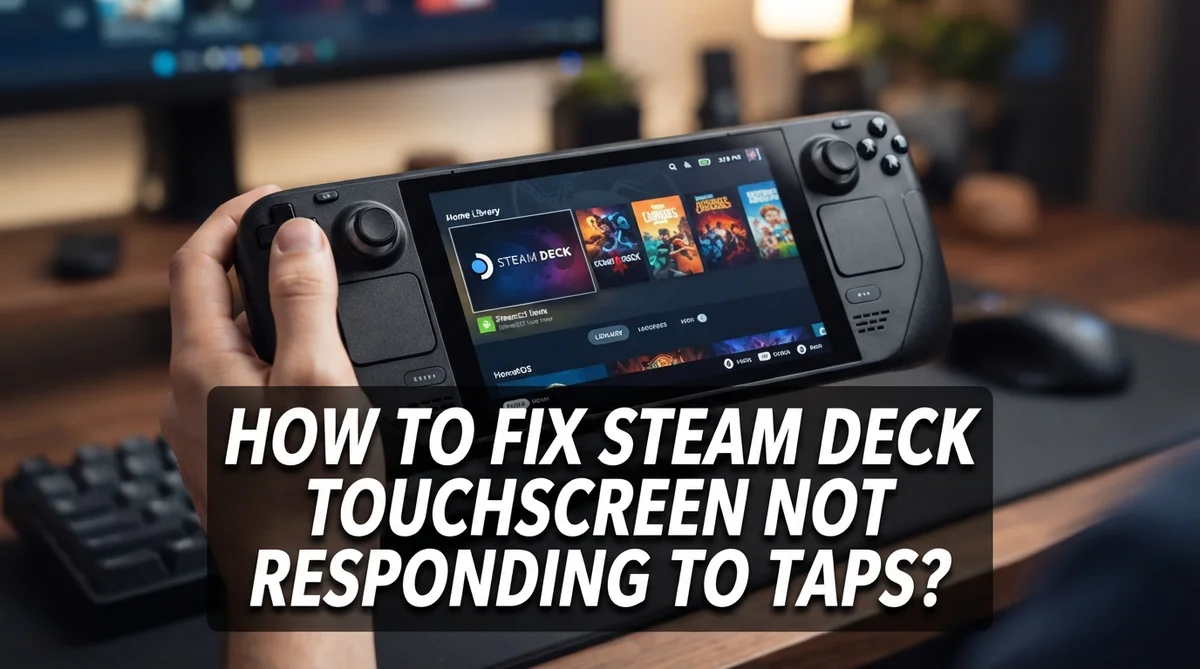
How To Fix Steam Deck Touchscreen Not Responding To Taps?
Your Steam Deck touchscreen suddenly stops responding to taps. It’s frustrating, especially when you’re in the middle of a game or trying to navigate a menu.
The good news is that this is a very common issue. Most cases are caused by firmware bugs or minor software glitches. That means you likely do not need to replace any hardware.
In this guide, you will learn the most effective ways to get your touchscreen working again. We cover everything from a basic restart to using Battery Storage Mode, which is the official reset method recommended by tech support.
By the end, you will know exactly what to do to fix your Steam Deck touchscreen and prevent the issue from happening again.
In a Nutshell
- The touchscreen stops responding usually because of a firmware bug or a minor software glitch, not a hardware failure.
- A simple reboot fixes the issue in many cases, so always try that first before doing anything else.
- Firmware updates are important — Valve has identified these bugs and is actively rolling out fixes, so keeping your device updated matters.
- Battery Storage Mode is the go-to reset method. Power down the device, hold Volume Up and Power together, then navigate to Power and select Battery Storage Mode. Plug in the charger right after.
- A dirty screen can also cause unresponsiveness. Wipe it gently with a microfiber cloth and remove any screen protector before troubleshooting.
- Skipping these steps is a common mistake. Many users jump straight to assuming hardware damage when a quick reset or firmware update would have solved everything.
Why Is Your Steam Deck Touchscreen Not Responding?
Your Steam Deck touchscreen stops responding to taps for a few specific reasons. Understanding these causes helps you fix the problem faster.
Firmware bugs are the most common culprit. Valve has identified touchscreen issues in certain firmware versions. These bugs prevent the screen from registering your touch input even though the hardware works fine. The good news is that Valve actively develops and rolls out fixes for these problems.
Software glitches also cause unresponsiveness. Sometimes the touchscreen driver crashes or freezes during normal use. This is different from a hardware failure because the screen itself is still functional. A simple restart often clears these glitches completely.
Battery and power states can trigger touchscreen problems too. When your device enters certain power modes, the touchscreen driver may not initialize properly. This is why Battery Storage Mode resets work so effectively for many users.
Physical obstructions matter more than you might think. Screen protectors can interfere with touch sensitivity. Dust, fingerprints, or debris on the screen surface can block touch signals from registering. Even a thin layer of dirt reduces responsiveness significantly.
Calibration issues sometimes occur after updates or extended use. The touchscreen loses its proper calibration settings and stops responding accurately to taps. This is a software issue, not a hardware defect.
The key point is this: most touchscreen problems are fixable without professional help or hardware replacement. Your screen is probably working fine. The issue lives in software, firmware, or simple maintenance needs. That’s why troubleshooting steps like reboots, firmware updates, and screen cleaning work so well. Start with these solutions before assuming the worst about your device.
Before You Begin: Quick Checks To Do First
Before you start any advanced troubleshooting, take a few minutes to check the basics. These simple steps often solve the problem without any complicated work.
First, check if your screen is actually dirty. Dust, fingerprints, and oils build up on the touchscreen surface over time. Gently wipe the screen with a soft microfiber cloth. Use light pressure and circular motions. If you have screen cleaner, spray it on the cloth first, not directly on the device.
Next, remove any screen protectors. If you added a protective film or tempered glass to your Steam Deck, take it off right now. Screen protectors can block touch signals and make the device think nothing is touching it. Even thin protectors interfere with responsiveness.
Now perform a standard restart. Press and hold the power button until the device shuts down completely. Wait about 30 seconds, then press power again to turn it back on. This clears temporary software glitches that cause unresponsiveness.
Check your battery level. A very low battery sometimes triggers touchscreen problems. Plug your device into a charger and let it sit for a few minutes before testing the screen again.
Finally, look for any physical damage. Examine the screen edges and corners for cracks or separation from the frame. Check if liquid got inside the device. Physical damage requires different solutions than software issues.
These quick checks take less than five minutes. Most users find their touchscreen works again after completing these steps. If your screen still does not respond after these checks, you are ready to move forward with more advanced fixes.
Fix 1: Restart Your Steam Deck
A standard restart is your first line of defense when your touchscreen stops responding. This simple step clears temporary glitches that prevent the screen from working properly.
Here’s how to restart your Steam Deck correctly. Press and hold the power button on the right side of the device until you see the power menu appear on screen. Wait a few seconds, then select “Shut Down” from the menu options. The device will power off completely.
Once the screen goes dark, wait about 30 seconds before turning it back on. This pause lets the system fully reset its processes. Press the power button again to boot up your Steam Deck normally.
After the device restarts, test your touchscreen immediately. Tap different areas of the screen to see if it responds to your touches. Try swiping, tapping, and pressing in various spots to confirm full functionality has returned.
Why does this work? A restart clears temporary software glitches that cause unresponsiveness. Your Steam Deck’s operating system reloads fresh, and the touchscreen driver reinitializes properly.
If your touchscreen responds normally after restart, you’re done. The problem was just a temporary glitch. However, if the screen still doesn’t respond after a full restart, move on to the next fix.
Keep in mind that a restart takes just a few minutes and solves many common issues. It’s always worth trying before attempting more complex troubleshooting steps. Most users find their touchscreen works fine again after this basic reset.
Fix 2: Update Your Steam Deck Firmware
Firmware updates often fix touchscreen problems on your Steam Deck. The system’s software controls how your touchscreen responds to taps, and outdated firmware can cause glitches.
Check your current firmware version first. Go to Settings, then System, and look for System Software. Write down the version number you see. This helps you confirm whether an update is available.
Connect to WiFi before updating. Your Steam Deck needs a stable internet connection to download and install firmware updates. Make sure you’re in range of your network and the connection is strong.
Plug in your charger. Never update your firmware on battery power alone. Connect your power adapter to ensure the update completes without interruption. A power loss during an update can cause serious problems.
Open Settings and find System Software. Select Check for Updates. The system will search for newer firmware versions available for your device.
Wait for the download to finish. Don’t turn off your Steam Deck or disconnect the charger during this process. The download speed depends on your internet connection, but it usually takes several minutes.
Follow the on screen prompts. Once downloaded, your Steam Deck will ask permission to install the update. Select Yes and let the installation complete. Your device may restart automatically during this process.
Test your touchscreen after the update. Tap the screen gently in several spots to confirm it responds. If your touchscreen still doesn’t work after updating, move on to the next fix.
Most firmware updates roll out automatically, but checking manually ensures you have the latest version installed on your device.
Fix 3: Use Battery Storage Mode To Reset The Touchscreen
Battery Storage Mode performs a deeper reset than a standard restart. This mode drains your battery completely while preserving your system settings and data. It essentially gives your touchscreen hardware a full power cycle.
Here’s how to enter Battery Storage Mode. Power down your Steam Deck completely. Once it’s off, hold down the Volume Up button and the Power button together. Keep holding both buttons until you see a boot menu appear on screen.
Navigate to the Power section using your volume buttons. You’ll see several options displayed. Look for Battery Storage Mode and select it using the power button as your confirm key. Your Steam Deck will now enter this special mode and begin draining its battery.
This process takes several hours to complete. Don’t interrupt it or turn on your device during this time. Let it sit undisturbed until the battery fully drains. This gives your touchscreen controller time to reset completely.
After the battery drains completely, plug your charger in. Leave it connected for at least 30 minutes before powering on. This allows your system to recalibrate properly.
Turn on your Steam Deck normally once it has charged. Test your touchscreen by tapping different areas of the screen. Check if it responds to your touches in games and menus.
Battery Storage Mode works because it performs a hardware level reset. Your touchscreen controller resets without losing any of your games or settings. Many users report this fixes unresponsiveness when other methods fail.
If your touchscreen still doesn’t respond after Battery Storage Mode, you may need professional support.
Fix 4: Clean The Screen And Remove Screen Protectors
Dust and debris on your Steam Deck screen can block touch signals from reaching the sensor underneath. A dirty screen is one of the easiest problems to fix, and it often solves unresponsiveness issues completely.
Start by powering down your Steam Deck completely. Never clean a screen while the device is on. This prevents accidental touches and protects the internal circuitry.
Use a soft microfiber cloth to gently wipe the entire screen surface. Move in circular motions from the center outward. Apply light pressure only. Avoid paper towels or rough materials, as these can scratch the glass and cause permanent damage.
For stubborn marks or fingerprints, slightly dampen the microfiber cloth with distilled water. The cloth should feel damp, not wet. Never spray liquid directly onto the screen. Excess moisture can seep into the device and damage components.
Screen protectors deserve special attention during troubleshooting. Remove any screen protector you have installed. Many users don’t realize that protectors can interfere with touch sensitivity. Even high quality protectors sometimes reduce responsiveness or block signals entirely. After removing the protector, test your touchscreen to see if it responds properly.
Wait at least 15 minutes after cleaning before turning your Steam Deck back on. This allows any residual moisture to evaporate completely.
Once your device powers up, test the touchscreen by tapping different areas of the screen. Check the corners, center, and edges. If your touchscreen now responds normally, the cleaning solved your problem.
If unresponsiveness continues after cleaning and removing protectors, move forward with other troubleshooting steps. Cleaning is a simple first step that eliminates environmental factors before investigating software or hardware issues.
Common Mistakes To Avoid When Troubleshooting The Touchscreen
When troubleshooting your Steam Deck’s touchscreen, avoiding common mistakes saves you time and frustration. Many users make errors that actually delay the fix or make the problem worse.
Don’t skip the firmware update step. This is the first thing you should try. Many touchscreen issues stem from software bugs that Valve has already fixed. Users who jump straight to hardware resets often waste hours when a simple update would solve everything.
Screen protectors cause more problems than you might think. People leave them on while troubleshooting, which blocks the touchscreen from working properly. Remove any screen protector before you start testing. This alone fixes unresponsiveness in many cases.
Avoid interrupting Battery Storage Mode. This reset process requires patience. If you power off your device or unplug it during the procedure, the reset fails and you’re back to square one. Let it complete fully, even if it takes several hours.
Don’t assume the touchscreen is broken immediately. Most cases resolve with basic fixes like rebooting or updating. Jumping to conclusions about hardware failure leads people to seek unnecessary repairs or replacements.
Never update firmware without charging your device. Low battery during an update can corrupt your system software and create new problems. Always plug in your charger before starting any firmware installation.
Resist the urge to apply excessive pressure to the screen. Tapping harder doesn’t help unresponsive touchscreens. It can actually damage the sensor underneath. Use gentle, normal taps when testing.
Don’t overlook simple cleaning. Dust and fingerprints block touch signals. A quick wipe with a microfiber cloth often restores responsiveness before you need advanced fixes.
When To Contact Steam Support For Hardware Issues
Your Steam Deck touchscreen usually responds to basic troubleshooting steps. However, some situations require professional help from Steam Support. Knowing when to reach out saves you time and prevents further damage.
Contact Steam Support if your touchscreen remains unresponsive after completing all standard fixes. These fixes include firmware updates, normal reboots, Battery Storage Mode resets, and screen cleaning. If you’ve tried each step carefully and the touchscreen still doesn’t work, hardware damage might exist.
Physical damage is a clear sign you need support. If you dropped your Steam Deck, spilled liquid on it, or see visible cracks on the screen, contact Steam Support immediately. Don’t attempt additional fixes yourself, as this could worsen the problem.
Persistent software issues also warrant professional assistance. If your touchscreen works inconsistently, responds only to certain areas, or freezes during use after troubleshooting, describe these symptoms to Steam Support. They can access your device logs and identify underlying software problems you cannot fix alone.
Document everything before contacting support. Write down what you’ve already tried, when the problem started, and how the touchscreen behaves. Take photos or videos showing the unresponsive areas. This information helps Steam Support diagnose your issue faster.
Response times vary depending on support volume. Steam Support typically replies within several business days. Provide your Steam Deck serial number and purchase information to speed up the process.
Don’t hesitate to reach out if you feel uncertain about any troubleshooting step. Steam Support exists to help you. Getting professional assistance early often prevents temporary issues from becoming permanent hardware failures.
Final Thoughts
A non-responsive touchscreen on your Steam Deck feels frustrating, but most cases have a straightforward fix.
The issue usually starts with a firmware bug or a minor software glitch. These are not signs of permanent hardware failure. A simple reboot or firmware update solves the problem for many users.
Battery Storage Mode is the most powerful reset tool available. Power down your device, hold Volume Up and the Power button together, then select Battery Storage Mode from the menu. Plug in your charger right after entering this mode.
Keeping your screen clean also plays a bigger role than most people expect. Oils, dust, and residue interfere with touch sensitivity. A clean microfiber cloth removes these barriers quickly.
Screen protectors are a common hidden culprit. Always remove them before running through any troubleshooting steps. Even thin protectors can reduce touch accuracy significantly.
The order of your troubleshooting steps matters. Start with firmware updates, then reboot, then Battery Storage Mode, then screen cleaning. Skipping steps or jumping ahead wastes time and causes confusion.
Physical damage is the only situation where home fixes stop working. Drops, liquid exposure, or cracked screens require professional support from the Steam team directly.
Documenting what you tried helps support staff resolve your issue faster. Keep notes on every step you completed before reaching out.
The good news is that Valve has already identified firmware-related touchscreen bugs and continues rolling out fixes. Staying updated gives you the best protection against future issues.
Your Steam Deck touchscreen is almost always fixable. Stay patient, follow the steps in order, and the solution is usually closer than you think.
Frequently Asked Questions
Why is my Steam Deck touchscreen suddenly not responding?
Your touchscreen stops working for a few common reasons. A firmware bug or software glitch is the most frequent cause. Sometimes the system just needs a restart to fix itself. Battery Storage Mode resets can also resolve this issue quickly.
The good news: most cases don’t require hardware replacement. Your device is usually fine. Start with basic fixes before assuming something is broken.
How do I perform a Battery Storage Mode reset?
This reset is the standard solution that Steam support recommends. Power down your device completely first. Hold the Volume Up button and Power button together until you see the recovery menu.
Navigate to the Power option. Select Battery Storage Mode from the menu. Plug your charger in after entering this mode. Wait a few minutes, then power your device back on normally. Your touchscreen should respond again.
Should I remove my screen protector before troubleshooting?
Yes, absolutely. Screen protectors block touchscreen signals and prevent proper tap detection. Remove it before you try any fixes. Many users forget this step and waste time on other solutions.
After troubleshooting, you can add a new protector if you want. Just make sure it’s designed for gaming devices and won’t interfere with touch sensitivity.
What should I try first if my touchscreen isn’t working?
Start with a normal reboot. Power off your Steam Deck and turn it back on. This fixes most glitches within seconds.
Next, check for firmware updates. Connect to WiFi and go to Settings. Install any available updates. Then try the Battery Storage Mode reset if the reboot didn’t help.
When should I contact Steam support about this issue?
Reach out to support if your touchscreen stays unresponsive after trying all standard fixes. Physical damage also requires professional help. Document what you’ve already attempted before contacting them.

Hi, I’m Simmy — the creator and writer behind ScaleMyPic.com. I’m a tech enthusiast who loves breaking down complex products into simple, honest reviews and guides. My goal? To help you make smarter tech decisions without the confusion. Got a question? Feel free to reach out!