How To Fix Firefox Extended Support Release Extension Verification Failed?
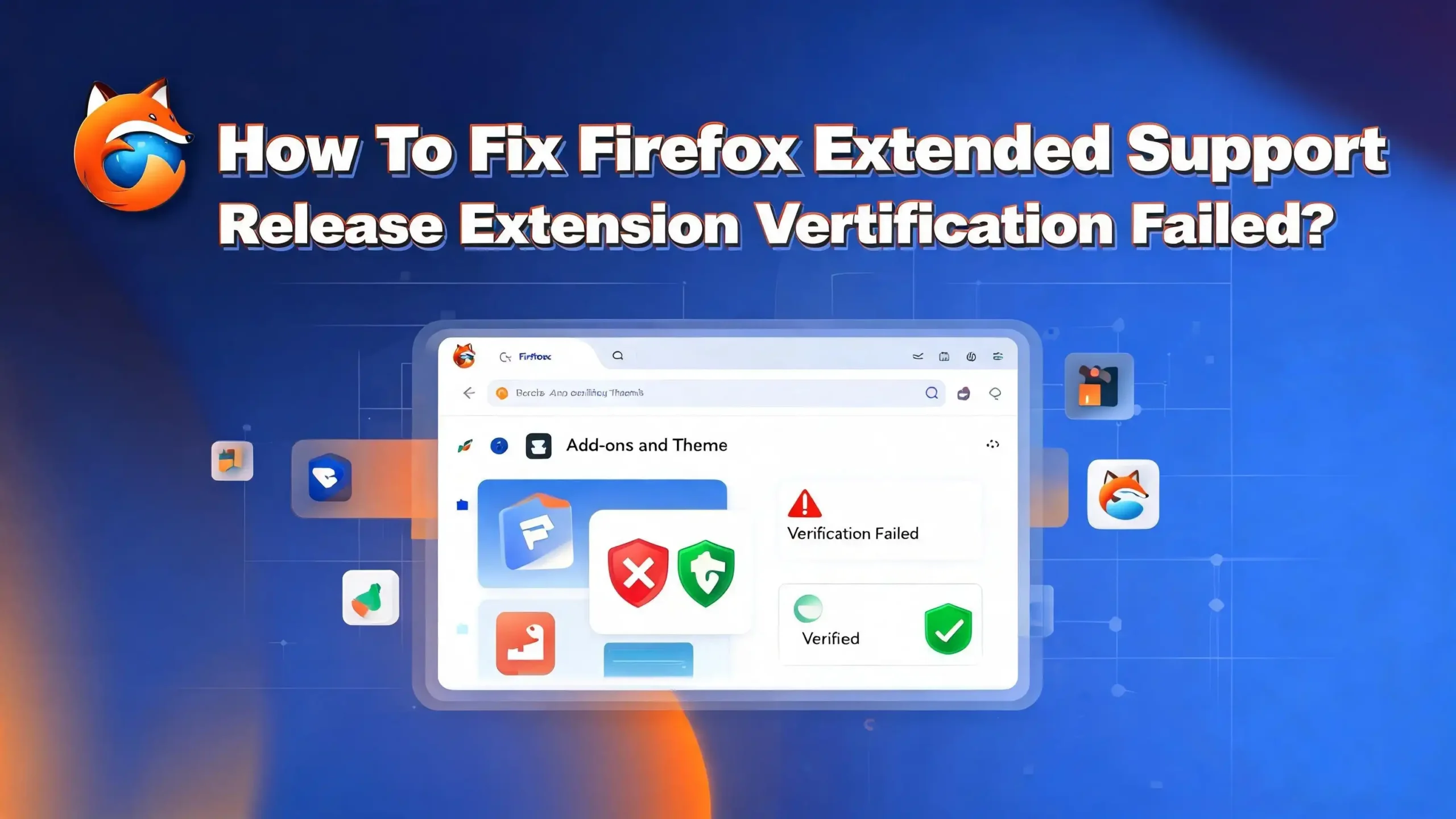
You just opened Firefox ESR and saw something unexpected. All your extensions are disabled. A warning tells you that extension verification has failed, and your trusted add-ons no longer work. This problem can bring your entire workflow to a halt.
Firefox ESR uses digital certificates to verify that every extension has been approved by Mozilla. When these certificates expire or become corrupted, Firefox disables your extensions as a safety measure. This issue has affected millions of Firefox ESR users, most notably during Mozilla’s root certificate expiration in March 2025 and a similar incident in May 2019.
The frustrating part is that your extensions are perfectly safe. They passed Mozilla’s review process. They worked fine yesterday. But now Firefox refuses to load them because of a certificate problem that is completely outside your control. =
This guide covers every known solution for this problem. You will learn what causes the verification failure, how to fix it quickly, and how to prevent it from happening again. Each method includes clear steps you can follow right now. Let us get your extensions working again.
Key Takeaways
- The most common cause of extension verification failure is an expired root or intermediate signing certificate from Mozilla. Firefox ESR versions 115.12 and older are especially vulnerable because the root certificate used to sign add-ons expired on March 14, 2025.
- Updating Firefox ESR to the latest point release is the fastest and most reliable fix. Mozilla released ESR versions with updated certificates that resolve this problem permanently for most users.
- You can disable signature verification in Firefox ESR by setting
xpinstall.signatures.requiredtofalseinabout:config. This is a valid workaround on ESR versions and gives you immediate access to disabled extensions. - Incorrect system clock settings can cause Firefox to reject valid certificates. Always check that your computer’s date and time are accurate before trying more advanced solutions.
- Enterprise administrators can deploy fixes across all machines using Group Policy templates or AutoConfig files. This eliminates the need to fix each computer individually.
- Editing the extensions.json file in your Firefox profile folder can re-enable extensions that were flagged as disabled. This manual approach works when other methods do not.
Understanding the Extension Verification System in Firefox ESR
Firefox uses a digital certificate chain to verify that every installed extension has been reviewed and approved by Mozilla. This system protects users from malicious software that could steal data or compromise their browsers. Every extension listed on the official Mozilla Add-ons store goes through a signing process before it becomes available.
The signing process works like a chain of trust. Mozilla holds a root certificate at the top. This root certificate signs intermediate certificates. The intermediate certificates then sign individual extensions. Firefox checks this entire chain each time it loads an add-on. If any link in the chain breaks, the verification fails.
Firefox ESR is especially vulnerable to certificate expiration issues. The ESR release cycle is slower than regular Firefox. While standard Firefox receives updates every four weeks, ESR only gets major updates roughly once per year. Security patches arrive regularly, but certificate updates sometimes fall between release cycles.
This gap creates a window where ESR users can experience extension verification failures even though regular Firefox users have already received a fix. The March 2025 root certificate expiration was a clear example. Mozilla warned users in advance, but many ESR installations still lost access to their extensions because administrators had not applied the necessary updates.
Understanding this system helps you see why the problem occurs and why certain fixes work. The solutions in this guide either update the certificates, bypass the verification check, or manually re-enable extensions that were incorrectly disabled.
What Causes the Extension Verification Failed Error
Several factors can trigger the extension verification failed error in Firefox ESR. The root cause is almost always related to certificate validity or local system configuration issues. Knowing the exact cause helps you choose the right fix.
The first and most common cause is an expired signing certificate. Mozilla’s root certificate for add-on signing expired on March 14, 2025. Users running Firefox ESR versions older than 115.13 experienced immediate extension failures. Firefox could not validate extensions because the certificate that vouched for them was no longer valid.
The second cause is a corrupted local certificate database. Firefox stores certificate data in a file called cert9.db inside your profile folder. Power outages, disk errors, or incomplete updates can damage this file. When the database is corrupt, Firefox cannot verify any certificate chain properly.
A wrong system clock is the third cause. Certificates contain specific start and end dates. If your computer’s clock shows a date outside the certificate’s validity period, Firefox treats the certificate as expired or not yet valid. This is a simple problem that people often miss.
Network restrictions can also trigger the error. Some corporate firewalls and proxy servers block Firefox from reaching Mozilla’s certificate revocation servers. Without access to these servers, Firefox may fail to complete the verification process.
Finally, running a severely outdated Firefox ESR version makes this error almost certain. Older versions contain certificates that expired long ago. Every version below 115.13 ESR is affected by the March 2025 root certificate expiration.
Update Firefox ESR to the Latest Version
The simplest and most effective fix is updating Firefox ESR. Mozilla releases point updates specifically to address certificate issues. Version 115.13 ESR and later contain the updated root certificate that resolves the March 2025 expiration problem.
To update Firefox ESR on Windows or macOS, click the menu button (three horizontal lines) in the top right corner. Select “Help” and then click “About Firefox.” Firefox will automatically check for updates and download the latest version. Click “Restart to Update Firefox” when the download finishes.
On Linux, the update process depends on your package manager. For Debian and Ubuntu based systems, run sudo apt update followed by sudo apt upgrade firefox-esr in the terminal. For Fedora, use sudo dnf update firefox. If your distribution has not released the latest version yet, you can download Firefox ESR directly from Mozilla’s archive at archive.mozilla.org/pub/firefox/releases/.
If automatic updates are disabled in your environment, you can download the installer manually from the Mozilla website. Choose the ESR version for your operating system and language. Run the installer over your existing Firefox ESR installation. Your profile data, bookmarks, and settings will remain intact.
After updating, restart Firefox and check your extensions by typing about:addons in the address bar. Your previously disabled extensions should now appear as enabled. If they are still disabled, you may need to manually enable them by clicking the toggle switch next to each extension.
Disable Extension Signature Verification Using About Config
Firefox ESR offers a built-in option to disable extension signature verification. This feature is exclusive to ESR, Developer Edition, and Nightly builds. It does not work on the standard release version of Firefox. This makes it one of the easiest fixes available to ESR users.
Open Firefox ESR and type about:config in the address bar. Press Enter. You will see a warning page that says “Proceed with Caution.” Click the “Accept the Risk and Continue” button to access the configuration editor.
In the search bar at the top, type xpinstall.signatures.required. You will see a single preference with a value of true. Click the toggle button on the right side of the row to change the value to false. The row will appear bold to indicate you have modified the default setting.
Restart Firefox ESR completely after making this change. Close all Firefox windows and reopen the browser. Navigate to about:addons and check your extensions. They should now be enabled and functional.
This method tells Firefox to skip the signature verification step when loading extensions. Your extensions will load regardless of their signing status. While this reduces one layer of security, it is a recognized and supported feature in Firefox ESR specifically because enterprise environments sometimes need to run custom or internally developed extensions.
Keep in mind that this setting may reset after a Firefox update. Check this preference after each update to ensure it remains set to false. For a more permanent solution in enterprise environments, consider using Group Policy or AutoConfig files to enforce this setting across all machines.
Fix the Problem by Editing the Extensions JSON File
When Firefox disables your extensions due to verification failure, it records this status in a configuration file. You can manually edit this file to re-enable your extensions. This method works even when other solutions do not.
First, type about:support in the Firefox address bar and press Enter. Look for the “Profile Folder” row and click the “Open Folder” button next to it. This opens your Firefox profile directory in your file manager.
Close Firefox completely before editing any files. Find the file named extensions.json in your profile folder. Make a backup copy of this file before making any changes. Right-click, copy, and paste to create a duplicate.
Open extensions.json in a text editor such as Notepad on Windows, TextEdit on macOS, or any code editor you prefer. Use the Find and Replace function (Ctrl+H on Windows, Cmd+H on macOS). Search for "appDisabled":true and replace all instances with "appDisabled":false. Save the file.
Now reopen Firefox ESR. Navigate to about:addons to verify that your extensions are enabled. They should appear as active and functional. If some extensions still do not work, you may need to reinstall them from the Mozilla Add-ons website.
This method directly changes the disabled flag that Firefox set when verification failed. It does not fix the underlying certificate issue, so Firefox may disable the extensions again during the next verification check. Combine this fix with the xpinstall.signatures.required change for a more lasting solution.
Import the Correct Certificate Manually
You can manually import Mozilla’s updated signing certificate into Firefox. This approach fixes the root cause of the verification failure by providing Firefox with a valid certificate to check extensions against.
Open Firefox ESR and go to Settings (or Preferences on macOS). Click on “Privacy & Security” in the left sidebar. Scroll down to the “Certificates” section and click the “View Certificates” button. The Certificate Manager window will open.
Click on the “Authorities” tab. This tab shows all the certificate authorities that Firefox trusts. Click the “Import” button at the bottom. You need to import Mozilla’s add-ons signing certificate. You can download the current certificate from Mozilla’s official resources.
When the trust dialog appears, check the boxes for “Trust this CA to identify websites” and “Trust this CA to identify email users.” Click OK to complete the import. The certificate should now appear in the list under the Mozilla heading.
Restart Firefox ESR after importing the certificate. Your extensions should begin working if the expired certificate was the only issue. You can verify the import was successful by going back to the Certificate Manager and checking that the new certificate appears with the correct validity dates.
This method is particularly useful for air-gapped systems that cannot connect to the internet to download updates. You can transfer the certificate file via USB drive and import it manually. It is also helpful for organizations that maintain their own internal certificate infrastructure.
Reset the Certificate Database
A corrupted certificate database can cause persistent verification failures. Resetting this database forces Firefox to rebuild it from scratch. This can resolve issues that other fixes cannot address.
First, close Firefox ESR completely. Make sure no Firefox processes are running by checking your task manager. On Windows, press Ctrl+Shift+Esc to open Task Manager and end any firefox.exe processes. On macOS, use Activity Monitor. On Linux, run killall firefox-esr in the terminal.
Navigate to your Firefox profile folder. You can find this by typing about:support in the address bar before closing Firefox and noting the Profile Folder path. Inside the profile folder, look for files named cert9.db and cert_override.txt.
Rename these files instead of deleting them. Change cert9.db to cert9.db.bak and cert_override.txt to cert_override.txt.bak. This preserves your old files in case you need to restore them. Firefox will create new, clean versions of these files when it starts.
Reopen Firefox ESR. The browser will generate fresh certificate databases during startup. This process takes a few seconds. Then check your extensions at about:addons to see if the verification failure is resolved.
If you have custom certificate exceptions that you added manually in the past, you will need to re-add them after this reset. The backup files you created contain your old exceptions. You can reference them if needed. This method effectively gives Firefox a clean slate for certificate handling.
Use AutoConfig Files for Enterprise Deployment
Enterprise environments with many computers need a scalable solution for fixing extension verification failures. AutoConfig files let administrators push configuration changes to every Firefox ESR installation without touching each machine individually.
Create a text file with the following content. The first line must be a comment. This is a Firefox requirement for AutoConfig files:
// First line must be a comment.
pref("xpinstall.signatures.required", false);
Save this file as allow-unsigned-extensions.cfg. Next, create a second text file:
// First line must be a comment.
pref("general.config.filename", "allow-unsigned-extensions.cfg");
pref("general.config.obscure_value", 0);
Save this file as allow-unsigned-extensions.js. Now copy allow-unsigned-extensions.cfg to the Firefox installation directory. On Windows, this is typically C:\Program Files\Mozilla Firefox\. Copy allow-unsigned-extensions.js to the defaults\pref subfolder inside the Firefox installation directory.
After placing both files, restart Firefox ESR on the target machine. The configuration will load automatically and disable extension signature verification. This change persists across Firefox restarts and survives most updates.
For organizations using Group Policy, you can also use Mozilla’s Policy Templates to set the xpinstall.signatures.required preference. Download the policy templates from Mozilla’s GitHub repository and add them to your Group Policy infrastructure. This approach is cleaner for Active Directory environments.
Deploy these files through your existing software distribution system, such as SCCM, PDQ Deploy, or a simple network login script. This ensures every machine receives the fix automatically.
Check and Fix Your Network and Firewall Settings
Network configuration problems can block Firefox from verifying extension certificates. Corporate firewalls, proxy servers, and content filters sometimes interfere with the SSL connections Firefox needs for certificate validation.
Firefox contacts Mozilla’s servers to check certificate revocation lists and perform Online Certificate Status Protocol (OCSP) checks. If your network blocks these connections, Firefox may fail to verify extension signatures. Check with your IT department to confirm that the following domains are accessible from your network: addons.mozilla.org, services.addons.mozilla.org, and ocsp.digicert.com.
If you use a proxy server, make sure Firefox is configured to use it correctly. Go to Settings, scroll to the bottom of the General section, and click “Settings” under Network Settings. Verify that the proxy configuration matches your organization’s requirements. Try switching between “Auto-detect proxy settings” and “Use system proxy settings” to see if either resolves the issue.
You can also test whether OCSP checking is causing the problem. Go to about:config and search for security.OCSP.enabled. The default value is 1. Temporarily set it to 0 to disable OCSP checking. Restart Firefox and check if your extensions work. If they do, the issue is network-related.
Some antivirus programs also intercept HTTPS connections and can interfere with certificate verification. Check your antivirus settings for SSL scanning or HTTPS inspection features. Temporarily disabling this feature can confirm whether it is causing the problem. Add Firefox to the antivirus exclusion list if this resolves the issue.
Create a Fresh Firefox Profile
Sometimes a Firefox profile becomes so corrupted that fixing individual files is not practical. Creating a new profile gives you a completely clean starting point. You can then import your bookmarks and essential data.
Type about:profiles in the Firefox address bar and press Enter. Click the “Create a New Profile” button. The Profile Wizard will open. Click “Next” and give your new profile a name like “Clean Profile.” Click “Finish” to create it.
On the about:profiles page, find your new profile and click “Set as default profile.” Then click “Launch profile in new browser.” A new Firefox window will open with the fresh profile. This profile has default certificates, clean configuration files, and no corrupted data.
Install your extensions fresh from the Mozilla Add-ons website (addons.mozilla.org). Search for each extension you need and click “Add to Firefox.” The extensions should install and verify without any problems because the new profile has no certificate database corruption.
To transfer your bookmarks from the old profile, go to about:profiles and note the root directory of your old profile. Open that folder and find the file named places.sqlite. You can import bookmarks by opening the old profile’s bookmarks through the Bookmarks Manager and exporting them to an HTML file. Then import that HTML file into your new profile.
Your old profile remains on your computer. You can switch back to it at any time from the about:profiles page. Once you confirm that your new profile works properly with all your extensions, you can delete the old profile to save disk space.
Prevent Extension Verification Failures in the Future
Prevention is better than troubleshooting. Several steps can protect your Firefox ESR installation from future extension verification failures. Building these habits now saves you time and frustration later.
Keep Firefox ESR updated to the latest point release. Mozilla pushes certificate updates through these releases. Enable automatic updates if your environment allows it. Check for updates manually at least once a month by going to Help and clicking “About Firefox.”
Set a calendar reminder for major certificate expiration dates. Mozilla announces these dates months in advance on their official blog. The March 2025 root certificate expiration was announced in October 2024, giving users five months to prepare. Subscribe to Mozilla’s add-ons blog at blog.mozilla.org/addons/ for advance warnings.
Monitor your system clock to ensure it stays accurate. Enable automatic time synchronization on all your computers. A clock that drifts even a few days can cause certificate errors. NTP (Network Time Protocol) keeps your clock accurate without any manual effort.
For enterprise environments, create a standard operating procedure for Firefox ESR updates. Test each update on a small group of machines before rolling it out organization-wide. Include certificate verification testing as part of your update validation process.
Back up your Firefox profile regularly. A backup of your profile folder lets you restore working configurations quickly if something goes wrong. Use your operating system’s backup tools or a simple script to copy the profile folder to a safe location on a regular schedule.
When To Consider Switching From Firefox ESR
Firefox ESR serves a specific purpose, but it is not the right choice for everyone. If extension verification failures happen to you repeatedly, it may be time to evaluate whether ESR is still the best option for your situation.
Regular Firefox receives updates every four weeks. These updates include the latest certificate fixes, security patches, and compatibility improvements. Extension verification issues are typically resolved within days on regular Firefox, while ESR users may wait weeks or months for the same fix.
Consider switching to regular Firefox if you are a home user or small business without strict software change control requirements. You get faster access to bug fixes, newer extension compatibility, and the latest browsing features. The frequent update cycle means certificate problems are fixed before they can affect most users.
If you need Firefox ESR for organizational policy or compatibility reasons, make sure you have a clear update strategy. Designate someone responsible for monitoring Mozilla’s security announcements. Test and deploy ESR point releases within one week of their release to minimize your exposure to known issues.
Another option is running both versions side by side. Install regular Firefox for daily browsing and keep Firefox ESR for specific applications that require it. Firefox supports running multiple versions on the same computer with separate profiles. This gives you the stability of ESR where you need it and the quick updates of regular Firefox everywhere else.
Evaluate your situation honestly. The extensions you depend on are critical tools. Choosing the right Firefox version ensures they remain available and functional. Whatever you choose, staying current with updates is the single most important step you can take.
Frequently Asked Questions
Why did all my Firefox ESR extensions suddenly stop working?
Your extensions stopped working because Firefox ESR could not verify their digital signatures. This happens most often when a signing certificate from Mozilla expires. The March 2025 root certificate expiration disabled extensions for all Firefox ESR users running versions older than 115.13. Firefox treats unverifiable extensions as potentially unsafe and disables them automatically to protect your system.
Is it safe to set xpinstall.signatures.required to false?
Setting this preference to false disables one layer of security in Firefox ESR. It tells Firefox to load extensions without checking their signatures. This is safe if you only install extensions from the official Mozilla Add-ons website or from sources you fully trust. Mozilla specifically allows this option in ESR versions because enterprise environments often need it. Re-enable it once you have applied a permanent fix like updating Firefox.
Will updating Firefox ESR delete my bookmarks and extensions?
No. Updating Firefox ESR to a newer point release preserves all your profile data. Your bookmarks, saved passwords, browsing history, and extension settings remain intact. The update only replaces the browser’s program files, not your personal profile. However, you may need to manually re-enable extensions that were disabled by the verification failure after the update completes.
How do I know which version of Firefox ESR I am running?
Click the menu button in the top right corner of Firefox. Select “Help” and then click “About Firefox.” A small window will appear showing your exact version number. For the certificate fix, you need version 115.13.0 ESR or later. If your version number is lower, you need to update.
Can I fix this problem on multiple computers at once?
Yes. Enterprise administrators can use AutoConfig files or Group Policy to deploy the fix across all machines simultaneously. Create the configuration files described in this guide and distribute them through your software deployment system. This eliminates the need to visit each computer individually and ensures consistent configuration across your entire organization.
What should I do if none of these fixes work?
If none of the solutions in this guide resolve the problem, create a fresh Firefox profile as described above. This eliminates any profile corruption that might persist through other fixes. If the issue continues even with a new profile, uninstall Firefox ESR completely, delete the installation directory, and perform a clean installation of the latest ESR version from Mozilla’s official website.

Hi, I’m Simmy — the creator and writer behind ScaleMyPic.com. I’m a tech enthusiast who loves breaking down complex products into simple, honest reviews and guides. My goal? To help you make smarter tech decisions without the confusion. Got a question? Feel free to reach out!