How To Remove Persistent Notification Icons On Android 16?
Are you staring at notification icons stuck in your Android 16 status bar that just won’t go away? You swipe them, clear them, and restart your phone, but those stubborn little icons keep showing up like uninvited guests.
Android 16 brought major changes to how notifications behave. It introduced AI summaries, Notification Cooldown, Enhanced Notifications, and a redesigned notification shade.
While these features are helpful, they also introduced new behaviors that confuse many users. Some notifications now stick by design. Others get stuck due to bugs, app conflicts, or wrong settings.
This guide gives you every practical fix you need. You will learn exactly how to remove persistent notification icons step by step, from the simplest swipe tricks to deeper settings adjustments. No fluff, no guessing, just clear answers that work.
Key Takeaways
- Persistent notification icons in Android 16 are often caused by system apps, foreground services, or new Android 16 notification behaviors like Enhanced Notifications and compact grouping.
- The “Hide Silent Notifications in Status Bar” toggle in Settings > Notifications is one of the quickest fixes for clearing ghost icons from your status bar.
- Force stopping an app and clearing its cache can immediately remove a stuck notification icon tied to that specific app, especially after the Android 16 update.
- Android 16’s Enhanced Notifications feature can cause unexpected notification stacking and icon persistence, and disabling it has resolved the issue for many users.
- Notification Cooldown, a new Android 16 feature, does not remove icons but controls alert volume and pop-ups during notification floods, which is separate from icon persistence.
- Resetting app preferences and booting into Safe Mode are two advanced steps that help you identify whether a third-party app or a corrupted setting is causing the persistent icons.
What Are Persistent Notification Icons on Android 16?
Before jumping into fixes, it helps to understand what “persistent” actually means here. A persistent notification icon is an icon that stays in your status bar even after you try to dismiss it. Some of these icons are intentionally persistent. Others are stuck due to bugs or wrong settings.
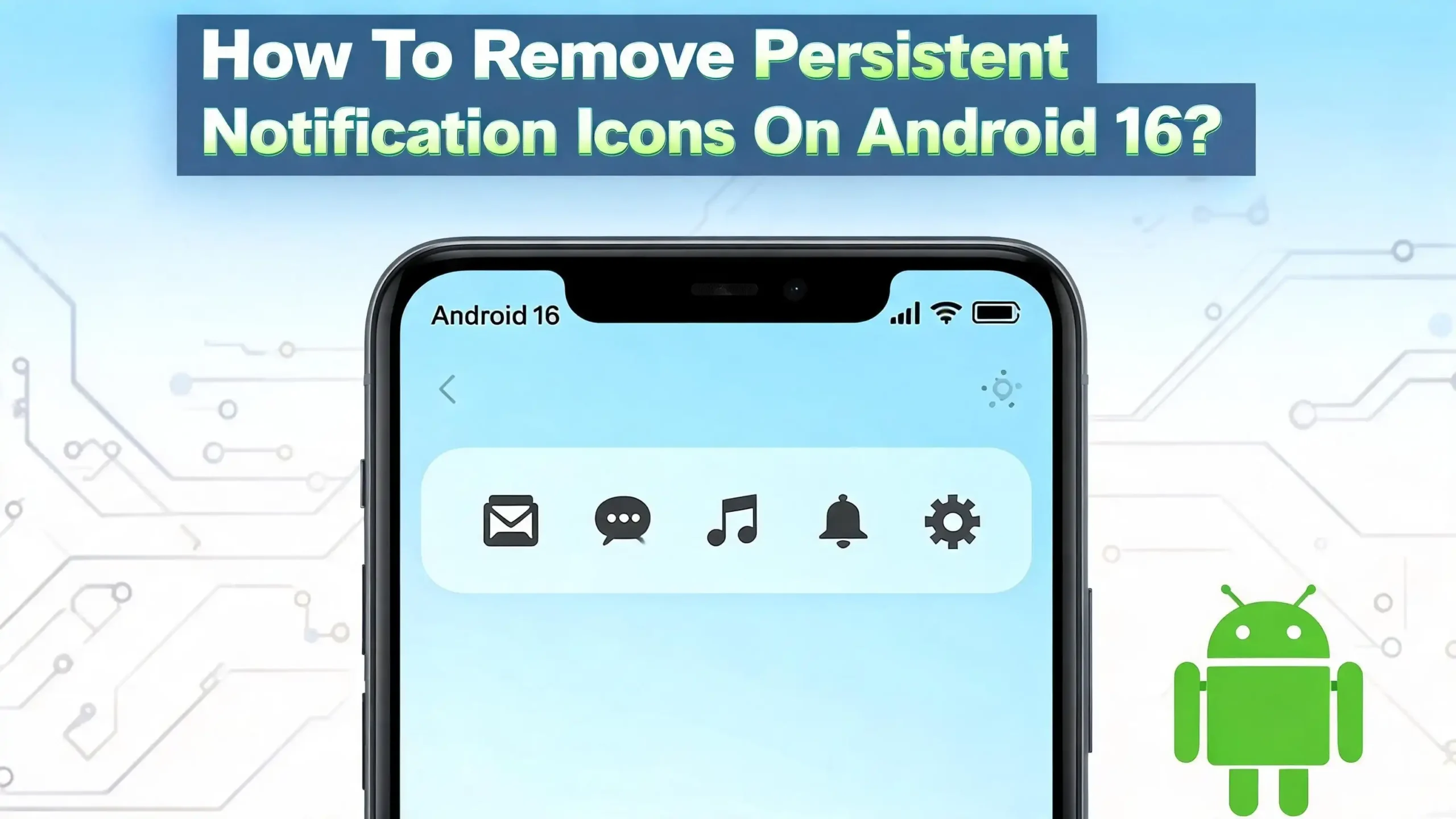
Android 16 introduced a compact notification mode where the main notification stands out and others appear as small icons in the status bar. This visual change confused many users who thought these icons were stuck, when in fact they were working as designed. Knowing the difference helps you pick the right solution.
Apps like music players, navigation apps, VPNs, and download managers use foreground services. These services run in the background and must show a persistent notification by Android’s design. You cannot simply swipe these away because the system requires them to stay visible while the service is running.
Other icons, however, are genuinely stuck. They appear because of caching issues, app bugs, or new Android 16 behaviors like Enhanced Notifications. These are the ones you can and should fix. The sections below address both types clearly.
Check If the Notification Is from a Foreground Service
The first step is figuring out why the notification is sticking around. Android requires apps running active background tasks to show a persistent notification. This is a safety feature, not a bug.
Open your notification shade by swiping down from the top of the screen. Look at the persistent notification carefully. If it says something like “Running in the background,” “App is active,” or shows media controls, it is a foreground service notification. You cannot permanently delete it while the service is running.
To stop it, you need to stop the app itself. Go to Settings > Apps > See all apps, find the app in question, and tap Force Stop. This stops the background service and removes its notification icon from the status bar. Note that the app may restart the service when you open it again. If you want to prevent this permanently, you will need to disable the app’s background activity, which is covered in a later section.
For notifications that have no clear reason to persist, move on to the fixes below.
Swipe and Use the Notification Settings Shortcut
Android 16 gives you a fast way to control notifications directly from the shade. This method works well for apps that show repeated or unwanted persistent icons.
Pull down from the top of your screen to open the notification shade. Find the persistent notification you want to remove. Press and hold the notification gently for about one second. A small gear icon or settings option will appear beside it. Tap that gear icon.
You will see options to change the notification behavior for that specific app. You can turn off all notifications for the app, or switch specific notification types from Alerting to Silent. Switching to silent removes the icon from the status bar while keeping the notification in your shade. You can also tap Turn off notifications entirely to stop that app from sending any notifications at all.
This method is the fastest fix for most users. It works without going deep into Settings, and it gives you granular control over exactly which notification types stick around.
Use the “Hide Silent Notifications in Status Bar” Toggle
Android 16 keeps silent notification icons visible in the status bar by default. This causes many users to see a cluttered status bar full of icons they cannot remove by swiping.
There is a specific toggle that fixes this. Open the Settings app on your device. Tap Notifications. Scroll through the General section and look for “Hide silent notifications in status bar.” Toggle this option on.
Once enabled, any notification set to Silent mode will no longer show its icon in the status bar. The notification still exists in your shade when you pull it down, but the icon stays hidden. This one toggle alone resolves the cluttered icon problem for a large number of Android 16 users.
If you cannot find this toggle, your phone manufacturer may have moved it slightly. On Samsung devices, it may be under Notifications > Status bar. On OnePlus or Xiaomi devices, check under Notifications > App notifications or your custom launcher settings.
Disable Enhanced Notifications on Android 16
Android 16 introduced a feature called Enhanced Notifications. This feature uses on-device AI to improve how notifications are displayed, grouped, and summarized. However, it has caused notification issues for many users, including icons that stay pinned in the status bar and notifications that fail to clear correctly.
Several users confirmed that disabling Enhanced Notifications fixed their persistent icon problem immediately. Here is how to do it.
Open Settings on your Android 16 device. Tap Notifications. Scroll down in the General section and find Enhanced Notifications. Tap on it and toggle it off. Restart your phone after making this change.
After the restart, check whether the persistent icons are gone. Many users reported that this single step cleaned up their status bar completely. Keep in mind that turning off Enhanced Notifications means you will not receive AI-powered notification summaries. If you use that feature often, you may want to keep it enabled and try other fixes first.
Turn Off Notifications for Specific Apps
Sometimes one specific app is the source of the problem. A poorly coded app can send a notification that gets stuck in the system and refuses to clear. The solution is to disable that app’s notifications entirely or modify the channel settings.
Open Settings and tap Notifications. Tap App notifications. You will see a list of apps sorted by how recently they sent a notification. Find the app causing the persistent icon. Tap on it.
You will see the app’s notification channels listed. Each channel represents a category of notification that app can send. Toggle off the specific channel linked to the persistent notification, or toggle off All notifications for that app entirely.
After doing this, the icon should disappear from the status bar within a few seconds. If it does not, force stop the app using Settings > Apps > [App Name] > Force Stop, then check the status bar again. This combination of disabling the channel and force stopping the app removes nearly all stuck notification icons tied to third-party applications.
Clear App Cache and Data to Remove Stuck Icons
A corrupted app cache is a common cause of notification icons that refuse to go away. Android 16 stores cached data for each app, and when that cache becomes corrupted after an update, notifications can get permanently stuck.
To clear the cache, open Settings and tap Apps. Tap See all apps and find the app with the stuck notification. Tap on the app name, then tap Storage & cache. You will see two buttons: Clear cache and Clear storage. Start with Clear cache first.
After clearing the cache, go back to your home screen and check the status bar. If the icon is still there, return to that storage screen and tap Clear storage (also called Clear data on some devices). Note that clearing storage resets the app to its default state, meaning you may need to log in again or reconfigure settings.
For system-level notifications that seem stuck, try clearing the cache for Android System, System UI, or Google Play Services. These system apps sometimes hold stale notification data that keeps icons visible.
Force Stop the App Causing the Persistent Icon
Force stopping an app immediately terminates all of its processes, including any active foreground services or stuck notification channels. This is one of the most effective instant fixes for persistent notification icons.
Go to Settings and tap Apps. Tap See all apps and locate the app responsible for the stuck icon. If you are not sure which app it is, look at the icon in the status bar and match it to an app. Tap the app name. Tap Force stop. Your phone will ask you to confirm. Tap OK.
The icon should disappear from the status bar immediately after force stopping the app. If the icon comes back when you reopen the app, the app is restarting a foreground service automatically. In that case, you should also disable the app’s background activity or revoke its notification permissions, as described in the previous sections.
Force stopping system apps requires caution. Stopping core system apps can temporarily affect phone performance. Stick to third-party apps unless you are confident about what you are stopping.
Use Do Not Disturb to Remove Icons from the Status Bar
Android 16 redesigned the Do Not Disturb system as part of its new Modes feature. You can use Do Not Disturb settings strategically to hide notification icons from the status bar without deleting the notifications themselves.
Open Settings and tap Modes. Tap Do Not Disturb. Inside the DND settings, tap Display or Display settings. Look for an option that controls whether notification icons appear in the status bar during Do Not Disturb. Enable the setting that hides notification icons while DND is active.
You can schedule Do Not Disturb for specific times or activate it manually through Quick Settings. Swipe down twice from the top of your screen to open the Quick Settings panel, then tap the Do Not Disturb icon. This instantly hides notification icons from the status bar.
This approach is particularly useful if you want a clean status bar during meetings, at night, or during focus sessions. It does not permanently remove the notifications, but it keeps your status bar clean whenever you need it.
Use Notification Cooldown to Prevent Future Icon Flooding
Android 16 brought back a long-awaited feature called Notification Cooldown. While this feature does not remove existing stuck icons, it prevents your status bar from getting flooded with icons in the future, which makes management much easier.
Here is how it works. When your phone receives many notifications in a short time span, Notification Cooldown automatically lowers the alert volume and minimizes pop-ups for up to one minute. Calls, alarms, and messages from priority contacts are not affected. Notifications still arrive and appear in your shade, but they do not pile up icons aggressively in the status bar.
To enable it, open Settings and tap Notifications. Under the General section, tap Notification Cooldown. Toggle on Use Notification Cooldown. That is all. There are no additional settings to configure.
This feature is especially helpful for group chats or apps that send bursts of notifications at once. Instead of 20 icons appearing in your status bar simultaneously, Notification Cooldown quietly manages them in the background. Think of it as automatic crowd control for your notification bar.
Reset App Preferences to Fix Notification Settings
Sometimes the notification settings for one or more apps get corrupted, causing icons to behave abnormally. Android 16 lets you reset all app preferences to their defaults without uninstalling any apps. This is a powerful troubleshooting step that many users overlook.
Open Settings and tap Apps. Tap the three-dot menu in the top right corner. Select Reset app preferences. A dialog will appear explaining what this action resets, including notification settings, default apps, background data restrictions, and permission restrictions. Tap Reset apps to confirm.
After the reset, all app notification settings return to their defaults. This means apps that you had silenced or disabled may start sending notifications again. You will need to go back through your notification settings and reconfigure your preferences. However, it also clears any corrupted notification states that were causing icons to persist.
This fix is particularly effective after a major OS update like Android 16, where cached notification preferences from the previous version can conflict with the new system behavior.
Boot into Safe Mode to Identify the Problem App
If persistent notification icons appear even after trying the above fixes, a third-party app may be the culprit. Safe Mode loads Android with only system apps running, which helps you identify whether a downloaded app is causing the problem.
To boot into Safe Mode, press and hold the power button on your Android 16 device. When the power menu appears, press and hold the Power off option. After a moment, you will see a prompt asking if you want to Reboot to safe mode. Tap OK.
Your phone will restart with “Safe Mode” displayed in the bottom-left corner. Check your status bar. If the persistent notification icons are gone in Safe Mode, a third-party app is definitely responsible. Think about apps you recently installed or updated before the problem started. Those are your prime suspects.
To exit Safe Mode, simply restart your phone normally. Once back in normal mode, uninstall the suspicious apps one by one and check if the icons disappear after each removal.
Update or Uninstall Problematic Apps
Android 16 changed how apps interact with the notification system. Apps built for older Android versions may not behave correctly under the new rules. This can cause their notification icons to get stuck in the status bar.
Check for updates first. Open the Google Play Store, tap your profile icon in the top right corner, and tap Manage apps & device. Tap Updates available to see if the app with the stuck icon has a pending update. Install the update and restart your phone. Developers often push fixes for Android 16 compatibility issues quickly after a major OS release.
If no update is available and the app keeps causing problems, consider uninstalling it temporarily. Go to Settings > Apps > See all apps, find the app, and tap Uninstall. Check if the persistent icon disappears. If it does, the app was the source of the problem. You can reinstall it later when a compatible update becomes available.
For apps you cannot uninstall (pre-installed bloatware), go to the app info page and tap Disable. Disabling a system app stops it from running and removes its notification icon without requiring root access.
Restart Your Phone and Clear All Notifications
Sometimes the simplest solution works best. A fresh restart clears temporary memory, stops runaway processes, and resets the notification system. Many stuck notification icons disappear entirely after a simple reboot.
Press and hold the power button on your Android 16 device. Tap Restart or Reboot. Wait for your phone to fully power back on and check the status bar.
If icons return after the restart, they are persistent by design or caused by an ongoing issue that requires one of the deeper fixes above. Before restarting, also try manually clearing all notifications from the shade. Swipe down from the top of your screen to open the notification shade. Scroll all the way to the bottom and tap Clear all. If silent notifications are grouped separately, tap Close next to the “Silent” section as well.
Doing both steps together, clearing all notifications and then restarting, gives your Android 16 system a clean slate to work from.
When to Contact Google or Your Device Manufacturer
If you have tried every fix in this guide and persistent notification icons still appear on your Android 16 device, the issue may be a known system bug. Android 16 had a confirmed notification bug at launch that caused silent notifications to behave incorrectly on several Pixel models. Google acknowledged the bug and pushed fixes in subsequent updates.
Go to Settings > System > System update and check if any pending updates are available for your device. Install any available updates and restart your phone. System updates frequently patch notification-related bugs.
If no update is available, consider reporting the issue. Go to Settings > Tips & support or use the Google Feedback tool. On Samsung devices, open the Samsung Members app and submit an error report. Providing a description of the exact notification icon that persists and the steps you have already tried helps the support team identify the issue faster.
You can also visit the Google Pixel Help Community or your device manufacturer’s support forum. Many users post working solutions to device-specific notification bugs there, often before an official patch is released.
FAQs
Why do some notification icons on Android 16 refuse to be dismissed?
Some notifications are tied to foreground services, which Android requires to stay visible while an app runs an active background task. Examples include music players, navigation apps, and VPN apps. You cannot dismiss these without stopping the background service first. Other icons persist due to app bugs, corrupted cache, or Android 16’s new Enhanced Notifications feature.
How do I remove a stuck notification icon without uninstalling the app?
Go to Settings > Apps > [App Name] > Force Stop to immediately terminate the app and its notification. You can also go to Settings > Notifications > App notifications, find the app, and toggle off the specific notification channel causing the icon. Clearing the app’s cache under Settings > Apps > [App Name] > Storage & cache > Clear cache also removes stuck notification data.
What is the “Hide Silent Notifications in Status Bar” setting in Android 16?
This is a toggle in Settings > Notifications that prevents silent notifications from displaying their icons in the status bar. When enabled, silent notifications still arrive and appear in your notification shade when you swipe down, but they do not show icons in the top status bar. This setting cleans up the status bar significantly for most users.
Does Notification Cooldown remove persistent icons on Android 16?
No. Notification Cooldown does not remove existing notification icons. It manages alert volume and pop-ups when many notifications arrive in a short time. It reduces future icon flooding but does not fix icons that are already stuck. Use Force Stop, cache clearing, or notification channel settings to remove existing persistent icons.
Can Enhanced Notifications cause persistent icons on Android 16?
Yes. Several Android 16 users confirmed that disabling Enhanced Notifications resolved their persistent notification icon issue. To disable it, go to Settings > Notifications, scroll down in the General section, and toggle off Enhanced Notifications. Restart your device after making this change.
How do I stop an app from sending persistent notifications permanently on Android 16?
Go to Settings > Notifications > App notifications and find the app. Toggle off All notifications for that app. This prevents it from sending any notification icons to the status bar. Alternatively, you can go into individual notification channels and turn off only the channels that create persistent icons, leaving other notification types from the same app still active.
Will Safe Mode remove persistent notification icons on Android 16?
Safe Mode does not remove notifications directly, but it helps you identify whether a third-party app is causing them. If the persistent icons disappear in Safe Mode, a third-party app is the cause. Once you identify and uninstall or update the problematic app, the persistent icons will stop appearing in normal mode.

Hi, I’m Simmy — the creator and writer behind ScaleMyPic.com. I’m a tech enthusiast who loves breaking down complex products into simple, honest reviews and guides. My goal? To help you make smarter tech decisions without the confusion. Got a question? Feel free to reach out!