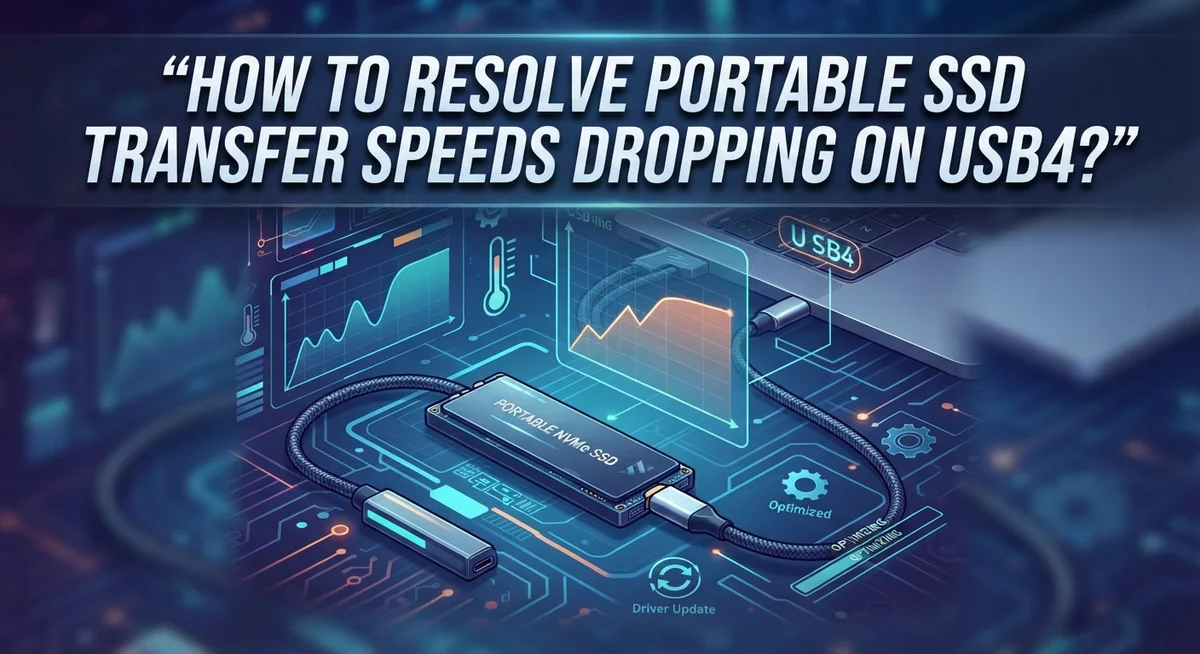
How To Resolve Portable SSD Transfer Speeds Dropping On USB4?
Your new portable SSD promises fast speeds. You expect smooth, quick transfers every time.
Then it happens. Your transfer speed drops from 150MB/s to a crawling 1-2MB/s. Sometimes it hits 0MB/s completely.
This problem frustrates many USB4 users. You paid for speed, but you get random slowdowns instead.
The good news? This issue has clear causes and simple fixes.
Most speed drops happen because of faulty cables or slow USB ports. Sometimes the problem sits inside your SSD hardware itself.
This guide walks you through every reason your SSD slows down. You will learn how to test your ports properly.
In a Nutshell
- Check your cable first. Many charging cables cannot handle full data speeds. Always use a certified USB-C data cable made for USB4 transfers.
- Test multiple USB ports. Some ports on your computer run slower than others. Plug your SSD into a USB4 capable port for the best results.
- Confirm real USB4 support. Not every drive with a USB4 label has proper hardware inside. A weak internal chip can cause random speed drops.
- Watch for mid transfer slowdowns. Large file transfers often reveal hidden problems. Speeds may drop to almost zero during long copy jobs.
- Update your firmware. Manufacturers often release fixes for known speed issues. Keeping firmware current helps your drive perform as promised.
- Avoid USB 3.2 Gen 2×2 confusion. This standard is not a real substitute for USB4. It simply cannot match the same transfer speeds.
Understanding Why USB4 Portable SSD Speeds Drop
Your portable SSD connects to a USB4 port, but the transfer speed drops from 1,200MB/s to just 1-2MB/s without warning. This frustration is real, and understanding why it happens is your first step toward fixing it.
Speed drops occur for three main reasons. First, your cable might not support full data transfer speeds. Many USB-C cables are designed only for charging. They lack the proper internal wiring for high-speed data movement. Second, your USB port itself could be faulty or running at a slower standard than USB4. Third, your SSD might have weak internal USB4 hardware despite marketing claims.
The cable problem is most common. Charging cables and budget data cables cannot handle the bandwidth that USB4 requires. When you use the wrong cable, your SSD automatically throttles down to match what the cable can handle. This explains those dramatic speed drops mid-transfer.
Port quality matters significantly. Not every USB port on your computer runs at the same speed. Some ports connect to slower controllers. Others have hardware defects that limit performance. Even brand-new devices sometimes ship with faulty ports.
Hardware implementation varies widely. Some manufacturers install genuine USB4 chips in their SSDs. Others use cheaper alternatives that claim USB4 compatibility but lack full capability. This creates confusion when your drive underperforms despite having the right cable and port.
Understanding these three factors helps you diagnose your specific problem. Each one requires a different solution. By identifying which factor affects your setup, you can take targeted action to restore your SSD’s true speed.
Checking Your SSD and Host Device USB4 Compatibility
Your portable SSD needs proper USB4 support on both ends to work correctly. The SSD itself must have a real USB4 controller chip inside, and your computer must have actual USB4 ports, not just USB 3.2 Gen 2×2 ports labeled as USB4.
Start by checking your SSD’s specifications. Look at the manufacturer’s documentation to confirm it uses a genuine USB4 chip. Some drives claim USB4 compatibility but only have USB 3.2 Gen 2×2 hardware inside. This limitation causes the speed drops you experience. Real USB4 support means the drive can handle speeds up to 40GB/s under ideal conditions.
Next, verify your host device’s USB4 capability. Check your computer’s manual or specifications to identify which ports support true USB4. Laptops often have USB4 ports near the edges. Desktops may have USB4 ports on the motherboard or expansion cards. Not every USB port on your device runs at the same speed, so this step matters.
Test your SSD on a different computer if possible. This reveals whether the problem comes from your device or the SSD itself. If speeds return to normal on another computer, your host device has the issue.
Check for firmware updates from both your SSD manufacturer and computer maker. Updates often fix USB4 communication problems. Visit the manufacturer’s website and download the latest firmware version.
Confirm your cable is a proper USB4 data cable, not a charging cable. Charging cables lack the data line configuration needed for full speed transfers. A certified USB-C data cable designed for USB4 devices ensures proper compatibility and prevents speed drops during transfers.
Step-by-Step: Diagnosing the Cause of Speed Drops
Start your diagnosis by gathering information about your system. You need to know what you’re working with before making changes. Check your portable SSD’s manual or manufacturer website to confirm it has genuine USB4 hardware inside. Many drives claim USB4 support but use slower chips instead.
Next, verify your computer actually supports USB4. Look in your device settings or system information to find which ports offer USB4 speeds. Not every USB port on your computer runs at the same speed. Some ports might only support USB 3.2 or earlier standards.
Test your current setup by transferring a large file. Watch the speed during the transfer. If it starts fast then drops to 1 to 2MB/s, you’ve found the problem. Write down exactly when the speed drops and how low it goes. This information helps you narrow down the cause.
Try transferring the same file through different USB ports on your computer. Use ports that specifically support USB4 if available. Speed improvements when switching ports point to a faulty or slow port as your culprit.
Borrow a different USB4 cable if possible and repeat your test. A cable problem would show consistent speed drops regardless of which port you use. If the new cable works better, your original cable cannot handle USB4 speeds.
Connect your SSD to a different computer with USB4 support. Consistent speed drops on multiple computers suggest an issue with your drive itself. Speed problems only on your original computer point to a host device problem.
Document everything you discover. This record makes it easier to identify patterns and pinpoint the exact cause. Armed with this information, you can move forward with the right solution.
Fixing Cable-Related Speed Issues
Your cable choice directly impacts whether your portable SSD reaches full USB4 speeds or crawls at 1-2MB/s. This is the most common culprit behind speed drops, and it’s easily fixable.
Charging cables are not data cables. Many people grab the USB-C cable from their phone charger and assume it works for file transfers. These cables prioritize power delivery over data bandwidth. They simply cannot handle the speeds that USB4 requires. Your SSD will connect and appear to work, but transfers will stall or drop dramatically mid-process.
Budget data cables present a similar problem. They may technically support USB-C connections, but their internal construction lacks the shielding and wire quality needed for consistent high-speed transfers. Speed fluctuations and random disconnections often trace back to these cheaper options.
Use a certified USB-C data cable designed for USB4 or Thunderbolt. Look for cables explicitly rated for high-speed data transfer, not just charging. These cables feature proper shielding, better connectors, and internal designs that maintain signal integrity over longer distances.
Test your current cable first by swapping it with a different one. Borrow a cable from a friend or colleague if needed. Transfer the same large file using both cables and compare speeds. If performance improves dramatically with the new cable, you found your problem.
Cable length matters too. Longer cables experience more signal degradation. Keep your cable under 2 meters when possible, especially during large file transfers.
Replace your cable if testing reveals it’s the issue. This single change resolves speed problems for most users experiencing USB4 drops. Your portable SSD will then perform at the speeds you originally expected.
Testing and Switching USB Ports for Stable Performance
Your portable SSD speed drops happen because not every USB port delivers the same performance. Your computer likely has multiple USB ports, but only some support USB4’s full bandwidth. Testing different ports helps you find which ones work properly.
Start by identifying which ports on your host device support USB4. Check your computer’s manual or manufacturer website to see the port layout. USB4 ports are usually labeled clearly or appear in specific locations on your device. Some computers concentrate USB4 ports on one side while mixing slower USB 3.2 ports elsewhere.
Connect your SSD to the first USB4 port and transfer a large file. Watch the speed during the transfer. If speeds stay consistent above 400MB/s, that port works well. If you see drops to 1-2MB/s or fluctuations, move to the next port.
Test each USB4 port on your computer systematically. Transfer the same file to each one. Document which ports maintain stable speeds and which ones cause problems. Faulty ports sometimes show consistent problems, while others work fine.
Once you identify a working port, use only that one for your SSD. Mark it with a small label if helpful. Avoid plugging your SSD into ports that caused speed drops.
If all ports show problems, the issue likely stems from your cable or the SSD itself rather than the ports. This narrows down your troubleshooting significantly. Port testing reveals whether your hardware supports USB4 properly or if you need to explore other solutions like cable replacement or firmware updates.
Updating Firmware and Drivers to Prevent Throttling
Firmware and driver updates are your first line of defense against speed throttling on USB4 portable SSDs. These updates fix bugs that cause your device to drop from fast speeds to crawling transfers.
Start by checking your SSD manufacturer’s website for the latest firmware version. Most portable SSD makers release updates that address performance issues and compatibility problems. Download the update tool to your computer and follow the instructions carefully. The process usually takes just a few minutes.
Next, update your computer’s drivers and BIOS. Your operating system needs current USB4 controller drivers to communicate properly with your SSD. Visit your computer maker’s support page and download any available USB4 or Thunderbolt drivers. Install these updates and restart your computer.
Windows users should also check Device Manager for driver updates. Right click on your USB4 controller and select “Update driver.” Let Windows search for the latest version automatically.
Mac users can check System Preferences for firmware updates. Apple releases regular updates that improve USB4 performance and stability.
After updating, test your transfer speeds immediately. Connect your SSD and transfer a large file to see if speeds improve. Many users report that firmware updates alone resolve throttling problems.
If speeds still drop after updating, the issue likely stems from your cable or a faulty USB port rather than outdated software. Document which updates you installed so you know what’s already been done. This information helps when troubleshooting further.
Set a reminder to check for updates monthly. Manufacturers continue releasing improvements that keep your SSD running at peak performance. Regular updates prevent future speed issues before they start affecting your transfers.
Common Mistakes That Cause Persistent Speed Drops
People make specific mistakes that keep their USB4 speeds low. Understanding these errors helps you fix the problem quickly.
Using the wrong cable is mistake number one. Charging cables and data cables look identical, but they’re not the same. Charging cables prioritize power delivery over data speed. Your SSD needs a certified USB-C data cable designed for high-speed transfers. Budget cables also cause persistent drops because they lack proper shielding. Test your current cable by swapping it with a different one immediately.
Plugging into the wrong port comes next. Not every USB port on your computer supports USB4 speeds. Some ports only handle USB 3.2 Gen 2×2, which is slower. You need to identify which ports actually support USB4. Connect your SSD to each USB4 port separately and transfer a test file. Document which ports give you consistent speeds and which ones don’t.
Confusing USB 3.2 Gen 2×2 with USB4 is another common error. These are different standards. USB 3.2 Gen 2×2 maxes out around 1,200MB/s in theory, but real-world performance often drops lower. USB4 provides faster potential speeds. If you’re getting 1-2MB/s drops, your port might not actually be USB4 capable.
Ignoring firmware updates allows speed throttling to persist. Your SSD manufacturer releases updates that fix performance issues. Check their website for the latest version. Update your computer’s drivers and BIOS as well. Windows users should check Device Manager, while Mac users should verify System Preferences.
These mistakes compound each other. Fix them one at a time to identify your real problem.
Troubleshooting Advanced or Recurring Speed Problems
When your portable SSD consistently drops to 1-2MB/s or freezes at 0MB/s despite trying different ports and cables, you’re dealing with a deeper hardware or firmware issue. Advanced troubleshooting requires a systematic approach to identify whether the problem lives in your SSD, your computer, or the connection itself.
Start by testing your SSD on a completely different computer. This single step reveals whether the issue follows your SSD or stays with your original device. If speeds remain slow on another machine, your SSD likely has a faulty USB4 controller or internal hardware damage. If speeds improve dramatically on the second computer, your original device’s USB4 implementation is the culprit.
Next, check whether your SSD’s firmware needs an update. Visit the manufacturer’s support page and download any available firmware updates. These updates often fix USB4 communication bugs that cause mid-transfer speed collapses. Install the update using the manufacturer’s provided tool, then test transfer speeds again.
If speeds still drop unpredictably, inspect your cable for internal damage. Bend the cable gently along its length while transferring a file. If speeds fluctuate when you bend it, the cable has internal wire breaks even though the connector looks fine.
For recurring speed drops on large files specifically, your SSD may be overheating. Feel the device during transfers. If it’s hot to the touch, thermal throttling is reducing your speeds intentionally to protect the drive. Allow it to cool between transfers or use a small fan nearby.
When none of these steps work, you likely have defective hardware requiring replacement or professional repair.
Final Thoughts
Speed drops on USB4 portable SSDs feel frustrating, but most fixes are simple. Your cable and port choice matter more than you think. Start there before assuming your drive is broken.
Test your setup step by step. Swap the cable first. Try a different port next. These two changes solve most speed problems.
Firmware updates keep your system running smoothly. Check for updates monthly. This small habit prevents many speed issues before they start.
Not every USB4 drive performs the same way. Some devices have weak USB4 chip implementation. This causes random speed drops even with perfect cables and ports.
If problems continue, test your SSD on another computer. This step tells you if the issue is your drive or your original setup.
Overheating causes speed drops during large file transfers. Give your drive time to cool down between transfers. This helps more than people expect.
Sometimes hardware fails despite doing everything right. When nothing works, your drive may need professional repair or replacement.
Patience helps you find the real problem. Test one change at a time. Don’t swap cables, ports, and firmware all together.
USB4 technology keeps improving each year. Speed issues today may disappear with future updates. Stay informed about your device’s software support.
Your transfer speeds depend on several working parts. Cables, ports, firmware, and hardware quality all play a role. Check each one carefully.
Most users fix their speed problems within a few tries. Start with the easy fixes first. Save hardware replacement as your last option.
Fast, reliable transfers are possible with the right approach. Take these steps one at a time. Your portable SSD will thank you.
Frequently Asked Questions
Why does my USB4 SSD suddenly drop to 1-2MB/s during transfers?
Speed drops usually happen because of three main issues. First, your USB-C cable might not support data transfer. Many cables only work for charging, not high-speed data. Second, you might be using a USB port that doesn’t actually support USB4 speeds. Third, your SSD’s firmware could need an update.
Test with a different cable first. Then try other USB ports on your computer. Check your SSD manufacturer’s website for firmware updates.
Can a charging cable cause USB4 speed problems?
Yes, absolutely. Charging cables and data cables look identical, but they work very differently. Charging cables have fewer internal wires and cannot handle fast data speeds.
Always use a certified USB-C data cable for your portable SSD. This single change fixes speed problems for many users.
Is USB 3.2 Gen 2×2 the same as USB4?
No. These are two different standards. USB 3.2 Gen 2×2 reaches speeds up to 20Gbps. USB4 reaches up to 40Gbps, which is twice as fast.
If your computer has USB 3.2 Gen 2×2 ports instead of true USB4 ports, you won’t get full USB4 speeds. Check your computer’s specifications to confirm which ports you actually have.
What should I do if speed drops happen on every file transfer?
Test your SSD on a completely different computer. This tells you whether the problem is your SSD or your computer’s USB setup.
If speeds work fine on another computer, your original computer’s ports or firmware need attention. If speeds drop on both computers, your SSD likely has a hardware issue.
Does overheating cause USB4 speed drops?
Yes. When your SSD gets too hot, it throttles speed automatically to protect itself. Large file transfers generate heat quickly.
Let your SSD cool down between transfers. Make sure air can flow around it. If overheating happens constantly, your device may need professional inspection.

Hi, I’m Simmy — the creator and writer behind ScaleMyPic.com. I’m a tech enthusiast who loves breaking down complex products into simple, honest reviews and guides. My goal? To help you make smarter tech decisions without the confusion. Got a question? Feel free to reach out!