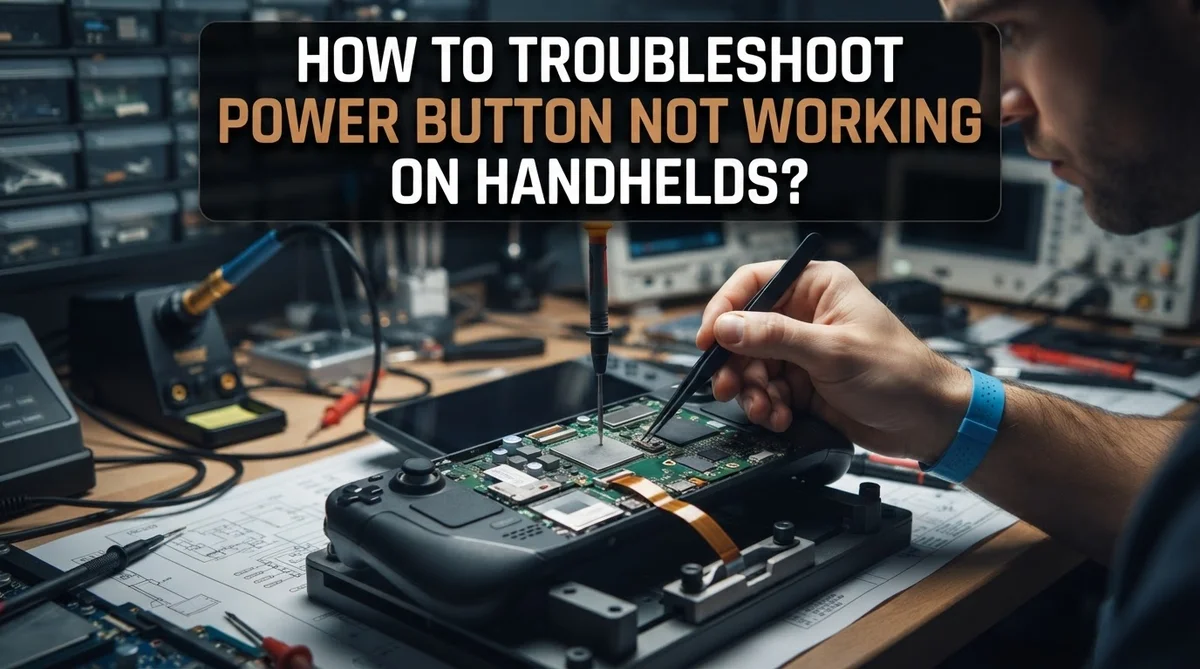
How To Troubleshoot Power Button Not Working On Handhelds?
Your handheld’s power button stops working, and suddenly your favorite device feels like a useless brick. It’s frustrating, but the good news is that most power button issues are fixable without professional help.
The problem is often simpler than you think. Debris around the button, software settings, or a device stuck in sleep mode are the most common culprits. A quick fix might be just a few steps away.
This guide walks you through everything you need to know. You will learn how to perform a proper reset, clean the button contacts, and adjust your operating system’s power settings.
In a Nutshell
- A non-responsive power button does not always mean the button is broken. The device may be stuck in sleep mode or have a firmware issue.
- Hold the power button for 10 to 60 seconds. This simple step wakes up many stuck handhelds without any extra effort.
- Unplug the charger first, then hold the power button for 20 to 30 seconds. Wait a moment before trying to power on again.
- Dirt and debris on the button contacts cause many unresponsive button issues. Cleaning with a cotton swab and rubbing alcohol often fixes this.
- Check your OS power settings before assuming the hardware is faulty. The button behavior can be changed or disabled inside your system settings.
- Only consider opening the device after all software and cleaning steps have failed. Disassembly should always be a last resort.
Understanding Why Handheld Power Buttons Stop Working
Power button failures happen for several reasons, and understanding the cause helps you fix the problem faster. The button itself rarely breaks completely. Instead, your handheld usually stops responding because of software issues, debris buildup, or power management settings.
Sleep mode and firmware glitches are common culprits. Your device might be stuck in a deep sleep state where brief button presses don’t wake it. The operating system may also have power settings that prevent the button from working as expected.
Contact debris is another major cause. Dust, lint, and moisture accumulate around the button over time. These particles block the internal contacts from making a proper electrical connection, making the button feel unresponsive.
Battery drain can also play a role. If your handheld’s battery is completely dead, the power button won’t respond even if it’s working correctly. The device needs enough charge to register button presses.
Some handhelds have hardware design issues too. Certain models may have service recalls or known power button problems that require firmware updates to resolve.
The good news is that most power button issues are fixable without opening your device. A sustained button hold often wakes stuck handhelds. Cleaning the button with proper materials removes debris. Adjusting OS settings can restore normal functionality.
Only a small percentage of power button problems require hardware replacement. By understanding these common causes, you can troubleshoot systematically and avoid unnecessary repairs. Start with the simplest solutions first. This approach saves time and keeps your device working longer.
How To Perform a Forced Restart Using the Power Button
A forced restart is your first weapon against an unresponsive handheld. This technique forces your device to shut down completely and reboot, which often fixes frozen screens and stuck buttons.
Start by holding the power button for 10 to 60 seconds without releasing. The exact time varies depending on your handheld model. Your device may vibrate, show lights, or display shutdown prompts. Keep holding even if nothing happens immediately. This sustained pressure triggers a forced shutdown that a quick tap cannot achieve.
If the button still feels unresponsive, unplug your charger next. This step removes power from the system completely. Hold the power button for another 20 to 30 seconds while unplugged. This drains any remaining charge and clears temporary glitches from your device’s memory.
Wait a full minute before plugging the charger back in. This pause allows your handheld’s internal systems to fully reset. Then attempt to power on normally by pressing the button once.
Many handhelds recover from unresponsiveness using this method alone. The forced restart clears firmware issues and wakes devices stuck in strange power states. Your button may feel stuck because the device is frozen, not because the hardware is broken.
If your handheld still does not respond after these steps, move on to cleaning the button contacts. Dirt buildup often prevents proper electrical connection. Use a Q tip with rubbing alcohol to gently clean around the button edges. Press and twist the button repeatedly while cleaning.
Document what happens at each step. This information helps you decide whether the problem is software related or requires professional service.
How To Clean a Sticky or Unresponsive Power Button
Dirt and debris build up on power button contacts over time. This causes the button to feel sticky or stop responding to your presses. Cleaning it properly often fixes the issue without needing repairs.
Start by gathering supplies. You need a cotton swab (Q-tip) and rubbing alcohol. Isopropyl alcohol works best because it evaporates quickly and won’t damage electronics.
Dip the cotton swab lightly in rubbing alcohol. You want it damp, not soaking wet. Squeeze out any excess liquid before touching your handheld. Moisture is the enemy of electronics, so less is more here.
Press the damp swab directly into the power button area. Work it around the edges where the button meets the device frame. This is where dirt collects most often. Push gently but firmly to reach the contact points underneath.
Now comes the important part. Twist and press the button repeatedly while the swab is in place. Do this for 30 to 60 seconds. The friction helps dislodge stuck particles and debris. You might see dirt or discoloration on the swab, which means it’s working.
Let the button dry completely before testing. Wait at least 5 minutes. This gives the alcohol time to evaporate fully.
Press the power button several times to check if it responds better. The button should feel less sticky and more responsive. If it still doesn’t work, repeat the cleaning process one more time.
For stubborn cases, use a fresh swab each time. Sometimes multiple cleaning attempts are needed to remove all debris. This simple method solves most sticky button problems without opening your device or spending money on repairs.
How To Check and Adjust Power Button Settings in Your OS
Your handheld’s operating system controls what happens when you press the power button. Sometimes the button works fine, but your OS settings prevent the device from responding the way you expect. Checking these settings should be your next step after cleaning.
Open your device settings and look for the power button options. Most handhelds let you choose what the power button does. You might see choices like “power off,” “sleep mode,” or “do nothing.” If your setting is accidentally set to “do nothing,” the button won’t seem to work at all.
Navigate to the power settings menu in your OS. The exact location varies by device, but it’s usually under System Settings or Advanced Settings. Look for options labeled “Power Button Behavior” or “Button Configuration.” Some devices hide these settings deeper in the menu.
Check if your power button is assigned to sleep mode instead of shutdown. Sleep mode might make your device appear unresponsive when you actually just need to press the button again to wake it. Test this by pressing the button once, waiting a few seconds, then pressing again.
If you find that sleep mode is enabled, try changing the setting to power off. This gives you clearer feedback about whether the button actually works. Test the button after making any changes.
Look for any accessibility features that might affect power button behavior. Some devices have options to disable the power button for safety reasons. Make sure these aren’t turned on.
After adjusting your settings, test the power button several times. Press it firmly and hold for a full second. If your device now responds correctly, the issue was your OS settings, not the hardware itself.
How To Update Firmware and System Services That Affect the Power Button
Firmware updates and system services directly control how your handheld responds to the power button. When these components malfunction, your device may ignore button presses even though the hardware works fine.
Start by checking if your device has pending system updates. Go to your settings menu and look for “System Update” or “Check for Updates.” Your handheld may have received a patch that fixes power button recognition issues. Install any available updates and restart your device afterward.
Next, verify that power button services are enabled in your system. Some handhelds have specific services that manage power button functionality. Access your device settings and search for “Power Button Service” or “Input Services.” Make sure these services show as “Running” or “Enabled.” If a service appears disabled, enable it and restart your device.
Clear your system cache to remove corrupted files that might interfere with button detection. Navigate to Settings, then look for “Storage” or “System Storage.” Find the option to clear cache files. This action removes temporary data without deleting your games or saves.
Check your device’s power profile settings. Some handhelds have power modes like “Performance” or “Battery Saver” that affect button responsiveness. Switch to a different power mode and test your button. If it works in another mode, your current profile may have a conflict.
If updates are unavailable or don’t help, perform a factory reset as a last resort. This action restores all system services to their default state. Back up your important data first, then go to Settings and select “Reset Device” or “Factory Reset.” Your power button should function normally after this process completes.
How To Diagnose Whether the Issue Is Hardware or Software
When your handheld’s power button stops working, you need to figure out if the problem lives in the hardware or the software. This distinction matters because it changes how you fix it.
Start with a simple test. Hold the power button for a full 60 seconds without releasing. Many devices enter a deep sleep state and become unresponsive. A sustained hold wakes them up. If your handheld vibrates or shows any sign of life, you likely have a software or firmware issue, not a broken button.
Next, try a forced restart. Unplug your charger completely. Hold the power button for 20 to 30 seconds while the device is disconnected from power. Release the button and wait another 30 seconds before plugging it back in. This clears temporary software glitches that can disable button responsiveness.
If the device responds to these steps, the hardware is fine. The problem sits in your operating system or firmware instead.
Now check for physical obstruction. Examine the power button closely under good lighting. Look for dust, lint, or debris around the edges. Use a cotton swab to gently clean around the button’s perimeter. Press and release the button repeatedly while cleaning. A stuck or dirty button often feels unresponsive even though the hardware works perfectly.
If your handheld still shows no signs of life after these tests, the power button hardware itself may be damaged. However, most unresponsive buttons respond to cleaning or a forced restart first.
Document what happens at each step. This information helps you decide whether to adjust settings, update firmware, or seek hardware repair.
Common Mistakes To Avoid When Troubleshooting Your Power Button
Many people make simple mistakes when troubleshooting their handheld’s power button. These errors can waste time and sometimes make the problem worse.
The most common mistake is pressing the button too quickly or briefly. Your device may need 10 to 60 seconds of continuous pressure to respond. Quick taps won’t work. Hold the button down firmly and wait. This single change fixes many cases that people think are broken.
Another frequent error is skipping the cleaning step entirely. People jump straight to complex solutions when dust or debris blocks the button contact. Use a Q-tip with rubbing alcohol to clean around the button edges. Press and twist the button repeatedly while cleaning. This simple step resolves many unresponsive buttons that seem dead.
Don’t assume you need to open your device right away. Many people disassemble their handheld before trying software fixes. Check your power settings first. Your button might be set to sleep mode instead of powering off. Adjust these settings before taking apart anything.
Avoid skipping the forced restart process. Hold the power button for the full duration your specific device requires. Different handhelds have different timeouts. Check your manual for the exact hold time needed.
Another mistake is not letting the device dry completely if moisture is involved. Water damage requires patience. Wait at least 24 hours before testing again.
Finally, don’t ignore pending system updates. Firmware issues can disable power button recognition even when the hardware works fine. Always check for updates before assuming hardware failure. These simple mistakes cost people time and sometimes damage their devices unnecessarily.
When To Consider Professional Repair or Disassembly
You’ve tried the basic fixes. Your device still won’t respond to the power button. Now you need to decide whether professional repair makes sense or if you should attempt disassembly yourself.
Professional repair is the right choice if you lack technical experience or don’t have proper tools. Technicians have specialized equipment to diagnose internal contact problems. They can replace a faulty power button without damaging other components. This option costs money but protects your device from accidental harm.
Consider disassembly yourself only if you feel confident with electronics. You’ll need a small screwdriver set, an anti static wrist strap, and clear workspace. Watch device specific disassembly guides before starting. Take photos of each step so you can reassemble correctly.
Know when to stop and seek help. If you open your handheld and see visible corrosion or burnt components, close it immediately. Contact a professional instead. Water damage requires expert attention because moisture can hide inside layers. Attempting repairs yourself might void any remaining warranty.
Before choosing either path, verify one more time that software isn’t the culprit. Perform a factory reset if you haven’t already. Update your firmware completely. These steps take minutes and often solve the problem without opening anything.
If your device has a known service issue (like certain handheld models with documented power button problems), manufacturers sometimes offer free repairs. Check the official support website first.
The decision comes down to your comfort level and your device’s value. Expensive handhelds deserve professional care. Budget devices might justify a DIY attempt if you’re willing to risk them.
Final Thoughts
A non-working power button on a handheld is frustrating, but it is rarely a permanent problem. Most cases are fixable with patience and a few simple steps.
Start with the basics before assuming the worst. A long button hold, a soft reset, or a quick cleaning can solve the issue faster than any complex fix. These steps cost nothing and take only a few minutes.
Always work through software solutions first. Check your OS power settings, look for firmware updates, and rule out sleep mode issues before touching any hardware. Many users skip these steps and waste time on unnecessary repairs.
Cleaning the button contact with rubbing alcohol is one of the most underrated fixes. Debris and grime build up over time and block the electrical connection. This simple step resolves a surprising number of unresponsive button issues.
If your device has a known service issue, check the manufacturer’s support page. Some handheld models have documented firmware or service problems that affect power button functionality. An official update may be all you need.
Only move toward disassembly after every software and cleaning method has failed. Opening your device carries real risk, especially if you are not experienced with electronics. Know your limits before going further.
Document each step you take. This helps you avoid repeating the same fixes and gives a repair technician useful information if professional help becomes necessary.
The goal is always to restore your handheld with the least invasive method possible. Work smart, stay patient, and follow each step in order. Most power button problems are solvable without spending a single dollar.
Frequently Asked Questions
Why won’t my handheld power button respond at all?
Your device is likely in a deep sleep state or stuck. Try holding the power button for 60 seconds without releasing. Some handhelds need extended holds to wake up. If nothing happens, unplug your charger, hold the button for 20 to 30 seconds, then release and wait a few minutes.
How do I clean my power button properly?
Grab a Q-tip and rubbing alcohol. Dab the Q-tip in alcohol and clean around the button edges. Twist the button gently while pressing it repeatedly to work the alcohol into the contact points. Let it dry for a few minutes before trying again. This fixes many unresponsive buttons because dust and debris block electrical contact.
Should I check my device settings before opening it?
Yes, absolutely. Go into your OS settings and find the power button options. Some devices let you change what the power button does (sleep, shutdown, or custom actions). You might have accidentally disabled it. Also check for pending firmware updates, as these can fix button recognition issues. Do this before attempting any hardware fixes.
Is my handheld truly broken if the power button doesn’t work?
Probably not. Most power button issues come from sleep mode, contact debris, or software settings. The button itself rarely fails completely. Work through the forced restart, cleaning, and settings checks first. Only consider hardware failure if all software methods fail and the button feels physically stuck or broken.
When should I stop troubleshooting and get professional help?
Stop after you’ve tried the 60 second hold, cleaning, and settings adjustments. If the button still doesn’t work, contact the manufacturer’s support. They can check for known issues or arrange service. Don’t open your device unless you feel confident with electronics.

Hi, I’m Simmy — the creator and writer behind ScaleMyPic.com. I’m a tech enthusiast who loves breaking down complex products into simple, honest reviews and guides. My goal? To help you make smarter tech decisions without the confusion. Got a question? Feel free to reach out!