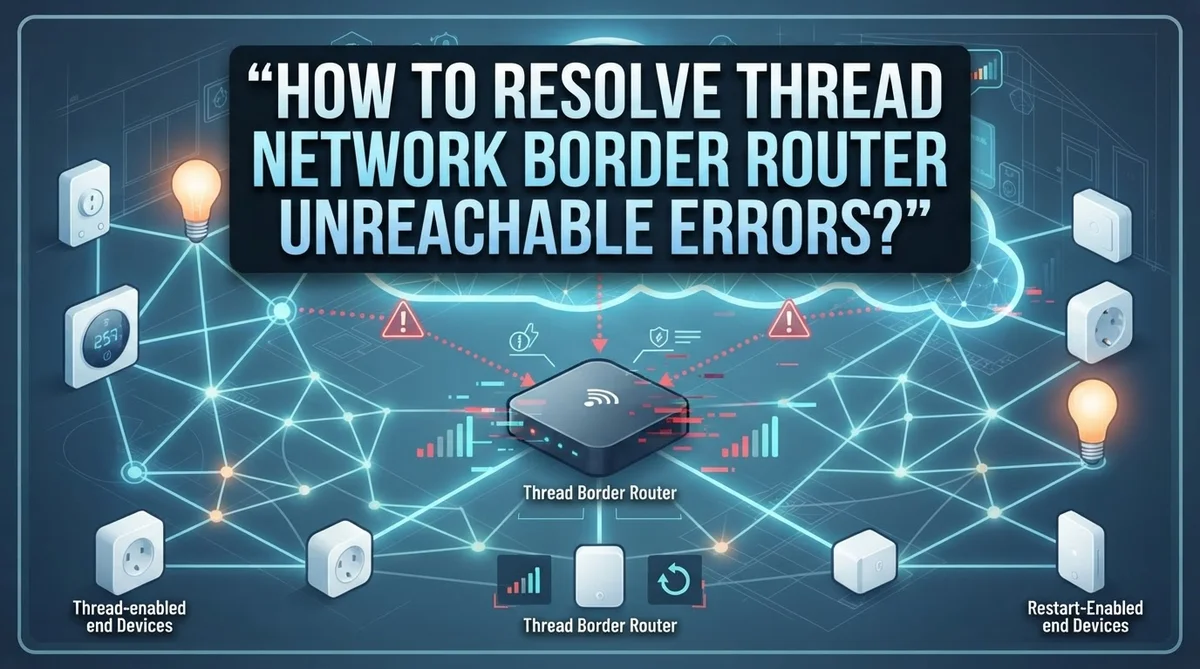
How To Resolve Thread Network Border Router Unreachable Errors?
Do your smart devices suddenly go offline for no reason? Does your app show a “Thread Border Router Unreachable” message that just won’t go away?
You are not alone. Many smart home users face this frustrating issue. It often happens every 24 to 36 hours, disrupting your Zigbee, WiFi, and Thread devices.
This error usually points to a few common culprits. A conflict on Port 8080 can stop your Border Router from starting properly. Sometimes, IPv6 settings or a corrupted network key are the hidden cause.
The good news is that you can fix this problem quickly. You do not need to be a tech expert to get your network back online.
In this guide, we will walk you through simple, actionable steps. You will learn how to restart your router and Home Assistant core the right way.
In a Nutshell
- Restart your gear first. Reboot the Thread Border Router and your Home Assistant core. This solves most unreachable errors right away.
- Check Port 8080. Make sure no other addons use this port. A conflict here stops the border router from starting properly.
- Keep IPv6 turned on. Thread needs IPv6 to work correctly. Turning it off will break your connection every time.
- Go slow after a reboot. Do not turn all your devices on at once. Bring them back online gradually over a few hours.
- Restore your backup if needed. If the network key gets corrupted, a backup restore is the only fix. This brings your mesh back to a stable state.
- Add more powered devices. A weak mesh causes devices to drop every 24 to 36 hours. More powered nodes fix this instability for good.
Understanding Thread Border Router Unreachable Errors
A Thread Border Router unreachable error means your smart home devices cannot communicate through your Thread network. This happens when the border router stops responding to device requests. Your devices may show as offline in your app, even though they are powered on.
The root cause usually involves one of three problems. First, a port conflict on Port 8080 can prevent the border router from starting properly. Second, IPv6 must be enabled on your network for Thread to function. Third, your Home Assistant server may have rebooted, which temporarily breaks Thread connectivity.
Devices often go unavailable in a predictable cycle. Many users report that their Thread devices drop offline every 24 to 36 hours. This pattern suggests a stability issue rather than a permanent failure. A simple restart typically restores connectivity, but the problem returns after the same time period.
The network key is critical to your Thread setup. This key acts like a password that allows devices to join and communicate on your network. If this key becomes corrupted, devices cannot reconnect even after restarts. You will need to restore from a backup to fix this issue.
Your mesh network strength directly affects reliability. Thread networks use a mesh design where devices relay messages through each other. If you only have one powered device (the border router), the network becomes fragile. Adding more powered devices creates multiple communication paths, which improves stability significantly.
Understanding these core issues helps you troubleshoot faster. Most unreachable errors stem from port conflicts, IPv6 problems, or weak mesh networks. Some errors require a simple restart, while others need a backup restore. The key is identifying which problem you face and applying the right fix.
Common Causes Behind Border Router Connectivity Failures
Your Thread Border Router becomes unreachable when communication breaks between your smart home devices and the central hub. Several specific issues cause this problem to happen repeatedly.
Port 8080 conflicts stop your Border Router from starting correctly. When other Home Assistant addons use this same port, your Thread service cannot launch. Your devices then lose connection immediately.
IPv6 must stay enabled for Thread to function properly. If you disable IPv6 in your network settings, Thread devices cannot communicate with each other or the Border Router. Many users accidentally turn this off during troubleshooting and create bigger problems.
Home Assistant server reboots break your Thread network temporarily. When your HA core restarts, the Border Router loses its connection to all devices. Most devices become unavailable until the system fully recovers. Some users experience this issue on a predictable cycle every 24 to 36 hours.
Weak mesh networks cause periodic unavailability. Thread uses a mesh design where devices relay messages to each other. If you have too few powered devices in your network, the mesh becomes fragile. Devices drop offline regularly because signals cannot reach the Border Router reliably.
Corrupted network keys create persistent connectivity failures. Your Thread network uses an encryption key to keep devices secure. If this key becomes corrupted during a system crash or improper shutdown, your entire network stops working. No restart fixes this problem alone.
Insufficient wireless coverage contributes to instability. If your Thread devices sit too far from powered mesh devices, they cannot maintain steady connections. Dead zones in your home force devices to search for alternative routes constantly.
Understanding these root causes helps you identify which problem affects your specific setup. Each issue requires a different solution approach. Knowing what breaks your Thread network makes repairs much faster and more effective.
Step-by-Step Guide to Restoring Border Router Connectivity
Your Thread Border Router becomes unreachable when communication breaks between your smart home devices and the central hub. This happens for specific, fixable reasons.
Port 8080 conflicts stop your Border Router from starting. Other Home Assistant addons can claim this port first. Check which services run on port 8080. Disable or reconfigure any addon using that port. Then restart your Border Router. It should start successfully.
IPv6 must stay enabled for Thread to work. Thread uses IPv6 addresses to identify devices on your network. Disabling IPv6 breaks Thread completely. Check your router settings and confirm IPv6 is active. Contact your internet provider if IPv6 isn’t available in your area.
Home Assistant server reboots break Thread connectivity temporarily. When your HA server restarts, it loses connection to the Border Router briefly. Devices go unavailable during this restart window. Most devices reconnect within minutes. If they don’t, your network key may have corrupted during the reboot.
Weak mesh networks cause periodic unavailability. Thread devices relay messages through each other. With too few powered devices, the mesh becomes fragile. Devices drop offline every 24 to 36 hours when the mesh is weak. Add more powered Thread devices to strengthen your network.
Corrupted network keys create persistent failures. Your network key is the security credential all devices use. If it corrupts, devices cannot rejoin the network. A backup restore is the only fix for this problem.
Insufficient wireless coverage contributes to instability. Walls and distance weaken Thread signals. Ensure continuous coverage throughout your home. Remove physical obstacles where possible.
Understanding these root causes helps you identify which problem affects your setup. Start by checking port conflicts and IPv6 settings first. These are the fastest issues to resolve.
Restoring Network Settings and Recovering From Backups
When your Thread network experiences problems, restoring settings and recovering from backups becomes your most powerful recovery tool. This process helps you rebuild a stable connection when standard troubleshooting fails.
Start by backing up your current network configuration before making major changes. Home Assistant stores your Thread network settings in specific files. These backups preserve your network key, device pairings, and security settings. You can access backups through your Home Assistant settings menu.
If your network key got corrupted, restoration from a backup is often your only solution. A corrupted key prevents new devices from joining and causes existing devices to lose connection. Restoring from backup replaces the damaged key with a working version from an earlier time.
The restoration process typically involves these steps: First, stop your Thread Border Router service completely. Next, locate your backup files in your Home Assistant storage directory. Then, replace your current configuration files with the backup versions. Finally, restart your Thread Border Router and wait for it to fully initialize.
Timing matters when recovering from backups. Wait at least 10 to 15 minutes after restoration before re-enabling your devices. This waiting period allows your Border Router to establish a stable state. Rushing this step causes devices to fail joining the network again.
Restore devices gradually after backup recovery. Enable one device at a time, waiting 2 to 3 minutes between each addition. This slow approach prevents overwhelming your newly restored network. Quick simultaneous re-enabling often causes the same failures you just fixed.
If restoration doesn’t work, your backup file itself may be damaged. In this case, you’ll need to create a fresh Thread network from scratch. This means setting up a new network key and re-adding all your devices. While time consuming, a fresh start often resolves persistent corruption issues that backups cannot fix.
Best Practices to Prevent Future Unreachable Errors
Preventing future unreachable errors requires a proactive approach to your Thread network setup. The most important step is ensuring no Home Assistant add-ons run on Port 8080, since this port conflict stops your Border Router from starting correctly.
Keep IPv6 enabled at all times. Thread depends on IPv6 to function properly. Disabling it creates immediate connectivity problems that affect your entire network.
Add more powered Thread devices to strengthen your mesh network. A weak mesh causes periodic unavailability every 24 to 36 hours. Powered devices (not battery powered) create stable connection points that keep your network reliable.
Maintain continuous wireless coverage throughout your home. Network gaps force devices to disconnect and reconnect repeatedly. Walk through your space and identify dead zones where signal drops.
Restart your Border Router proactively before problems occur. Regular restarts prevent the gradual performance degradation that leads to unavailability. Schedule these restarts during times when you don’t rely on your Thread devices.
Update all device software regularly. Manufacturers release updates that fix connectivity bugs and improve stability. Check for updates at least monthly across all your Thread enabled devices.
Enable devices gradually after any major change. Never turn on all devices simultaneously after a reboot. Add them one at a time, waiting 2 to 3 minutes between each device. This prevents overwhelming your Border Router and reduces connection failures.
Back up your network configuration regularly. Store multiple backups in different locations. If your network key gets corrupted, you’ll need a recent backup to restore functionality quickly.
Monitor your network for patterns. If unavailability occurs at specific times, note these patterns and investigate what triggers them. Consistent patterns help you identify whether the issue stems from device conflicts, software updates, or environmental factors.
These preventive practices keep your Thread network stable and reduce emergency troubleshooting sessions.
Common Mistakes That Worsen Thread Network Stability
Many people accidentally make choices that damage their Thread network stability. Understanding these mistakes helps you avoid them entirely.
Running conflicting services on Port 8080 is the most common error. Your Border Router needs this port exclusively. If other Home Assistant add-ons occupy Port 8080, your Thread service simply won’t start. Check your system before installation to prevent this clash.
Disabling IPv6 breaks Thread fundamentally. Thread requires IPv6 to communicate between devices. Some users disable IPv6 thinking it improves security or performance. This actually destroys your entire Thread mesh. Always keep IPv6 enabled for Thread operations.
Enabling all devices at once after a reboot overwhelms your mesh network. When your Border Router restarts, devices try reconnecting simultaneously. This creates a traffic jam that causes timeouts and failures. Instead, add devices gradually, waiting 2 to 3 minutes between each one.
Insufficient powered devices weakens your mesh structure. Thread networks need battery powered and plugged-in devices working together. If you only have a few devices, the mesh lacks redundancy. Add more powered Thread devices to create stronger connections throughout your home.
Ignoring software updates leaves vulnerabilities in place. Device manufacturers release updates that fix stability issues and improve mesh performance. Outdated firmware contributes to periodic unavailability and connection drops.
Poor wireless coverage compounds Thread problems. Your Border Router needs strong WiFi or wired connection to function properly. Dead zones in your home create gaps where Thread signals weaken.
Skipping regular backups leaves you helpless when corruption occurs. Network key corruption happens unexpectedly. Without backups, recovery becomes impossible. Regular backups provide your safety net for network restoration.
These mistakes multiply each other. One error might cause temporary issues. Multiple mistakes together create persistent unavailability. Stay aware of these pitfalls and your Thread network remains stable and responsive.
Advanced Troubleshooting for Persistent Connectivity Issues
When your Thread Border Router remains unreachable despite basic troubleshooting, you need a systematic approach to identify the root cause. Persistent connectivity issues often stem from multiple problems working together, so addressing them one at a time prevents confusion.
Start by checking your system logs for error messages. Look specifically for Port 8080 conflicts, as these prevent your Border Router from starting correctly. If another Home Assistant addon uses this port, you must stop that service first. The Border Router cannot launch while the port is occupied.
Next, verify that IPv6 is enabled on your network. Thread cannot function without IPv6 support. Check your router settings and your Home Assistant configuration to confirm IPv6 is active. Disabling it, even accidentally, breaks your entire Thread network.
If these steps don’t resolve the issue, perform a complete physical reboot of all your networking equipment. Power off your WiFi router, Thread Border Router, and any powered Thread devices. Wait 30 seconds, then power them back on in this order: WiFi router first, then Border Router, then other Thread devices. This sequence ensures proper initialization.
Watch for the 24 to 36 hour cycle many users report. If your devices become unreachable at predictable intervals, your Home Assistant server likely needs optimization or your mesh network lacks sufficient powered devices.
Monitor your network stability over several days after making changes. Don’t enable all devices simultaneously, as this overwhelms your mesh. Instead, add devices gradually with 2 to 3 minute gaps between each one.
If unreachability persists after these steps, your network key may be corrupted. Restoring from a recent backup becomes necessary. Document which devices reconnect successfully and which ones don’t, as this information helps identify persistent hardware issues versus software problems.
Final Thoughts
Thread network errors feel frustrating at first. But most problems have simple fixes. You just need to know where to look.
Port conflicts and IPv6 settings cause many border router issues. Check these two things first. They solve most connection problems quickly.
The 24 to 36 hour cycle trips up many users. Your border router seems fine, then devices vanish again. This pattern points to deeper network instability, not random bad luck.
Restarting your Border Router works most of the time. Keep this step as your first response. It clears temporary glitches fast.
Sometimes a simple restart won’t cut it. Network keys get corrupted occasionally. When this happens, restoring from a backup becomes your best option.
This is why backups matter so much. Without one, you start rebuilding your network from scratch. That process wastes time and creates frustration.
Patience helps during recovery too. Adding devices back gradually gives your mesh network room to stabilize. Rushing this step often triggers the same errors again.
Think of your Thread network as a living system. It needs proper care to run smoothly. Powered devices, stable IPv6 settings, and regular updates all play a part.
Prevention beats troubleshooting every single time. A few minutes of maintenance now saves hours of frustration later. Check your settings monthly if possible.
Most Thread network problems stem from a handful of causes. Port 8080 conflicts, disabled IPv6, and weak mesh coverage top that list. Address these areas first when issues arise.
Your smart home depends on a stable Thread network. Small adjustments now prevent bigger headaches down the road. Stay proactive, and your devices will thank you with fewer disruptions.
Frequently Asked Questions
What causes my Thread Border Router to become unreachable?
Your Thread Border Router goes unreachable for several reasons. Port 8080 conflicts happen when other services use the same port. IPv6 must be enabled for Thread to function properly. Home Assistant reboots can temporarily break connectivity. Many users also experience a 24 to 36 hour cycle where devices drop offline periodically.
Insufficient powered devices weaken your mesh network. Poor wireless coverage creates dead zones. Corrupted network keys prevent communication between devices.
Will restarting my Thread Border Router fix the problem?
Yes, restarting your Border Router solves most unreachability issues. This simple step restarts the connection process and clears temporary errors.
However, restarts only provide temporary fixes if an underlying problem exists. If your router becomes unreachable again within 24 to 36 hours, you likely have a deeper issue. A restart alone won’t fix port conflicts or corrupted network keys.
Should I restart all my devices at once after fixing connectivity?
No. Enable devices gradually after fixing your Thread network. Turning on all devices simultaneously overwhelms your mesh network and causes new problems.
Wait several hours between enabling device groups. This approach lets your network stabilize and prevents connection failures.
How do I know if my network key is corrupted?
Corrupted network keys cause persistent unreachability even after multiple restarts. Your devices won’t reconnect to the Thread network no matter what you try.
The solution is restoring from a backup. This replaces your corrupted key with a working version. Regular backups prevent this problem entirely.
What’s the best way to prevent these issues?
Check that no other services run on Port 8080. Keep IPv6 enabled at all times. Install additional powered Thread devices to strengthen your mesh. Update all device software regularly. Maintain continuous wireless coverage throughout your home. Reboot your Border Router proactively every few weeks.

Hi, I’m Simmy — the creator and writer behind ScaleMyPic.com. I’m a tech enthusiast who loves breaking down complex products into simple, honest reviews and guides. My goal? To help you make smarter tech decisions without the confusion. Got a question? Feel free to reach out!