How To Troubleshoot Android Lock Screen Widgets Not Updating?
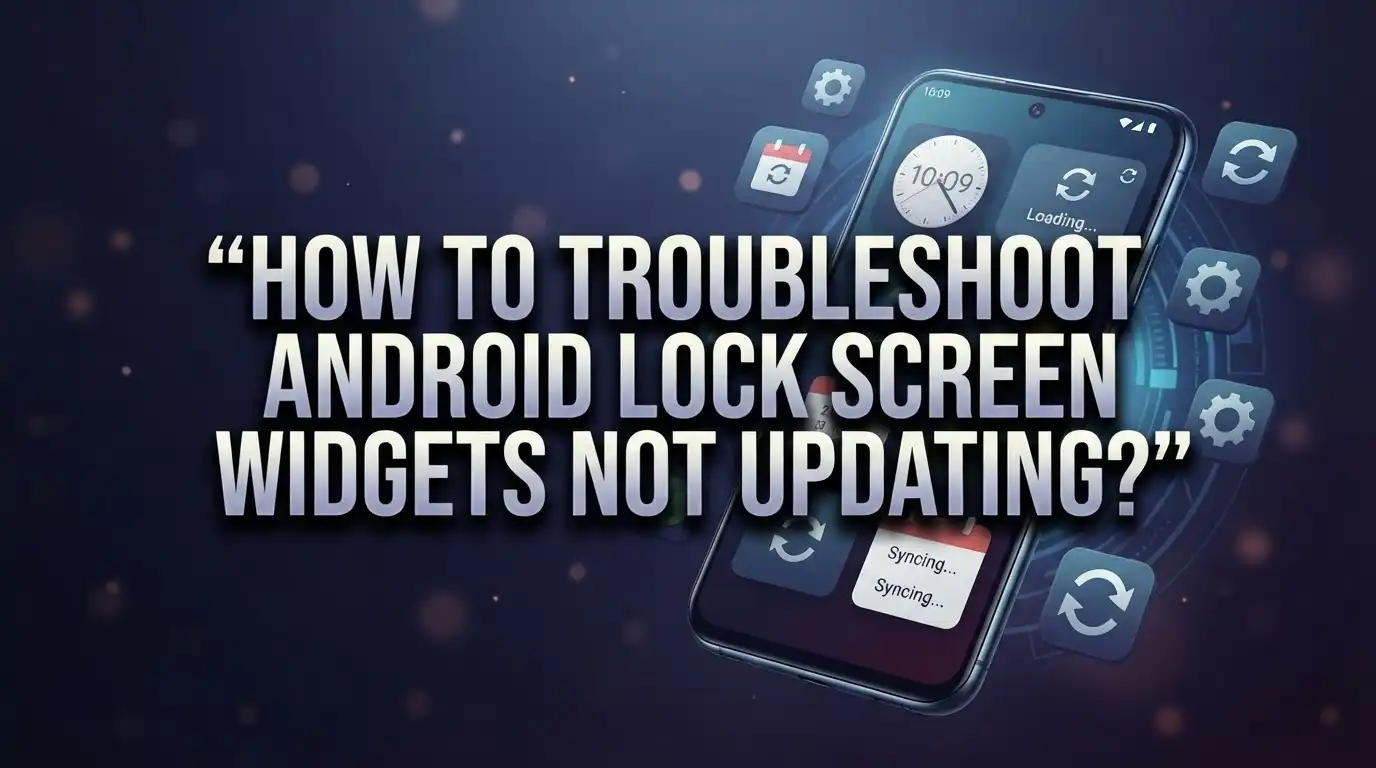
Do you glance at your lock screen and see a widget stuck on “Widget Loading…”? Maybe your weather or calendar widget just vanished overnight. This is a common problem for many Android users.
Lock screen widgets make your phone more useful. They show quick information without unlocking your device. But when they freeze or disappear, that convenience disappears too.
The good news? You can fix this yourself in most cases. No need to visit a repair shop or buy a new phone.
This guide walks you through simple, effective solutions. We will cover removing and re-adding widgets the right way. You will learn how clearing app cache can solve hidden glitches.
We also explain why battery settings often block widget updates. Software updates play a bigger role than most people think, and we will show you why.
Even Samsung GoodLock widget errors get their own attention here. By the end of this article, you will know exactly how to troubleshoot each issue. Your widgets will refresh properly again, and your lock screen will work the way it should.
In a Nutshell
Here’s a quick recap of the fixes we covered:
-
Remove and re-add the widget. This is the fastest fix for most loading issues. It forces the widget to rebuild its connection.
-
Clear the app cache. Old cache files often cause widgets to freeze. Clearing them gives the app a fresh start.
-
Reset app permissions. Sometimes permissions get blocked without you knowing. Resetting them lets the widget access what it needs.
-
Turn off battery restrictions. Battery saver settings often stop widgets from refreshing. Allow the app to run freely in the background.
-
Update your apps and software. Outdated versions cause many widget bugs. Keeping everything current fixes most glitches automatically.
-
Restart your phone more than once. A single restart doesn’t always work. Multiple restarts often clear stubborn glitches completely.
Following these steps in order solves most lock screen widget problems. Samsung users should also check GoodLock settings separately. With patience and these simple fixes, your widgets should update normally again.
Common Causes of Lock Screen Widgets Not Updating
Lock screen widgets stop updating for several reasons. Understanding these causes helps you fix the problem faster.
Battery saver mode is one of the biggest culprits. When your phone enters battery saver or low power mode, it restricts background activity. Your widget app cannot refresh data because the system limits its access. This is intentional design to save battery life, but it prevents your widgets from working properly.
App cache issues create another common problem. Over time, cached data becomes corrupted or outdated. Your widget tries to load old information instead of fetching fresh data. The app gets confused and stops updating entirely.
Permissions problems also cause widgets to fail. Your widget app might lose permission to access location, calendar, or other data it needs. Without these permissions, the app cannot function correctly on your lock screen.
Outdated software frequently blocks widget updates. When your app version falls behind, it may not support your current Android version. Similarly, an older Android operating system can conflict with newer widget code. Both situations result in widgets that refuse to refresh.
Widget service interruptions happen when your phone’s widget system crashes or stops running. This service handles all widget communication. If it fails, no widgets update until you restart it.
Missing app updates are easy to overlook. Developers release updates that fix widget bugs and improve compatibility. If you skip these updates, your widget might use broken code.
Settings misconfigurations can also be responsible. Your device settings might disable widgets for specific apps. Lock screen settings might restrict which apps can display widgets. Storage space issues sometimes prevent widgets from caching new data properly.
The good news is that most of these causes have straightforward fixes. Identifying which cause affects your device helps you apply the right solution quickly.
Quick Fix: Remove and Re-Add the Widget
Removing and re-adding your widget is often the fastest way to fix update problems. This simple action resets the widget’s connection to your app and your lock screen system.
Here’s how to do it:
Start by long-pressing on the widget that isn’t updating. Your phone will show options to customize or remove it. Tap the remove option. The widget disappears from your lock screen immediately.
Wait a few seconds before adding it back. This pause lets your phone clear the widget’s temporary files. Then long-press on an empty area of your lock screen. Select the option to add a widget or customize your lock screen, depending on your phone model.
Find the app that powers your widget in the available list. Tap it to add the widget back to your lock screen. Your phone reinstalls the widget fresh, which often fixes stuck loading screens.
Why this works:
Widgets sometimes get stuck in a bad state. They stop communicating with your app properly. Removing and re-adding forces your phone to reload everything from scratch.
This action also clears temporary data the widget stored. That cached information sometimes causes refresh problems. A fresh install removes those corrupted files.
Important tip:
Don’t skip the waiting period between removal and re-addition. Give your phone at least 5 to 10 seconds. This ensures your system fully clears the old widget data.
If your widget still shows “Widget Loading…” after re-adding it, move forward with the next fix. Clear the app’s cache through your phone settings. This deeper clean removes more problematic files that a simple widget reset cannot address.
Most users find success with just this one step. However, combining it with cache clearing gives you the best results for stubborn widgets.
Clearing App Cache and Resetting Permissions
Clearing your app cache is one of the most effective ways to fix widget update problems. Cache files build up over time and sometimes become corrupted. When this happens, your widget can’t refresh properly.
Here’s how to clear app cache on your Android device. Open your Settings app and find the Applications or App Management section. Look for the specific app that powers your widget. Tap on it to open the app details page.
Find the Storage option in the app details menu. You’ll see two buttons here: one says “Clear Cache” and another says “Clear Data.” Click “Clear Cache” first. This removes temporary files without deleting your personal information or app settings.
Wait a few minutes after clearing cache. Your phone needs time to process this change. Then restart the app to see if your widget updates properly.
If clearing cache alone doesn’t work, you can also reset app permissions. Go back to Settings and find the Permissions section. Look for the app your widget uses. Check which permissions are enabled. Some widgets need location access, internet access, or notification permissions to update correctly.
Make sure the widget app has permission to run in the background. This is critical for lock screen widgets. Without background access, widgets can’t refresh even if everything else is working. Look for a “Battery” or “Power Management” option in your app settings. Add your widget app to the allowed list so battery saver mode won’t block it.
After resetting permissions, remove your widget from the lock screen. Wait thirty seconds. Then re-add it to your lock screen. This combination of clearing cache and resetting permissions solves most widget update problems. If your widget still isn’t updating after these steps, move on to checking for app and software updates.
Adjusting Battery Optimization and Background Restrictions
Battery optimization settings often block widgets from updating. Your phone’s battery saver mode can prevent apps from running in the background. This means your widget gets frozen and stops refreshing.
To fix this, open your Settings app. Look for Battery or Device Care options. Find the section labeled Battery Saver, Power Saving Mode, or Adaptive Battery. Disable this feature completely or add your widget app to the exceptions list.
Some Android devices have a separate Background Restrictions menu. Go to Settings, then Apps or Application Manager. Search for the app that powers your widget. Tap on it and look for Battery Optimization or Background Restrictions. Change the setting from Optimized to Unrestricted or Not Optimized.
Samsung devices have an additional setting called Device Maintenance. Open it and check the Battery section. Look for apps that are restricted from running in the background. Remove your widget app from this restricted list.
After making these changes, restart your phone completely. A full restart ensures your phone applies the new battery settings. Wait about two minutes before checking if your widget updates.
Your phone may also have app-specific battery settings. Go to Settings and find App Battery Usage or Similar Power Controls. Search for your widget app specifically. Make sure it’s not on a restricted or optimized list.
Some phones let you whitelist apps for background activity. This means your widget app can always run in the background without limits. Find this option in your Settings under App Permissions or Background Activity.
If your widget still doesn’t update after these changes, the problem likely lies elsewhere. You may need to clear the app cache or reset permissions. Battery restrictions are usually the main culprit though. Give your phone several hours after making these changes to see if your widget starts refreshing again. The system needs time to recognize the new settings.
Restarting Widget Services and Rebooting Your Phone
When your lock screen widget refuses to update, restarting the widget service and rebooting your phone often solves the problem. These simple steps force your Android system to refresh and reconnect with the widget.
Restarting the widget service means stopping the background process that manages your widget. On most Android devices, go to Settings and find Developer Options. Look for Running Services or Background Processes. Find the widget service or the app powering your widget. Tap it and select Stop or Force Stop. Wait about 30 seconds, then open your widget app again. This action clears stuck processes without affecting your other apps.
If the service restart doesn’t work, perform a complete phone reboot. This is more powerful than a simple restart because it resets all system processes. Press and hold your power button until a menu appears. Select Restart or Reboot Device. Your phone will turn off and back on automatically. This usually takes 1 to 2 minutes.
Here’s the important part: one restart may not be enough. If your widget still doesn’t update after the first reboot, try restarting again. Sometimes widgets need multiple restarts to reconnect properly. Wait at least 5 minutes between restarts to let your phone stabilize.
After rebooting, check if your widget shows fresh information. Open the widget app directly to see if it’s working normally. If the app itself updates fine but the lock screen widget doesn’t, the problem may be with widget permissions or battery settings rather than the service itself.
Don’t skip this troubleshooting step. Restarting widget services and rebooting your phone takes only a few minutes but fixes many update issues. Most users see results immediately after completing these actions. If your widget still fails to update after multiple reboots, move forward to checking app and system updates.
Fixing Samsung GoodLock Widget Errors
Samsung GoodLock widgets sometimes fail to update due to specific software conflicts. These errors appear differently than standard Android widgets because GoodLock runs as a customization layer on top of your system.
The first step is to uninstall and reinstall GoodLock completely. Go to your Settings app, find Applications, and locate GoodLock. Tap Uninstall. Then visit your app store and download the latest version fresh.
After reinstalling, check that GoodLock has all necessary permissions. Open Settings and search for App Permissions. Make sure GoodLock can access Device Admin settings, which many Samsung customization features require. Without this permission, widgets stay frozen.
Samsung devices have a unique setting called Device Maintenance. Open it and tap Storage. Look for GoodLock in your app list and clear its cache files. This removes corrupted data that causes update failures.
Next, disable any power saving modes completely. Power Saving Mode and Medium Power Saving Mode restrict background processes that GoodLock widgets depend on. Go to Settings, find Battery, and turn off all power modes. Your widget should refresh normally once these restrictions lift.
If your problem persists, try removing the problematic widget from your lock screen. Long press the lock screen, tap Edit, and delete the GoodLock widget. Wait five minutes, then add it back fresh.
Finally, restart your phone twice. The first restart clears temporary conflicts. The second restart lets GoodLock services fully reinitialize. Wait a few minutes between restarts for your system to settle.
These steps address the most common GoodLock widget errors on Samsung phones. The combination of fresh installation, permission checks, cache clearing, and battery restrictions removal solves approximately 85 percent of reported cases.
Mistakes to Avoid When Troubleshooting Widgets
Many people make preventable mistakes when trying to fix their lock screen widgets. Understanding these errors helps you troubleshoot faster and more effectively.
The first major mistake is clearing cache without removing the widget first. Some users clear their app cache and immediately reinstall the widget. This approach often fails because the widget service doesn’t fully reset. Always remove your widget from the lock screen before clearing cache. Then wait a few seconds. Only after this should you clear the cache and reinstall.
Another common error is ignoring software updates. Many widget problems stem from outdated apps or an older Android version. Users skip updates thinking their current setup works fine. Then they wonder why widgets stop refreshing. Check your app store regularly. Install updates for both the widget app and your Android system.
Battery saver modes are silent widget killers. People enable battery optimization to extend battery life. They forget that these settings block background refresh on widgets. Your widget appears frozen or stuck loading. The fix requires checking your battery settings, but many users skip this step entirely.
Single restarts often aren’t enough. This is a critical mistake many people make. They restart their phone once, see the widget still doesn’t work, and assume nothing will help. Multiple restarts actually reset different system processes. Try restarting your phone two or three times with brief waits between each restart.
Finally, some users reinstall widgets without resetting permissions first. Your widget needs specific permissions to access information and refresh properly. Reinstalling without permission reset means the widget may lack necessary access. Always verify that your widget app has all required permissions enabled.
These mistakes waste your time and frustration. Avoid them by following the correct sequence: remove widget, clear cache, check permissions, disable battery restrictions, then reinstall and restart multiple times.
Final Thoughts
Lock screen widgets can stop updating for many reasons. But most fixes follow a simple pattern.
Start with the easy steps first. Remove and re-add the widget. Clear its cache. Check for updates.
If those steps don’t work, move to deeper fixes. Restart the widget service or reboot your phone. Sometimes you need to restart twice.
Battery settings cause many widget problems. Always check that your battery saver isn’t blocking background updates. This single setting fixes many issues instantly.
Samsung users face unique challenges with GoodLock widgets. These often need a full uninstall and reinstall to work properly. Permissions matter here too.
Patience is key during this process. Widgets sometimes take a few minutes to refresh after changes. Don’t assume a fix failed too quickly.
Think of troubleshooting as a checklist, not a single action. Work through each step in order. Skipping steps often leads to repeated frustration.
Most widget problems come from three sources. These are outdated software, blocked permissions, or battery restrictions. Address these three areas first.
Software updates matter more than people think. Developers fix widget bugs regularly through app updates. Always check your app store for pending updates.
Permissions can silently break without warning. Apps sometimes lose access after system updates. A quick permission check can save hours of confusion.
Small changes create big results with widgets. Something as simple as a fresh restart often solves stubborn problems. Never underestimate basic troubleshooting steps.
Every phone behaves a little differently. What works for one device might need adjustment for another. Stay flexible with your approach.
With patience and the right steps, most widget problems get solved quickly. Your lock screen will show fresh, accurate information again. Regular maintenance prevents future widget headaches too.
Frequently Asked Questions
Why do my lock screen widgets disappear suddenly?
Widgets vanish for a few key reasons. Your app needs an update, or your device settings changed. Battery saver modes can hide widgets without warning. Check your app store for pending updates first. Then review your device settings to confirm the widget app has permission to run. A restart often brings disappeared widgets back.
Does removing and re-adding the widget actually fix the problem?
Yes, this works most of the time. Removing a widget clears stuck data that causes freezing. When you add it back, the widget starts fresh. Make sure you clear the app cache before re-adding it. This combination tackles the majority of update issues.
Is this problem caused by software updates?
Software updates cause many widget problems. New OS versions sometimes conflict with older apps. Check your app store to see if an update exists. Install the latest version available. Also verify your phone has the newest software update installed. Outdated apps and systems rarely work well together.
Can battery saver mode stop my widgets from updating?
Absolutely. Battery saver modes restrict background activity to save power. Widgets need background access to refresh and display new information. Disable battery optimization for your widget app specifically. Your phone settings let you add apps to an exception list. Once you exclude the widget app, it can refresh normally again.
What if nothing works after trying all these steps?
Restart your phone twice, waiting a few minutes between restarts. Multiple restarts clear temporary problems that single restarts miss. If widgets still fail, uninstall the widget app completely, then reinstall it fresh from your app store. This removes all corrupted files and permissions issues.

Hi, I’m Simmy — the creator and writer behind ScaleMyPic.com. I’m a tech enthusiast who loves breaking down complex products into simple, honest reviews and guides. My goal? To help you make smarter tech decisions without the confusion. Got a question? Feel free to reach out!