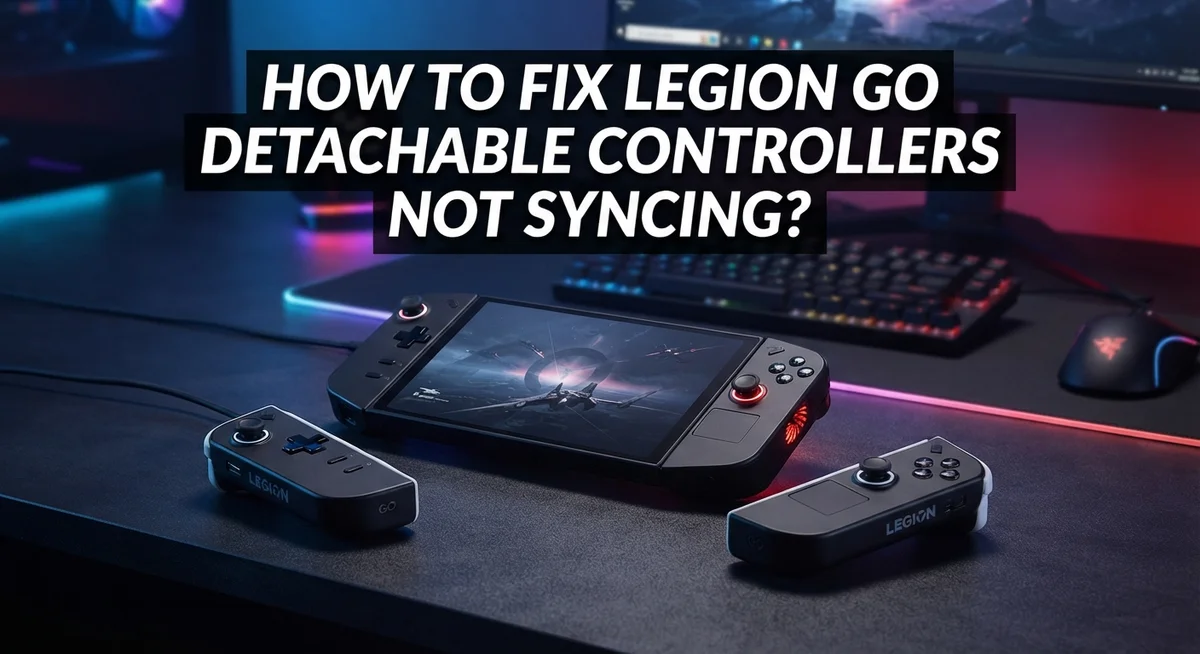
How To Fix Legion Go Detachable Controllers Not Syncing?
Your Legion Go detachable controllers won’t sync, and it’s frustrating. You pick up your device, detach the controllers, and nothing works. The indicator lights may not respond, and the connection feels completely lost.
This is actually a common issue that many Legion Go users face. It can happen in both docked and wireless modes. The good news is that most causes are fixable without any special tools or technical background.
The problem usually comes down to a few key areas. Software settings, driver updates, and BIOS configurations are the most frequent culprits. Sometimes it is as simple as reattaching the controllers and waiting a few seconds before detaching again.
In this guide, you will learn exactly why this syncing issue happens. You will also get clear, step-by-step fixes that address each possible cause. From checking your Legion Space software to adjusting BIOS settings, every solution is covered here.
In a Nutshell
- Legion Space software must be running before your controllers will sync properly. Without it active, detached controllers simply will not connect.
- Reattaching both controllers and waiting a few seconds before detaching again can refresh the connection and fix most sync issues instantly.
- Keeping your Lenovo software and system drivers updated is critical. Outdated drivers are one of the most common reasons controllers stop syncing.
- If your controllers fail to sync even when physically attached, you may need to access BIOS advanced settings and enable the battery service option.
- Check the indicator lights on your controllers. No lights usually point to a hardware or connection issue that needs attention from the attached state first.
- External apps like Steam or Epic Games may not recognize your controllers if Legion Space is running. This is a software conflict, not a hardware fault.
Why Legion Go Detachable Controllers Lose Sync
Your Legion Go controllers lose sync for several specific reasons. Understanding these causes helps you fix the problem faster.
Software isn’t running in the background. Legion Space software must stay active for your controllers to maintain connection. When this software closes or fails to launch, your controllers cannot communicate with the device. This is the most common cause of sync failures.
Battery service mode is disabled. Your BIOS settings control whether controllers can operate wirelessly. If battery service mode is turned off in advanced BIOS settings, controllers will not sync when detached. This setting directly affects wireless functionality.
Drivers and software are outdated. Old Lenovo software or system drivers create compatibility issues. Your controllers may fail to recognize the device or vice versa. Updates fix these communication problems between components.
Controllers need a connection refresh. After software updates or long periods of use, controllers lose their wireless pairing. Reattaching both controllers and waiting several seconds allows them to re establish connection with the main device.
Physical connection problems exist. If controllers won’t sync even when attached, a hardware issue may be present. Loose connections or damaged charging ports prevent proper communication. Check for visible damage or debris in connection areas.
External applications block recognition. Steam, Epic Games, and similar apps sometimes conflict with Legion Space software. This causes controllers to appear unrecognized in those specific programs.
Indicator lights aren’t functioning. When your controllers show no light signals, connection detection fails. The device cannot verify that controllers are properly paired or charged.
Each of these issues requires a different fix. Start by checking which problem matches your situation, then apply the appropriate solution to restore your controller sync.
How to Check Controller Connection Status Using Indicator Lights
Your Legion Go controllers display indicator lights that tell you their connection status. Learning to read these lights helps you fix syncing problems quickly.
Look for the LED indicator on each controller. Most Legion Go controllers have a small light on the side or top. This light changes color and behavior based on what your controllers are doing.
A solid blue light means your controller is connected and ready to use. The connection is stable, and your controller should respond to your inputs without delay. If you see this light, your controller is working properly.
A blinking or flashing light indicates your controller is searching for a connection. Your controller is trying to sync with your Legion Go device but hasn’t completed the connection yet. Wait a few seconds for the light to become solid. If it keeps blinking after 10 seconds, move on to other troubleshooting steps.
No light at all suggests a power or hardware problem. Your controller may have a dead battery, or the light itself could be damaged. Try reattaching the controller to the device to see if the light appears.
A red or amber light typically means your controller has a low battery or error condition. Charge your controllers fully and check if the light changes color.
Pay attention to whether both controllers show the same light pattern. If one controller has a solid blue light while the other blinks, you have an uneven connection. This uneven status often causes syncing failures.
Check your controller lights regularly during troubleshooting. These visual cues guide you toward the right fix. They show you whether the problem is software related or hardware related.
Step-by-Step: Reattaching and Resyncing the Controllers
Start by ensuring your Legion Space software is running on your device. This application must stay active in the background for your controllers to communicate with your Legion Go. Open your system tray and check if the software is already running. If not, launch it from your applications menu.
Next, perform a physical reattachment cycle. Firmly attach both controllers to your Legion Go device. Wait for 5 to 10 seconds while they are connected. You should see indicator lights respond during this time. Then carefully detach both controllers from the device.
After detaching, wait another 10 seconds before attempting to use them wirelessly. This pause allows your device to complete the sync process. Try moving your controllers closer to your Legion Go to test the connection. The controllers should recognize each other and establish a wireless link.
If syncing still fails, reattach the controllers once more. Leave them connected for a full minute this time. Check that your Legion Space software remains open during this entire process. Sometimes a longer connection period helps reset the wireless pairing.
Next, check your software versions. Open your Lenovo settings and look for any available updates. Install all pending Lenovo software and system driver updates. Outdated software frequently causes controller recognition problems.
Finally, enable automatic startup for your Legion Space software. Access your system settings and add the application to your startup programs. This ensures the software launches automatically when you turn on your device, preventing future sync issues.
If your controllers still won’t sync after these steps, you may need to access your BIOS settings to enable battery service mode for wireless operation.
How to Ensure Legion Space Software Is Running Correctly
Your Legion Space software is the control center for your detachable controllers. When this software isn’t running properly, your controllers cannot communicate with your Legion Go device.
Start by launching Legion Space on your system. Check your taskbar or system tray to confirm the software is active. If you don’t see it running, open it manually from your applications menu. The software must stay open in the background for wireless syncing to work.
Verify the software version is current. Outdated versions often have bugs that prevent controller recognition. Open the software settings and look for an update option. If updates are available, install them immediately and restart your device afterward.
Enable automatic startup for Legion Space. This prevents the software from accidentally closing and breaking your controller connection. Access your system settings and add Legion Space to your startup programs. Your controllers will then stay synced whenever you power on your Legion Go.
Check if the software is blocking other applications. Sometimes Legion Space prevents your controllers from connecting to external apps like Epic Games or Steam. If you’re trying to use your controllers with another program, temporarily disable any Legion Space blocking features in its settings menu.
Refresh your controller connections after any software update. Simply reattach both controllers to your device, wait 5 seconds, then detach them again. This forces the software to recognize the controllers fresh.
If Legion Space still won’t keep your controllers synced after these steps, the problem likely exists elsewhere in your system settings or hardware connection.
How to Update Lenovo Software and System Drivers
Keeping your Lenovo software and system drivers current is essential for controller syncing. Outdated software often causes connection failures between your Legion Go and its detachable controllers.
Start by opening your system settings and navigating to the updates section. Look for any pending software updates from Lenovo. These updates frequently include fixes for controller recognition and wireless connectivity issues. Install all available updates and restart your device when prompted.
Next, focus on your system drivers. Drivers control how your hardware communicates with your operating system. Visit your device manufacturer’s support page and search for your specific Legion Go model. Download the latest chipset drivers, USB drivers, and any controller specific drivers available.
Install drivers one at a time and restart your system after each installation. This prevents conflicts between different driver updates. Pay special attention to USB drivers, since your controllers connect through USB ports when docked.
After updating drivers, reconnect your controllers. Attach them to your device, wait 15 seconds, then detach them again. This refresh cycle helps your system recognize the updated drivers properly.
Check your Legion Space software version too. Open the application and look for an update option in the settings menu. Outdated Legion Space versions frequently struggle with controller syncing. Update the software if a newer version is available.
Enable automatic updates for future protection. Most Lenovo software has an automatic update setting in preferences. Turning this on ensures you receive critical fixes without manual intervention.
If syncing still fails after these updates, your issue likely stems from BIOS settings or hardware problems rather than software conflicts.
How to Fix Persistent Sync Issues Through BIOS Settings
When standard troubleshooting doesn’t resolve your controller sync issues, BIOS settings often hold the solution. Your BIOS is the firmware that controls how your device communicates with hardware components, including your detachable controllers.
Start by restarting your Legion Go and entering BIOS during startup. You’ll typically press a specific key like Delete, F2, or F12 during the boot process. Check your device manual for the exact key.
Once in BIOS, navigate to the advanced settings menu. Look for power management or battery options. Find the setting labeled “turn off battery use” or “battery service mode” and enable it. This setting prevents your device from managing controller power independently, which often causes sync failures.
After enabling this option, save your changes and exit BIOS. Your device will restart automatically.
Reattach both controllers to your device and wait 15 seconds. Then detach them again and wait another 10 seconds before attempting wireless use. The BIOS change should now allow your controllers to sync properly.
If you still experience issues, return to BIOS and check for any firmware updates. Some devices allow BIOS updates directly from the firmware menu. Installing the latest BIOS version can fix compatibility problems between your controllers and main device.
Pay attention to any error messages that appear during this process. These messages guide you toward the specific setting causing problems.
Remember to restart your Legion Space software after making BIOS changes. The software needs to recognize the new firmware settings to communicate correctly with your controllers. This combination of BIOS adjustments and software refresh typically resolves persistent sync problems.
Common Mistakes That Prevent Controllers From Syncing
Many people make simple mistakes that stop their controllers from syncing properly. Understanding these errors helps you fix the problem faster.
Running controllers without Legion Space active is the most common mistake. Your controllers need this software to communicate with your device. If the software closes unexpectedly, your controllers lose connection immediately. Always check your taskbar to confirm the software is running before you detach your controllers.
Skipping software and driver updates creates major sync problems. Outdated versions contain bugs that prevent proper recognition. Many users think their controllers are broken when they simply need updates. Install all available updates and restart your system after each one.
Not waiting long enough after reattaching controllers causes failed sync attempts. When you reattach your controllers, wait at least 15 seconds before detaching them again. This pause allows the system to establish a proper connection. Rushing this step forces you to repeat the entire process.
Ignoring indicator light signals leaves you troubleshooting the wrong issue. Your controller lights tell you if they are connected or charging. No lights at all suggests a hardware or connection problem. Lights that flicker indicate the controllers are trying to sync.
Attempting to use controllers with other applications immediately can break the connection. Some apps block Legion Space from controlling your device. Test your controllers within Legion Space first to confirm they work properly.
Forgetting to enable automatic startup for Legion Space means the software may not launch when you restart your device. This setting ensures your controllers stay ready to use every time you power on your Legion Go.
Troubleshooting Controllers Not Recognized in Third-Party Apps
When your Legion Go controllers don’t sync with third-party apps, the issue usually stems from how Legion Space interacts with external software. Third-party applications like Epic Games, Steam, or other gaming platforms may not recognize your controllers because Legion Space manages the connection exclusively.
Start by checking if your controllers work properly within Legion Space first. Open the application and verify both controllers connect and respond to input. If they function there but not in third-party apps, you’ve identified the root cause.
Next, disable any controller exclusivity settings in Legion Space if available. Some versions include options that prevent external applications from accessing your controllers. Look through the settings menu carefully for connection or compatibility options.
Update your third-party application to the latest version. Developers frequently release patches that improve controller compatibility. An outdated game or app may simply lack proper Legion Go support.
Try reconnecting your controllers after launching the third-party app. Sometimes the connection initializes differently when the external software runs first. Detach both controllers, wait five seconds, then reattach them while the app is open.
Check the controller indicator lights during this process. Solid lights indicate a proper connection. Blinking or absent lights suggest the controllers aren’t syncing correctly.
If problems persist, restart your entire device completely. Power down fully, wait 30 seconds, then restart. This resets all software connections and often resolves recognition issues.
Contact the third-party app’s support team if your controllers still don’t work. They can confirm whether their software officially supports Legion Go controllers and provide specific troubleshooting steps for their platform.
Final Thoughts
Fixing Legion Go detachable controllers that won’t sync can feel frustrating, but the solutions are straightforward once you know where to look.
The most important takeaway is this: Legion Space must always be running before you attempt to use your controllers in detached mode. Without it, nothing works as expected.
Start with the simplest fixes first. Reattach both controllers, wait a few seconds, then detach them again. This small step solves the problem more often than people expect.
Always keep your software and drivers updated. Outdated drivers are one of the most common hidden causes of sync failures on the Legion Go.
If basic steps don’t work, BIOS settings are your next stop. Enabling the battery service option inside BIOS advanced settings resolves deeper connection issues that software alone cannot fix.
Pay attention to your indicator lights at all times. They tell you exactly what state your controllers are in, which saves you time and guesswork.
Third-party apps like Steam or Epic Games may not recognize your controllers if Legion Space is blocking communication. Always verify that your controllers work inside Legion Space before testing them in other applications.
Enable automatic startup for Legion Space so the software launches every time your device powers on. This prevents future sync problems before they even start.
If you see no indicator lights at all, treat it as a hardware or connection issue and begin troubleshooting from the attached state.
Patience matters here. Waiting after reattaching controllers gives the system time to register the connection properly.
Follow these steps consistently, and your Legion Go controllers will sync reliably every time.
Frequently Asked Questions
Why do my controllers lose sync when I detach them?
Detached controllers need Legion Space running in the background to maintain connection. If the software closes or crashes, your controllers cannot communicate with the device. The controllers also rely on proper driver installation to function wirelessly.
Make sure your system drivers stay current. Outdated drivers break the wireless connection between your controllers and the main unit. Check for updates regularly through your system settings.
What should I do if my controllers show no indicator lights?
No indicator lights usually signal a hardware or connection problem. First, reattach both controllers to the main unit and wait 10 seconds. Then detach them again slowly and watch for light activity.
If lights still don’t appear, the controllers may need a firmware refresh. Keep Legion Space open and try reconnecting the controllers multiple times. If this fails, your controllers may have a hardware issue requiring professional service.
Can I use my Legion Go controllers with Steam or Epic Games?
Your controllers can work with third party apps, but Legion Space might block direct recognition. Test your controllers within Legion Space first to confirm they sync properly there.
Update your third party application to the newest version available. Launch the app, then reconnect your controllers. Sometimes restarting your entire device helps third party apps detect the controllers correctly.
How do I fix controllers that won’t sync even when attached?
Access your BIOS settings and look for battery service mode or battery use options. Enable the “turn off battery use” setting in advanced BIOS options. This refreshes how your device communicates with the controllers.
After changing BIOS settings, restart your device completely. Reattach your controllers and wait for them to sync. This process often resolves stubborn sync issues that basic troubleshooting cannot fix.

Hi, I’m Simmy — the creator and writer behind ScaleMyPic.com. I’m a tech enthusiast who loves breaking down complex products into simple, honest reviews and guides. My goal? To help you make smarter tech decisions without the confusion. Got a question? Feel free to reach out!