Why Is My Apple Watch Series 11 Not Tracking Sleep?
Is your Apple Watch Series 11 showing zero sleep data in the morning? You wake up, check your Health app, and nothing is there. No sleep stages. No time asleep. Just a blank screen.
This is one of the most common complaints from Apple Watch Series 11 users. And the good news is that most of these problems have clear, fixable causes. Whether the issue started after a watchOS update, a settings change, or right out of the box, this guide walks you through every possible fix step by step.
You will learn what causes sleep tracking to fail, which settings to check first, and how to reset things properly when nothing else works. By the end, your Apple Watch Series 11 will track your sleep the way it was built to do.
Key Takeaways
- Sleep tracking must be manually turned on. The “Track Sleep with Apple Watch” toggle in the Watch app does not activate by default on all setups. You need to turn it on before your first night of tracking.
- Battery level matters more than most people think. Your Apple Watch Series 11 must have at least 30% battery charge before you go to bed. If the battery dies overnight, sleep data is lost entirely.
- Wrist detection is a hidden requirement. Without Wrist Detection turned on in your Passcode settings, the watch cannot sense if it is being worn and will not log sleep data at all.
- Fit and placement directly affect accuracy. A watch that is too loose on your wrist generates false movement signals. Wear it snug, positioned slightly above the wrist bone for best results.
- Software bugs after updates cause real problems. If tracking stopped after a watchOS or iOS update, restarting both devices or reinstalling the sleep schedule often resolves the issue quickly.
- The watch must be worn for a minimum of 1 hour per night. Apple’s system requires at least one continuous hour of wear while asleep to record and display sleep data in the Health app.
Understanding How Apple Watch Series 11 Sleep Tracking Works
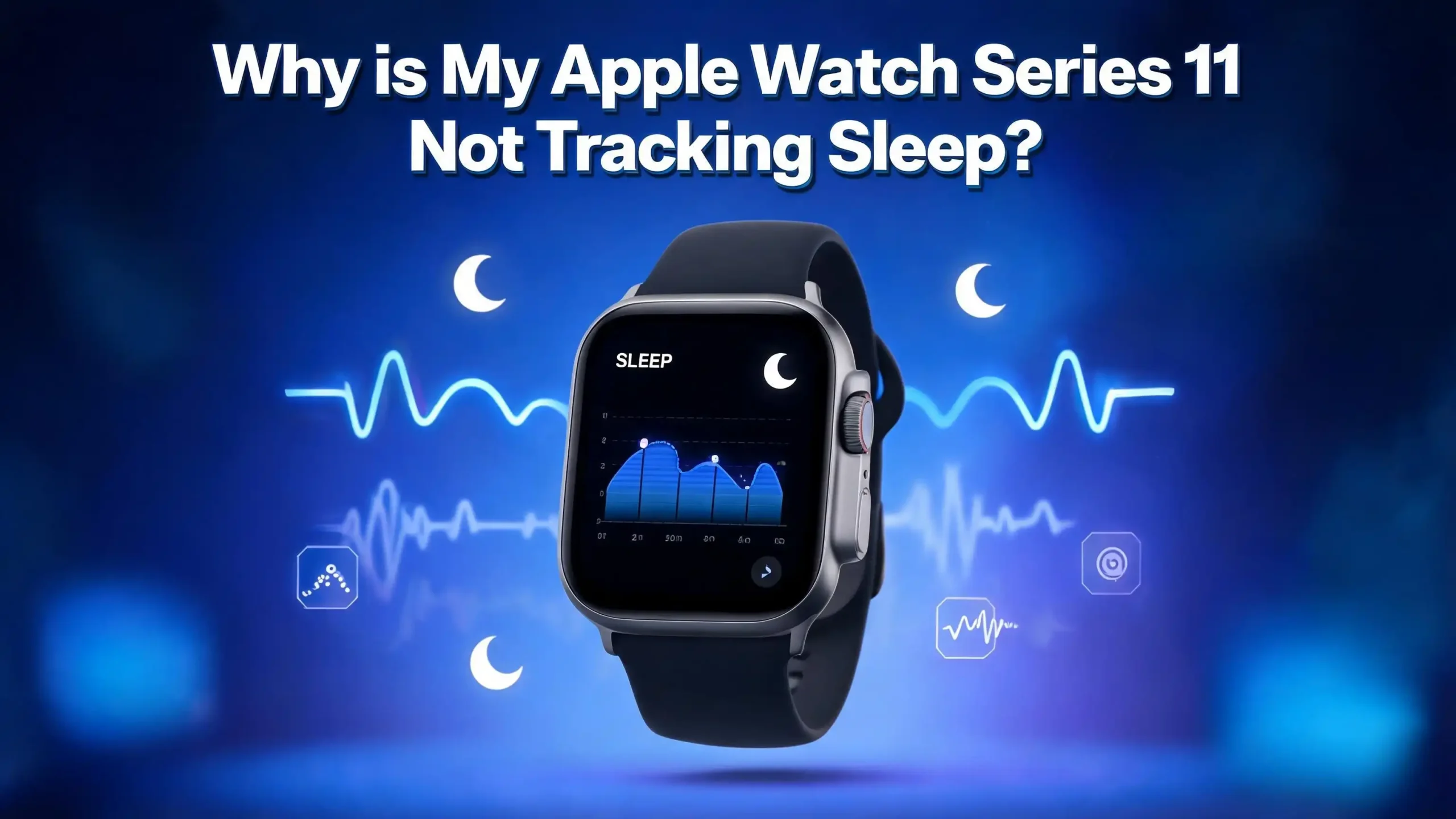
Before fixing the problem, you need to understand how the system works. The Apple Watch Series 11 uses its accelerometer, optical heart rate sensor, and wrist temperature sensor to detect when you fall asleep and how you move through sleep stages.
The watch monitors four key sleep stages: REM sleep, Core sleep, Deep sleep, and time awake. This data feeds into the Health app on your iPhone and also generates a Sleep Score from 0 to 100 each morning. The score is based on sleep duration (50 points), bedtime consistency (30 points), and interruptions (20 points).
For all of this to work, a specific set of conditions must be true at the same time. The “Track Sleep with Apple Watch” toggle must be on. The watch must be charged above 30%. It must be worn during a valid sleep window on your schedule. And your iPhone must have an active Sleep schedule set up in the Health app.
If any one of these conditions fails, the entire system stops recording. That is why sleep tracking often appears broken even when the hardware itself is perfectly fine. The fix is almost always a settings problem, not a hardware problem.
Check If “Track Sleep with Apple Watch” Is Turned On:
This is the first thing to check. Many users assume sleep tracking is on by default, but that is not always true. After a restore, a re-pair, or a fresh setup, this setting can be off.
Here is how to check it. Open the Watch app on your iPhone. Tap the “My Watch” tab at the bottom. Scroll down and tap “Sleep.” Look for the toggle labeled “Track Sleep with Apple Watch.” If it is grey, tap it to turn it on (it should turn green).
While you are in this menu, also make sure your Sleep Schedule is active. In the same Sleep section, tap “Full Schedule & Options.” Check that at least one sleep schedule is enabled and that the days and times match your actual sleep routine.
Without an active schedule, the watch has no reference point for when to begin tracking. It will not automatically detect sleep outside of the scheduled window in all cases. Set realistic bedtime and wake-up times that match what you actually do.
Make Sure Your Sleep Schedule Is Set Up in the Health App
The Sleep schedule in the Health app on your iPhone is the backbone of the entire tracking system. The Apple Watch Series 11 refers to this schedule to know when to start detecting sleep.
Open the Health app on your iPhone. Tap “Search” at the bottom of the screen, then tap “Sleep.” Scroll down to find “Your Schedule” and check if a schedule is listed. If you see “No Active Schedule,” you need to set one up.
Tap “Get Started” under Set Up Sleep if this is your first time. Follow the on-screen prompts to set your Sleep Goal (recommended: 7 to 9 hours), your Bedtime and Wake Up times, and turn on Sleep Focus during scheduled hours.
A schedule with unrealistic times can cause gaps in data. For example, if your schedule says you wake up at 6:00 AM but you actually wake up at 8:00 AM, the watch may stop tracking two hours before you finish sleeping. Adjust the schedule to match real-world behavior for the most complete data.
Verify Wrist Detection Is Enabled on Your Apple Watch:
This is one of the most overlooked causes of sleep tracking failure. Wrist Detection is the feature that tells your Apple Watch Series 11 that it is actually being worn. Without it, the watch does not know you are wearing it and will not track any biometric data including sleep.
To check Wrist Detection, open the Watch app on your iPhone. Go to “My Watch,” then tap “Passcode.” Make sure the “Wrist Detection” toggle is turned on (green). If it is off, turn it on immediately.
Keep in mind that Wrist Detection is sometimes automatically disabled when the Passcode feature is turned off. If you have no passcode set on your Apple Watch, Wrist Detection may be disabled as well. You do not need to create a complicated passcode. Even a simple four-digit code works. Enable both the passcode and Wrist Detection together for the best result.
Some users also report that Wrist Detection can get confused if the watch is worn very loosely or on top of clothing. Always wear the watch directly on your bare skin.
Charge Your Apple Watch to at Least 30% Before Bed
Battery is one of the most common and most fixable reasons for missed sleep data. If your Apple Watch Series 11 dies at 2:00 AM, it stops tracking at exactly that moment. The data from the rest of the night is simply gone.
Apple’s official requirement is a minimum of 30% charge before you go to sleep. The Apple Watch Series 11 offers up to 24 hours of battery life, which means charging it for 15 to 30 minutes before bed is usually enough to get through the night.
Go to Watch app > Sleep > Charging Reminders and turn this feature on. The watch will send you a gentle reminder before your Wind Down time begins if the battery is too low. This simple feature can save a lot of missed sleep nights.
A good habit is to charge your Apple Watch Series 11 every evening while you eat dinner or relax before bed. Most users find 30 to 45 minutes of charging is plenty to reach 80% or more, which is more than enough for a full night of tracking.
Wear Your Apple Watch Correctly and Snugly on Your Wrist
How you wear your Apple Watch Series 11 matters more than most people realize. An incorrect fit causes the optical sensors on the back of the watch to miss your pulse. The accelerometer also picks up too much random movement if the watch slides around on your wrist.
Apple recommends wearing the watch above the wrist bone, slightly toward your elbow rather than right on the joint. This position keeps the sensors in steady contact with your skin throughout the night.
The watch should feel snug but not tight. A good test is this: you should not be able to slip more than one finger under the band while lying still. If the watch can shift position on its own, it is too loose for accurate sleep tracking.
Some users wear the watch on a slightly different part of their arm during sleep than during the day. That is fine. The goal is consistent skin contact for the sensors. If your skin feels irritated, try switching the band to a softer material or rotating the watch position slightly each night.
Restart Both Your Apple Watch and iPhone
Sometimes sleep tracking stops working not because of a setting but because of a temporary software glitch. A full restart of both devices can clear the issue in seconds.
To restart your Apple Watch Series 11, press and hold the side button (not the Digital Crown) until the power slider appears. Slide to turn it off. Wait 30 seconds, then press and hold the side button again until the Apple logo appears.
To restart your iPhone, press and hold the side button and a volume button simultaneously until the slider appears. Slide to power off. Wait 30 seconds and turn it back on.
After both devices restart, open the Watch app, go to Sleep, and confirm all settings are still in place. Sometimes a restart can reset a toggle. Do a quick check before your next sleep session to make sure everything is still properly configured.
This fix works especially well when sleep tracking was working fine for weeks and then suddenly stopped without any obvious reason.
Update watchOS and iOS to the Latest Version
Outdated software is a real and documented cause of sleep tracking failure on the Apple Watch Series 11. Apple regularly releases watchOS and iOS updates that fix bugs in health and fitness tracking. Running an old version means you may be stuck with a known bug that has already been fixed.
To update watchOS, open the Watch app on your iPhone. Go to “My Watch” > “General” > “Software Update.” If an update is available, tap “Download and Install.” Make sure your Apple Watch has at least 50% battery and is connected to its charger during the update.
To update iOS, go to Settings > General > Software Update on your iPhone. Install any available updates.
After a watchOS 26 update in particular, many Apple Watch users reported sleep tracking stopped completely. Apple acknowledged this with a patch. If you experienced this exact situation, updating to the latest available version of watchOS should restore tracking.
Always keep both devices updated. Running both on their latest software versions ensures the best compatibility between the Health app, the Watch app, and the sleep tracking sensors.
Check and Reset Sleep Focus Settings
Sleep Focus is the mode that activates automatically at your scheduled bedtime and helps your device reduce distractions while you sleep. But if Sleep Focus is misconfigured, it can actually interfere with sleep data being recorded correctly.
Go to Settings > Focus > Sleep on your iPhone. Make sure Sleep Focus is set to activate automatically based on your Sleep schedule. If it is set to manual only or turned off, the watch may not enter sleep tracking mode at the right time.
Also check that Sleep Focus is not blocking Health app activity. Under Sleep Focus settings, look for any App restrictions. The Health app should never be restricted during Sleep Focus, because it is the main app receiving and storing your sleep data.
If Sleep Focus has never been set up, go through the setup process in the Health app’s Sleep section. Tap “Full Schedule & Options” and make sure the “Sleep Focus” option is turned on for your active schedule. This ensures the watch shifts into sleep tracking mode at the right time every night.
Clean the Back Sensors on Your Apple Watch
This fix surprises many people, but dirty sensors are a real cause of failed sleep tracking. The optical sensors on the back of the Apple Watch Series 11 need direct, unobstructed contact with your skin to function properly.
Sweat, lotion, sunscreen, and daily grime can build up on the sensor area over time. When the sensors are dirty, they cannot read heart rate or movement accurately, which causes the sleep tracking algorithm to fail silently.
To clean the sensors, turn off your Apple Watch. Use a soft, lint-free cloth slightly dampened with fresh water. Gently wipe the back surface where the sensors are located. Do not use soap, cleaning sprays, or abrasive cloths. Let the watch dry completely before putting it back on your wrist.
Several Apple community users confirmed that cleaning the sensor area completely fixed their sleep tracking issue after other troubleshooting steps failed. Make this part of your weekly device maintenance routine. It takes less than a minute and keeps all health sensors working at full accuracy.
Force Sync Sleep Data Between Apple Watch and iPhone
Sometimes the sleep data is recorded on the Apple Watch but does not appear in the Health app on your iPhone. This is a sync issue rather than a tracking issue. The data exists but has not transferred yet.
The fastest way to force a sync is to open the Sleep app directly on your Apple Watch. Scroll through the data on the watch. This action often triggers a data push to your iPhone almost immediately.
You can also try bringing your Apple Watch and iPhone physically close together for a few minutes. They sync over Bluetooth, and distance can slow or interrupt the transfer. Make sure Bluetooth is enabled on your iPhone by checking the Control Center.
If the data still does not appear, open the Health app on your iPhone and navigate to Browse > Sleep. Pull down on the screen to trigger a refresh. In some cases, the data appears after a 15 to 30 minute delay, especially if the iPhone was not nearby when the watch woke up. Give it some time before assuming the data is lost.
Check Health App Permissions for Sleep Data
The Health app manages all data permissions on iOS. If sleep data permission has been revoked or never granted to the correct app, tracking will appear to fail even when the watch is recording data correctly.
Open the Health app on your iPhone. Tap your profile picture or initials in the top right corner. Tap “Privacy” and then “Apps.” Find the Apple Watch entry and make sure it has permission to write Sleep Analysis data.
If you use any third-party sleep apps like AutoSleep or Pillow, check that those apps also have read and write access to Sleep data in the same menu. A third-party app that writes to Health but the Watch app does not have permission to read will cause conflicts that result in blank sleep logs.
After checking permissions, restart the Health app by swiping it closed and reopening it. Then check if historical sleep data from the past few nights is now visible. Permissions errors are rarely obvious from the outside, which is why this step gets skipped by many users.
Reset Your Sleep Schedule and Set It Up Fresh
If you have tried all the above fixes and sleep tracking still fails, resetting your Sleep schedule entirely and starting fresh is the next step. This clears any corrupted configuration data that might be blocking normal tracking.
On your iPhone, open the Health app. Tap “Sleep” then “Full Schedule & Options.” Delete any existing schedules by tapping each one and selecting “Delete Schedule.” Turn off the Sleep Schedule toggle at the top of the screen.
Wait two minutes. Then tap “Add a Schedule” and create a brand new schedule with your accurate bedtime and wake-up times. Enable Sleep Focus and Track Sleep with Apple Watch during this setup.
This process effectively gives the tracking system a clean start. Many users who had persistent sleep tracking failures for weeks report that a full schedule reset fixed the issue permanently. It takes about three minutes to complete and causes no data loss for historical entries already stored in the Health app.
Unpair and Re-Pair Your Apple Watch as a Last Resort
If nothing else works, unpairing and re-pairing your Apple Watch Series 11 to your iPhone can fix deep software conflicts that other steps cannot reach. This is the most thorough reset available short of an erase.
Before you unpair, know that a backup is automatically created on your iPhone when you initiate the unpairing process. You can restore from this backup after re-pairing, which saves your settings, activity rings history, and other data.
To unpair, open the Watch app on your iPhone. Tap “My Watch,” then tap your watch name at the top. Tap the information icon (i) next to your watch, then tap “Unpair Apple Watch.” Confirm when prompted. Wait for the backup to complete.
After the watch is unpaired, place it near your iPhone and follow the on-screen pairing instructions. When asked, restore from your most recent backup. Once pairing is complete, go back to the Watch app and re-enable the sleep tracking toggle manually.
After re-pairing, sleep tracking returns to normal in the majority of persistent cases. Give it one full night before drawing conclusions. Check the Health app the next morning for your first post-repair sleep data.
When to Contact Apple Support
If you have worked through every fix in this guide and your Apple Watch Series 11 is still not tracking sleep, the issue may be a hardware problem with the sensors themselves. This is uncommon but it does happen.
Signs of a hardware problem include: the watch failing to record any biometric data at all (no heart rate, no steps, no calories), the back of the watch feeling unusually warm or cold, or visible damage to the sensor area on the underside of the watch.
Contact Apple Support at support.apple.com or visit an Apple Store for a diagnostic scan. Apple’s technicians can run sensor tests that identify whether the optical sensors or accelerometer are functioning within normal ranges. If your device is under warranty or covered by AppleCare+, a hardware issue may be repaired or replaced at no additional cost.
Before visiting, write down what you have already tried. This saves time and helps the support team skip basic troubleshooting and focus on more advanced diagnostics specific to your device.
Frequently Asked Questions
Why does my Apple Watch Series 11 show sleep data some nights but not others?
Inconsistent sleep tracking usually points to one of three causes. First, the watch battery may have run out on the nights with missing data. Second, you may be going to bed outside your scheduled sleep window, which causes the system to miss part of your session. Third, the watch may have been too loose on those specific nights. Check your charging habits, adjust your sleep schedule to cover your actual hours, and make sure the band is snug before each sleep session.
Does Apple Watch Series 11 track sleep automatically or do I need to start it manually?
Apple Watch Series 11 tracks sleep automatically once the feature is set up correctly. You do not press a button to start tracking each night. The watch detects your sleep automatically during your scheduled sleep window. The key is that the Sleep schedule must be active in the Health app and the “Track Sleep with Apple Watch” toggle must be on in the Watch app.
How long does the Apple Watch Series 11 need to be worn to record sleep data?
Apple requires a minimum of one continuous hour of wearing the watch while asleep to generate sleep data. If you put the watch on after falling asleep, or take it off before waking up within that one-hour threshold, the system may not log a full session. Always wear it before you intend to fall asleep.
Can a loose watch band affect sleep tracking accuracy on the Apple Watch Series 11?
Yes, absolutely. A loose band is one of the leading causes of inaccurate or missing sleep stage data. When the watch shifts on your wrist during the night, the accelerometer reads the movement as wakefulness, disrupting the sleep stage algorithm. Wear the band snug enough that it cannot shift more than one finger-width on your wrist.
Will restoring my Apple Watch from a backup fix sleep tracking issues?
In many cases, yes. Restoring from a backup after an unpair and re-pair resets the underlying software configuration while preserving your personal data and history. Users who had persistent tracking failures often find this to be the most effective fix. However, if the backup itself is corrupted, setting up as a new watch may work better.
Is it normal for sleep data to take time to appear in the Health app?
Yes, this is normal. Sleep data sometimes takes 15 to 30 minutes to sync from the Apple Watch to the Health app on your iPhone after you wake up. If the iPhone was not nearby or Bluetooth was interrupted overnight, the delay can be longer. Open the Sleep app on your watch or bring both devices close together to speed up the sync.
Does the Apple Watch Series 11 track nap sleep as well as overnight sleep?
The Apple Watch Series 11 can detect nap sleep, but the accuracy depends on whether the nap falls within your scheduled sleep window. Naps outside the scheduled window may not be recorded as sleep in the Health app. You can add additional sleep schedules for different time windows if you regularly nap at a consistent time.

Hi, I’m Simmy — the creator and writer behind ScaleMyPic.com. I’m a tech enthusiast who loves breaking down complex products into simple, honest reviews and guides. My goal? To help you make smarter tech decisions without the confusion. Got a question? Feel free to reach out!