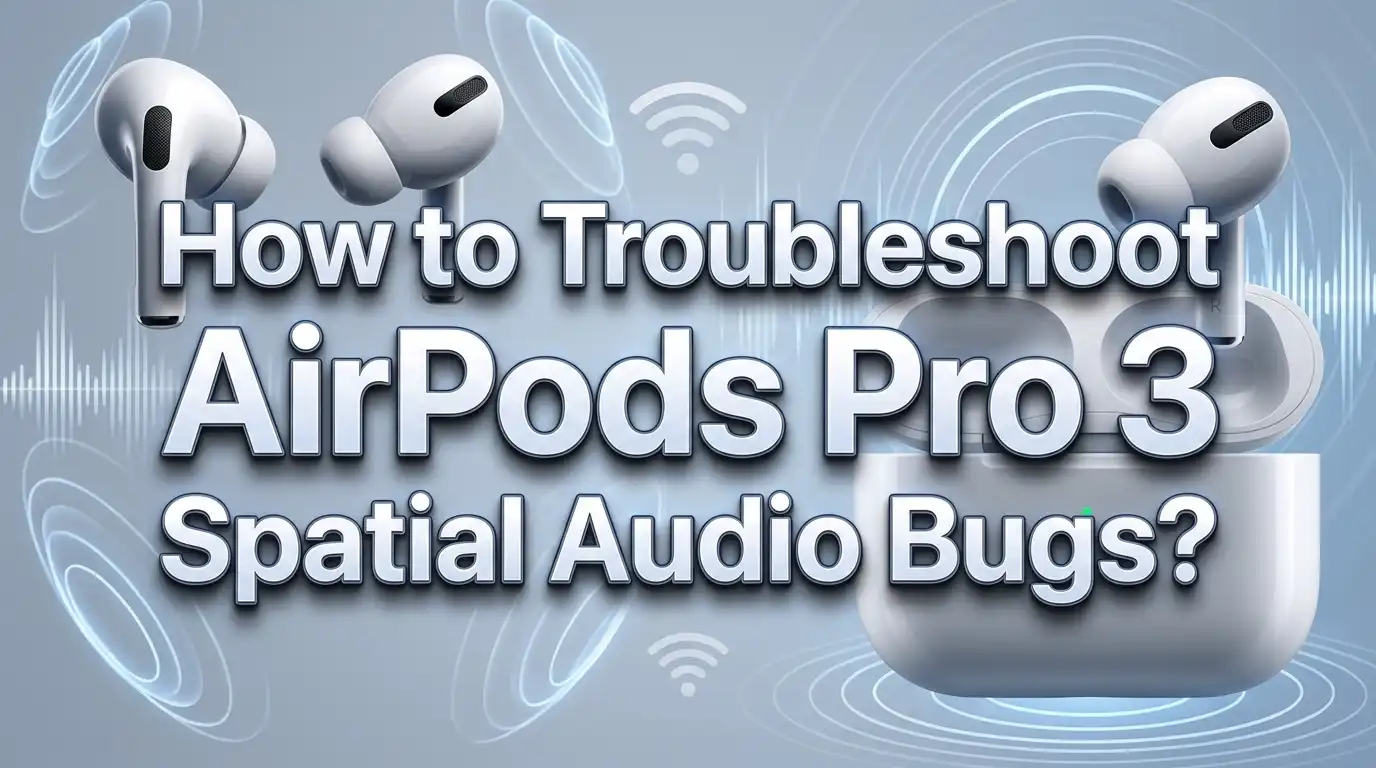
How to Troubleshoot AirPods Pro 3 Spatial Audio Bugs?
You just put on your AirPods Pro 3, hit play on your favorite movie or playlist, and something feels off. The spatial audio sounds flat, the head tracking is broken, or the option is greyed out entirely. Sound familiar? You are not alone.
Spatial audio bugs on the AirPods Pro 3 are one of the most common frustrations reported by users in 2025 and 2026. The good news is that most of these problems have clear, practical solutions that you can apply in minutes without needing to visit an Apple Store.
This guide walks you through every known fix step by step. Whether your spatial audio stopped working after a firmware update, head tracking feels glitchy, or the feature simply will not turn on, this post has the answer. Read on and get your immersive audio experience back where it belongs.
Key Takeaways
- Spatial audio bugs on AirPods Pro 3 are almost always caused by one of four things: incorrect settings, a software conflict, a firmware glitch, or a hardware detection issue. These are all fixable at home.
- Mono Audio being turned on is the number one hidden culprit that silently disables spatial audio. Go to Settings > Accessibility > Audio & Visual and make sure Mono Audio is switched off.
- Head tracking issues are very commonly caused by sensor obstructions or a stale Bluetooth connection. Putting your AirPods back in the case for 30 seconds and reconnecting often solves it instantly.
- Personalized Spatial Audio profiles can become corrupted or mismatched after an iOS update. Deleting and redoing the ear scan setup frequently restores the full 3D sound experience.
- Firmware updates have been known to both cause and fix spatial audio bugs on the AirPods Pro 3. Keeping your firmware and iOS up to date is always the first smart move when something breaks.
- A full factory reset of your AirPods Pro 3 is the last resort that resolves almost every persistent spatial audio problem when nothing else works, and it takes less than two minutes to complete.
What Is Spatial Audio on AirPods Pro 3 and Why Does It Bug Out?
Spatial audio is Apple’s immersive sound technology that makes audio feel like it is coming from all around you rather than just inside your ears. On the AirPods Pro 3, this feature uses built-in accelerometers and gyroscopes to track your head movement in real time. The sound field adjusts dynamically so that audio stays anchored to a fixed position, like a virtual screen in front of you, even as you turn your head.
The AirPods Pro 3 supports three spatial audio modes. Off disables both spatial audio and head tracking completely. Fixed enables the immersive 3D sound but without head tracking. Head Tracked enables both, giving you the most cinematic experience.
Bugs appear for many reasons. A firmware update can change how sensors communicate with your iPhone. An iOS update can reset or corrupt your Personalized Spatial Audio profile. Bluetooth interference can cause head tracking to lag or stutter. Accessibility settings you forgot you turned on can silently block the feature from working. Understanding these causes helps you choose the right fix faster.
Check If Your Device and App Support Spatial Audio
Before spending time on complex fixes, verify that the basics are in place. Not every app and not every device fully supports spatial audio, and using an unsupported combination will always result in the feature appearing unavailable.
Your AirPods Pro 3 must be connected to an iPhone, iPad, Mac with Apple Silicon, or Apple TV 4K. Spatial audio on Mac requires macOS 12.3 or later with Apple Silicon. On iPhone and iPad, you need iOS 14 or later, though the latest iOS version is always recommended for the best compatibility.
For app support, spatial audio works best with Apple Music, Apple TV+, Disney+, Netflix, HBO Max, Hulu, and most streaming apps that support Dolby Atmos. If you are using a third-party app or a music player that does not support Dolby Atmos or multichannel audio, the spatial audio option may appear greyed out or simply have no effect. Try switching to Apple Music or the Apple TV app as a test. If spatial audio works there, the problem is specific to your other app, not your AirPods.
Also confirm that both AirPods are properly seated in your ears and detected by the device. If only one AirPod is in, the system may disable spatial audio automatically.
Turn Off Mono Audio in Accessibility Settings
This is the most overlooked fix for spatial audio not working on AirPods Pro 3. Mono Audio is an accessibility feature that merges both audio channels into one, and when it is active, it completely overrides and disables spatial audio. Many users accidentally enable it while exploring settings and forget it is on.
Here is how to check and fix this issue step by step. Open the Settings app on your iPhone. Tap Accessibility. Scroll down and tap Audio & Visual. Look for the Mono Audio toggle at the top. If it is switched on, tap it to turn it off.
Once you disable Mono Audio, go back to the app you were using, open Control Center by swiping down from the top right corner of your screen, and press and hold the volume slider. You should now see the Spatial Audio button in the lower right corner. Tap it and select either Fixed or Head Tracked. The spatial audio experience should be restored immediately.
If you use Mono Audio for hearing accessibility reasons, know that you cannot use spatial audio at the same time. These two features are mutually exclusive by design, as spatial audio is built on a stereo and multichannel foundation.
Enable and Configure Spatial Audio from Control Center
Sometimes spatial audio bugs happen simply because the feature got switched off and the user does not know where to turn it back on. The Control Center is the fastest place to manage spatial audio settings per app.
Start by putting on your AirPods Pro 3 and making sure they are connected. On your iPhone, swipe down from the top right to open Control Center. Touch and hold the volume slider for about a second. At the bottom right of the expanded volume screen, you will see a Spatial Audio icon that looks like a small person with sound waves around them. Tap it.
You will see three options: Off, Fixed, and Head Tracked. Select Head Tracked for the full spatial audio experience with real-time head movement tracking. Select Fixed for spatial audio without head tracking, which some users prefer for music listening. Apple saves your choice per app, so the setting you choose in Netflix will be remembered for Netflix specifically every time you use it.
If you do not see the Spatial Audio icon at all in the volume screen, this usually means the app you have open does not support spatial audio, or there is a deeper settings issue covered in the sections below.
Redo Your Personalized Spatial Audio Setup
Personalized Spatial Audio is one of the most powerful features on the AirPods Pro 3. It uses your iPhone camera to scan the unique shape of your ears and head, then creates a custom audio profile that makes spatial audio sound more accurate for you personally. However, this profile can become corrupted after iOS updates, device changes, or even a full phone restore.
When your personalized profile breaks, spatial audio may sound flat, muffled, or simply incorrect. The fix is to delete the existing profile and redo the scan.
Open Settings on your iPhone. Tap the name of your AirPods Pro 3 near the top of the screen. Tap Personalized Spatial Audio. Tap Stop Using Personalized Spatial Audio first to clear the existing profile. Then tap Personalize Spatial Audio again and follow the on-screen instructions to complete a fresh ear scan.
The scan takes about two minutes and involves turning your head slowly in different directions while your iPhone camera tracks your ear shape. Make sure you are in a well-lit area and that your hair is not covering your ears during the scan. After completing it, play some music or a movie and check if the spatial audio sounds improved.
Your Personalized Spatial Audio profile syncs across your Apple devices via iCloud, so fixing it on one device updates it everywhere you are signed in with the same Apple Account.
Fix Spatial Audio Greyed Out in Control Center
If the Spatial Audio button is greyed out in your Control Center and you cannot tap it at all, this is a distinct bug from spatial audio simply being off. It means your system is blocking access to the feature entirely.
The most common causes are Mono Audio being enabled (covered above), an incompatible app being in the foreground, or a Bluetooth pairing state issue. Work through these checks in order.
First, confirm Mono Audio is off in Settings > Accessibility > Audio & Visual. Second, switch to a supported app like Apple Music or the Apple TV app and try again from Control Center. Third, put your AirPods back in the case, wait 15 seconds, take them out, and let them reconnect before trying Control Center again.
If the option is still greyed out, try restarting your iPhone completely. Hold the side button and volume down button together, slide to power off, wait 10 seconds, and turn it back on. A full restart clears temporary system states that can lock out features like spatial audio. After restarting, connect your AirPods again and check Control Center.
Another less-known fix is to go to Settings > your AirPods name > Spatial Audio and toggle any related settings off and back on. Sometimes the settings pane refresh alone is enough to un-grey the Control Center option.
Fix Head Tracking Not Working or Feeling Glitchy
Head tracking is the part of spatial audio that moves the sound field as you physically turn your head. When head tracking feels wrong, such as lagging, snapping, or not responding at all, the cause is often one of three things: a sensor obstruction, a stale software state, or a disabled accessibility setting.
Start by cleaning your AirPods Pro 3. Dirt, earwax, or debris near the microphone grills and sensor windows can interfere with the motion sensors. Use a dry lint-free cloth to wipe down the AirPods gently. Never insert anything into the ports or grills.
Next, check the Follow iPhone or Follow iPad setting. Go to Settings > Accessibility > AirPods, tap the name of your AirPods Pro 3, and make sure Follow iPhone is turned on. This setting controls whether head tracking uses your device as the audio anchor point. If it is off, head tracking will not work.
Also, restart the head tracking session by going to Control Center, opening the Spatial Audio menu, switching to Off, waiting five seconds, then switching back to Head Tracked. This refreshes the motion sensor calibration and often resolves stale or glitchy head tracking without any deeper intervention.
If head tracking still feels wrong after all these steps, try the firmware update check described in the next section, as motion sensor behavior is heavily firmware-dependent.
Update AirPods Pro 3 Firmware
AirPods Pro 3 firmware updates are delivered automatically by Apple when your AirPods are connected to your iPhone and both are connected to Wi-Fi. However, the update does not always happen immediately, and some spatial audio bugs are specifically tied to outdated firmware versions.
Users have reported that firmware version updates have both introduced and fixed spatial audio and head tracking bugs on the AirPods Pro 3. To check your current firmware version, go to Settings on your iPhone, tap General, tap About, then tap the name of your AirPods Pro 3 from the list. Look for Firmware Version.
You cannot force a firmware update manually through a menu button, but you can encourage it to happen. Place your AirPods Pro 3 in their case, plug the case into power using the charging cable, make sure your iPhone is nearby and connected to Wi-Fi with Bluetooth on, and leave the setup idle for at least 30 minutes. Apple’s servers will push the firmware update automatically.
If spatial audio started misbehaving after a recent firmware update, know that Apple typically releases a corrective patch within days to weeks. Joining the Apple Support Community or checking Apple’s support pages helps you confirm if the issue is firmware-related and if a patch is already available.
Check iOS or macOS Software Version
Just like firmware, the operating system on your connected device plays a critical role in how spatial audio functions on your AirPods Pro 3. Running an outdated iOS or macOS version can cause feature incompatibilities, missing menus, and broken spatial audio behavior.
Go to Settings > General > Software Update on your iPhone or iPad. If an update is available, install it. Before installing, make sure your device is charged above 50 percent and connected to Wi-Fi for a smooth update process.
On your Mac, go to System Settings > General > Software Update and install any available macOS updates. After updating, reconnect your AirPods Pro 3 and test spatial audio from Control Center or the Mac menu bar AirPods icon.
A common scenario users report is that spatial audio works fine on iPhone but breaks on Mac after a partial update or when Mac is running an older OS version. The fix is simple: keep all your Apple devices updated so the spatial audio system is running the same compatible framework across all of them.
Disconnect and Reconnect AirPods via Bluetooth
A stale or confused Bluetooth connection is one of the most frequent reasons spatial audio stops working or behaves inconsistently. Dropping and re-establishing the connection refreshes the communication channel between your AirPods Pro 3 and your device.
On your iPhone, go to Settings > Bluetooth. Find your AirPods Pro 3 in the list. Tap the (i) icon next to them. Tap Disconnect. Wait about 10 seconds. Then open your AirPods case near your iPhone and let the connection re-establish automatically.
If the disconnect method does not help, take a stronger step: tap Forget This Device on the same screen, confirm the action, then re-pair your AirPods from scratch by holding them close to your iPhone with the case open. Follow the on-screen pairing prompt. After re-pairing, go back to Control Center and re-enable Spatial Audio in your preferred mode.
For Mac users, click the Bluetooth icon in the menu bar, find your AirPods Pro 3, click the arrow next to them, and select Disconnect. Reconnect them the same way. This process takes under a minute and solves a surprising number of spatial audio complaints.
Fix Audio Shifting or Phasing Sounds
Some AirPods Pro 3 users experience a specific bug where the audio seems to shift or pan subtly from one ear to the other during playback. This phasing effect is particularly noticeable when turning your head, and it is distinct from normal head-tracked spatial audio behavior.
This bug often occurs when the AirPods Pro 3 connects in an incorrect mode, especially when paired with Apple Vision Pro or when switching between multiple paired devices rapidly. One reported fix is to open Control Center and change the Spatial Audio setting from Head Tracked to Fixed. According to user reports from the Apple Discussion communities, switching to Fixed mode is sometimes more stable than Head Tracked and eliminates the phasing effect.
Another approach is to toggle spatial audio completely off for a moment. Go to Control Center, open the volume slider, tap Spatial Audio, and select Off. Wait five seconds. Then select Head Tracked again. This resets the spatial processing pipeline and often eliminates phasing.
If you are using AirPods Pro 3 with both an iPhone and an Apple Vision Pro simultaneously, switch the audio source manually to just one device before playing content. Conflicting audio handshakes between devices is a documented cause of phasing sound bugs on the AirPods Pro 3.
Reset Your AirPods Pro 3 to Factory Settings
When every other fix has failed, a full factory reset of your AirPods Pro 3 is the most effective option. A reset clears all pairing data, settings, and cached states, giving you a completely fresh starting point. This resolves persistent spatial audio bugs that no amount of toggling settings or restarting can fix.
Here is the exact reset process for AirPods Pro 3. Place your AirPods in their charging case and close the lid. Wait 30 seconds. On your iPhone, go to Settings > Bluetooth, tap the (i) next to your AirPods Pro 3, and tap Forget This Device. Confirm the action.
Now open the charging case lid. Double-tap the front of the case while the status light is on. Double-tap again when the status light flashes white. When the status light flashes faster, double-tap a third time until the light flashes amber, then flashes white. This light sequence confirms the reset is complete.
To reconnect, keep the AirPods in the open case and hold it close to your iPhone. The pairing prompt will appear on screen. Follow the on-screen instructions to re-pair and set up your AirPods Pro 3 from scratch. After reconnecting, go through the Personalized Spatial Audio setup again and test the feature in Control Center.
Contact Apple Support or Visit an Apple Store
If you have worked through every step in this guide and spatial audio is still not functioning correctly on your AirPods Pro 3, it may indicate a hardware-level issue with the motion sensors inside the earbuds themselves. Hardware faults in the gyroscope or accelerometer components can cause head tracking to fail permanently regardless of software fixes.
Before visiting a store, gather some useful information. Note exactly which behaviors are broken (for example, head tracking not responding, audio phasing, spatial audio greyed out). Note which apps are affected. Note which firmware and iOS version you are running. Note when the issue first started and if it followed an update.
You can contact Apple Support directly through the Support app on your iPhone, through support.apple.com, or by calling Apple Support. If your AirPods Pro 3 are still under the standard one-year warranty or covered by AppleCare+, hardware repairs or replacements may be provided at no cost.
Apple Genius Bar appointments at any Apple Store allow a technician to run diagnostic tools on your AirPods Pro 3 that are not available to end users. These diagnostics can confirm whether the sensors are functioning correctly and determine if a hardware replacement is necessary.
Prevent Future Spatial Audio Bugs
The best way to deal with spatial audio bugs is to stop them from happening in the first place. A few simple habits will keep your AirPods Pro 3 running smoothly and spatial audio working reliably over the long term.
Keep your iOS and AirPods firmware updated as soon as new versions become available. Most spatial audio bugs are firmware or software related, and Apple patches them quickly. Avoid switching your AirPods Pro 3 rapidly between multiple devices during active playback, as this can trigger connection mode conflicts that disrupt spatial audio.
Clean your AirPods Pro 3 regularly using a dry lint-free cloth to prevent sensor obstruction from earwax or debris. Store them in their case whenever you are not using them so the firmware update mechanism can operate during idle charging cycles. Re-run the Personalized Spatial Audio ear scan after any major iOS update, as profile compatibility can shift with new software versions.
Finally, if you experience a new bug after a firmware update, check the Apple Support Community forums before spending time troubleshooting alone. Other users will often post solutions within hours of a widespread issue being discovered, saving you significant time.
Frequently Asked Questions
Why is Spatial Audio greyed out on my AirPods Pro 3?
Spatial Audio is most commonly greyed out because Mono Audio is turned on in your accessibility settings. Go to Settings > Accessibility > Audio & Visual and turn Mono Audio off. It can also appear greyed out when the app you have open does not support spatial audio. Try switching to Apple Music or the Apple TV app and checking Control Center again.
Why does head tracking feel laggy or wrong on AirPods Pro 3?
Laggy head tracking is usually caused by a stale Bluetooth connection, dirty sensors, or the Follow iPhone setting being turned off. Go to Settings > Accessibility > AirPods > your AirPods name and confirm that Follow iPhone is enabled. Also try putting your AirPods in the case for 15 seconds and reconnecting them fresh.
Can I use Spatial Audio on Mac with AirPods Pro 3?
Yes. Spatial Audio on Mac requires a Mac with Apple Silicon and macOS 12.3 or later. Click the AirPods icon in the Mac menu bar and choose Fixed or Head Tracked under the Spatial Audio section. If you do not see the AirPods icon in the menu bar, go to System Settings > Menu Bar and enable the Sound option.
Does a factory reset delete my Personalized Spatial Audio profile?
Yes, a factory reset clears all data from your AirPods Pro 3, including your Personalized Spatial Audio profile. After resetting and re-pairing, you will need to redo the ear scan setup. Go to Settings > your AirPods name > Personalized Spatial Audio > Personalize Spatial Audio to complete the scan again.
Why did Spatial Audio stop working after an iOS or firmware update?
Updates can sometimes reset settings or introduce temporary bugs. The most reliable fix is to go to Control Center, reset the Spatial Audio mode by switching it off and back on, and also redo your Personalized Spatial Audio ear scan. If the problem is firmware-specific, Apple typically releases a corrective update within a few weeks.
Is Spatial Audio on AirPods Pro 3 supported on Apple Vision Pro?
Yes, AirPods Pro 3 supports spatial audio with Apple Vision Pro. However, users have reported phasing sound bugs when the AirPods connect in an incorrect mode between the Vision Pro and another device. To fix this, set Spatial Audio to Fixed mode, or ensure audio is routed through only one device at a time to avoid conflicting connections.
How do I update AirPods Pro 3 firmware?
You cannot update AirPods Pro 3 firmware manually through a button or menu. To encourage the update, place your AirPods in their case, plug the case into power, keep your iPhone nearby with Wi-Fi and Bluetooth on, and leave everything idle for at least 30 minutes. Apple pushes the update automatically over the air. Check the firmware version by going to Settings > General > About > your AirPods name.

Hi, I’m Simmy — the creator and writer behind ScaleMyPic.com. I’m a tech enthusiast who loves breaking down complex products into simple, honest reviews and guides. My goal? To help you make smarter tech decisions without the confusion. Got a question? Feel free to reach out!