How to Troubleshoot Arlo Camera Night Vision Glitches?
You rely on your Arlo camera to keep watch when the sun goes down. But one night, the footage looks dark, blurry, washed out, or the night vision refuses to turn on at all. That is incredibly frustrating, especially when your home security depends on a clear picture.
The good news? Most Arlo camera night vision glitches are fixable. You do not need to buy a new camera or call a technician right away. This guide walks you through every common problem and every proven solution, from quick settings fixes to deeper hardware checks.
Keep reading, because the fix is likely simpler than you think.
Key Takeaways
- Night vision glitches on Arlo cameras are usually caused by incorrect app settings, reflective surfaces, dirty lenses, low battery, outdated firmware, or poor camera placement — all of which you can fix yourself without professional help.
- Always start with the basics: Check that the night vision toggle is turned on in the Arlo Secure app before diving into advanced troubleshooting steps.
- Infrared (IR) reflections from nearby walls, windows, and glass surfaces are one of the most common causes of washed-out or glitchy night vision footage, and repositioning the camera often solves the problem instantly.
- Firmware updates and app updates play a significant role in how well your night vision functions. Keeping both updated can prevent and resolve many night vision bugs automatically.
- A factory reset is your last resort before contacting Arlo support, but it does resolve stubborn software glitches that no other fix can address.
- Low battery power directly reduces night vision performance because the IR LEDs require sufficient energy to operate correctly, so always check your battery level as part of your troubleshooting routine.
Why Arlo Camera Night Vision Glitches Happen?
Before you fix a problem, it helps to understand why it happens. Arlo cameras use infrared (IR) LEDs to illuminate dark spaces without visible light. A light sensor on the camera detects low-light conditions and automatically switches the camera into night vision mode.
When any part of this system fails or gets disrupted, glitches appear. The glitch could come from something as simple as a software toggle being switched off, or something more physical like a dirty lens or a badly placed camera. Environmental factors like reflective surfaces, other IR-emitting devices, extreme cold temperatures, and even camera skins can all interfere with the IR system.
Understanding the root cause matters because it tells you exactly where to start your troubleshooting. A blurry night image has a different cause than a night image that is totally black. A washed-out white screen has a different fix than a camera that refuses to switch modes. This guide organizes the fixes by symptom and cause so you can go straight to your specific issue.
Check the Night Vision Toggle in the Arlo Secure App
The very first thing to check is whether night vision is actually enabled in your app settings. This sounds obvious, but many users spend hours troubleshooting a hardware issue when the problem is simply a disabled toggle.
Open the Arlo Secure app on your phone and tap on the camera you are having trouble with. Tap the settings icon, then look for “Night Vision” in the camera settings menu. Make sure the toggle is switched on. On some Arlo models, you will also see options for night vision color mode or black and white mode — confirm that the setting matches what you expect to see.
If the toggle is already on, try turning it off and then back on again. This simple action resets the night vision system and forces the camera to re-evaluate its current lighting conditions. Several users in the Arlo community have reported that toggling night vision off and on again immediately resolved their glitch without any other steps needed.
Also, confirm that your camera mode in the app is set to active monitoring. If your camera is in “Disarmed” mode or a custom mode that does not include night vision activity, the night vision feature may not activate even when the light conditions call for it. Set your camera to a mode that supports full recording and motion detection, then check if night vision starts working properly.
Inspect the IR LED Lights on Your Camera
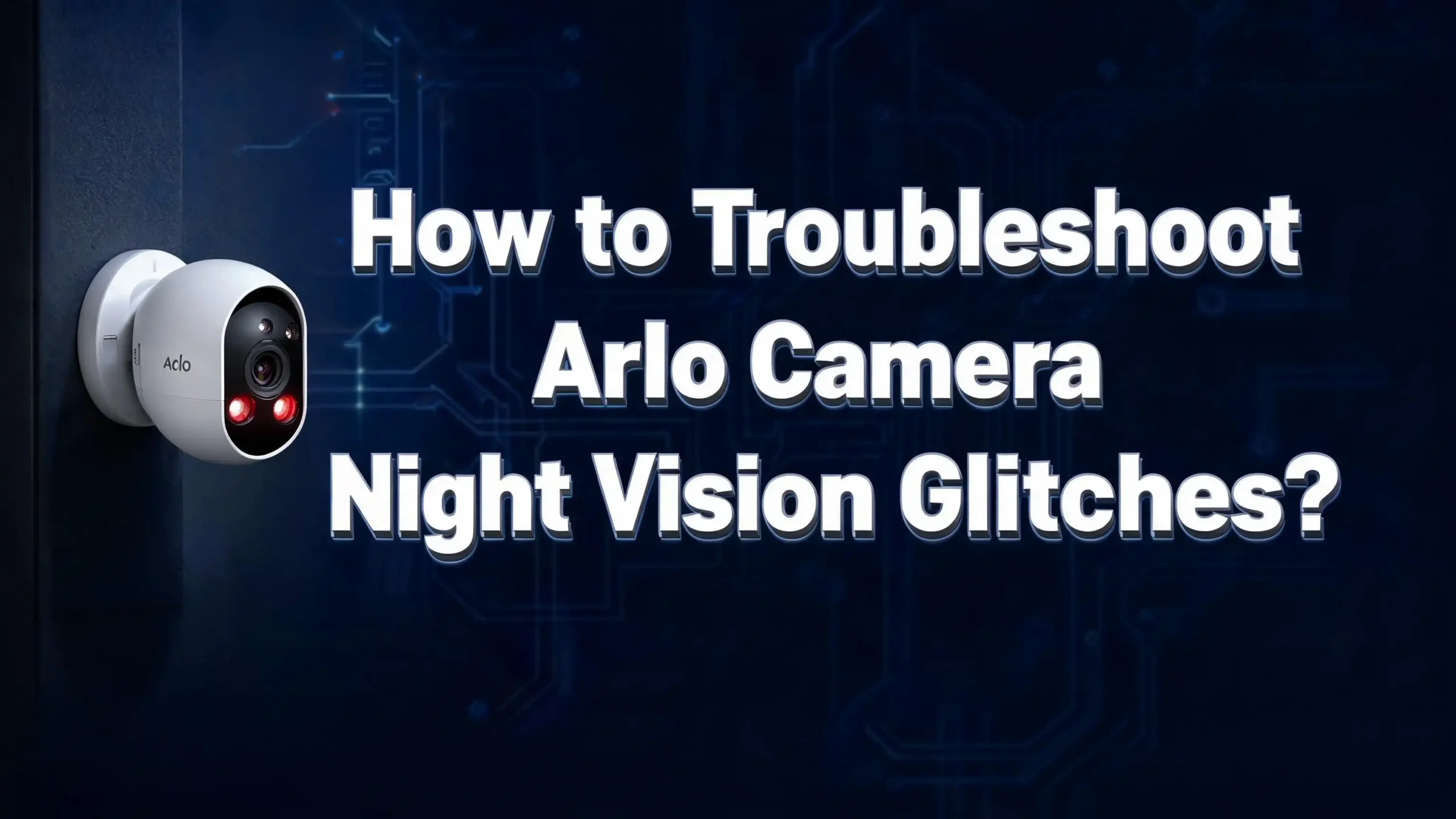
The infrared LEDs are the engine of your Arlo camera’s night vision. If these tiny lights are not working, night vision will fail no matter what settings you use. You can check whether the IR LEDs are active by looking at the front of your camera in a dark environment. You should see a faint red glow from the LED cluster when night vision is active.
If you do not see any glow, the LEDs may not be receiving enough power, or there may be a hardware fault. Start by checking your battery level. Low batteries can prevent the IR LEDs from firing correctly because they draw a significant amount of current. Replace the batteries or recharge them fully, then test night vision again.
Some cameras have a known issue where the IR LEDs appear to be on but the night vision image is still black. This can happen when the light sensor on the camera malfunctions. You can test this by placing your thumb over the light sensor (usually a small clear dot on the front of the camera) while in live view. If the night vision activates when you cover the sensor, the light sensor is stuck and the camera thinks the environment is brighter than it actually is. A reboot or reset can fix this in many cases.
If the IR LEDs show no glow at all even with fresh batteries and a working sensor, the LEDs themselves may have failed, which is a hardware issue that requires a warranty claim or replacement.
Fix Washed Out or Overexposed Night Vision Images
A common Arlo night vision glitch is a footage that appears completely white or heavily washed out at night. This almost always comes from IR reflections bouncing back into the camera lens from a nearby surface. The infrared light from your camera hits a wall, a window, or a shiny surface close to the lens and reflects directly back, overwhelming the camera sensor.
Here is how to fix it step by step. First, identify what is closest to the camera in the direction it is pointing. White walls, glass windows, metal surfaces, and even certain camera skins are the most common culprits. If any reflective surface is within a few feet of the camera, that is likely your problem.
Reposition the camera so it points away from these surfaces, or increase the distance between the camera and the closest reflective object. If you cannot reposition the camera, try using the Pinch and Zoom setting in the Arlo app’s video settings to crop out the edges of the image where the reflection appears most intense. This reduces the amount of washed-out area visible in the footage.
Also, check whether you are using a camera skin or housing. Light-colored or hooded camera skins are known to cause IR reflections that interfere with the sensor. Replace it with a black, non-hooded camera skin, or remove the skin entirely. Arlo’s own support pages confirm that camera skins in medium or light colors can cause this exact issue.
Solve Dark or Too-Dim Night Vision Footage
If your night vision image appears too dark to see anything useful, the problem is usually one of three things: the IR LEDs are not powerful enough for the distance, the camera is not in full night vision mode, or the surrounding area has too much competing light confusing the sensor.
Arlo’s IR LEDs have a limited range. Most models illuminate effectively up to about 25 feet. If your subject is farther away than this, the image will appear dark regardless of settings. You may need to reposition the camera closer to the area you want to monitor, or add a dedicated outdoor light source.
Check whether your camera is switching into color night mode instead of IR night mode. Some Arlo models offer a color night vision option that uses ambient light rather than IR. If ambient light is very low but the camera is set to color mode, the result is a dark, grainy image. Switch the camera to the standard black and white IR mode in your night vision settings for better performance in true darkness.
Additionally, check your image brightness settings in the Arlo app. Go to camera settings and look for video quality or image settings. Increase the brightness slider and check if the live view improves. Sometimes a simple brightness adjustment makes a significant difference to how usable the footage looks at night.
Clear a Foggy or Blurry Night Vision Picture
Foggy, hazy, or blurry night vision footage is one of the most reported Arlo glitches. The most common cause is a dirty camera lens. Outdoor cameras accumulate dust, pollen, moisture, and spider webs over time, and all of these distort the night vision image because IR light scatters when it hits debris on the lens surface.
Clean the camera lens carefully using a microfiber cloth or a lens cleaning wipe. Do not use rough materials that could scratch the lens coating. A few users have also recommended using a small amount of compressed air to blow away dust before wiping. After cleaning, test the night vision in live view to see if the image sharpens up.
If the fog or haze persists after cleaning, check for condensation inside the lens housing. This can happen to outdoor cameras after temperature changes, rain, or humidity. Bring the camera indoors, let it dry out completely in a warm environment for several hours, then reinstall and test it. Persistent internal fogging that cannot be removed may indicate a seal failure, which is a hardware issue.
Also, confirm the camera is not pointing toward another IR-emitting device like a motion sensor, another security camera, or an IR remote control receiver. These devices emit invisible IR light that can scatter across your camera’s sensor and create a hazy, overexposed look in the footage.
Address the Red Tint or Stuck Night Vision Mode
Some Arlo cameras develop a persistent red or pinkish tint on their footage, even during the daytime. This is caused by the IR filter getting stuck in the “removed” position. Arlo cameras have a mechanical IR cut filter that moves in front of the sensor during the day to block IR light and produce accurate colors. When this filter gets stuck, the camera records with IR active all the time, causing the red tint.
The first fix to try is new batteries. Fresh batteries with full power can sometimes trigger the mechanical filter back into the correct position. Remove the old batteries, wait two to three minutes, then install new ones. Check the live view to see if the color has returned to normal.
Another trick that users have had success with is physically flipping the camera upside down and back again. The slight vibration and position change can shake the stuck filter back into place. If your camera has a rotation setting in the app, flip the image digitally to compensate. This sounds unconventional, but it works for many users with this specific issue.
If neither of these solutions works, perform a camera reboot by removing the battery for five minutes and reinserting it. If the red tint still persists after a full reboot and fresh batteries, the IR filter mechanism may be physically damaged and a warranty replacement is the appropriate next step.
Update the Arlo Firmware and App
Outdated firmware is a surprisingly common cause of night vision glitches. Arlo regularly releases firmware updates that fix bugs, improve image processing, and correct issues with automatic light detection. If your firmware is outdated, your camera may behave incorrectly in low-light conditions.
To check for and install firmware updates, open the Arlo Secure app, go to Settings, then tap on My Devices. Select your camera and look for a firmware update option. If an update is available, install it and allow the camera to restart. Do not interrupt the update process once it starts, as this can corrupt the firmware and cause worse problems.
There have been confirmed cases in the Arlo user community where a specific firmware update broke night vision on certain models. If your night vision stopped working shortly after an automatic update, check the Arlo community forums to see if others with the same model are reporting the same issue. In some cases, waiting for the next firmware release is the best course of action, and in the meantime, you can try removing AC power and running on battery only as a temporary workaround.
Also update the Arlo Secure app itself on your phone. An outdated app version can misread camera settings or fail to communicate night vision settings correctly to the camera hardware. Visit your phone’s app store and check for any pending updates.
Re-sync the Camera with the Base Station or SmartHub
A communication breakdown between your Arlo camera and its base station or SmartHub can cause the night vision system to behave erratically. When the camera and base station lose reliable sync, settings may not apply correctly and automatic functions like night vision switching can fail.
To re-sync your camera, start by opening the Arlo Secure app and removing the camera from your device list. Then remove the camera batteries and wait at least three minutes. This fully discharges the camera’s internal capacitors and clears any stored connection data.
Reinsert the batteries and press the sync button on the camera until the LED starts blinking. Then follow the in-app steps to add the camera back to your account. Once re-synced, restore your preferred night vision settings and test the camera in a dark environment by viewing the live feed.
Also reboot the base station by unplugging it from power, waiting 30 seconds, and plugging it back in. Allow the base station to fully reconnect to your home network before attempting to sync the camera. A combination of rebooting the base station and re-syncing the camera resolves many unexplained night vision issues that seemed resistant to other fixes.
Optimize Camera Placement for Better Night Vision
Where you mount your Arlo camera has a direct impact on how well night vision works. Poor placement is one of the most overlooked causes of night vision glitches, yet it is one of the easiest things to correct.
Mount your camera at a height of 7 to 10 feet above the ground. This height gives the IR LEDs the best coverage angle and reduces the chance of objects near the ground creating strong reflections. Avoid mounting cameras directly facing windows, glass doors, or large metal surfaces.
Make sure no walls, pillars, or furniture are within two to three feet of the front of the camera. When solid objects are too close, the IR light bounces off them immediately and floods back into the sensor, ruining the exposure for everything farther away. This is why cameras mounted in corners or narrow spaces often produce terrible night vision footage.
Also consider the direction the camera faces relative to outdoor light sources. Street lights, porch lights, and security lights near the camera can confuse the automatic light sensor. The camera may decide that the environment is bright enough and refuse to activate night vision, even when the area you actually want to monitor is dark. Position the camera so that ambient light sources are not directly in its field of view.
Restart the Camera to Clear Temporary Glitches
Sometimes the fix is as simple as restarting the camera. Arlo cameras run embedded software that can develop temporary glitches after hours or days of continuous operation. A stuck process, memory error, or failed state transition can cause the night vision system to stop responding correctly.
To restart a battery-powered Arlo camera, simply remove the batteries, wait 10 to 15 seconds, and reinsert them. For wired or plug-in Arlo cameras, disconnect the power cable, wait 30 seconds, and reconnect. Allow the camera to fully boot up and reconnect to the network before testing night vision.
You can also restart the camera remotely through the Arlo Secure app. Go to your camera’s settings and look for a “Restart” option. This is faster than manually removing batteries and achieves the same result for most software-level glitches.
Restarting the camera is also useful after making any changes to night vision settings. Sometimes the camera needs a full restart to apply new configuration changes properly. If you have recently changed brightness settings, night vision mode, or color settings, restart the camera afterward and confirm the settings took effect by checking the live view in a dark environment.
Perform a Factory Reset as a Last Resort
If none of the above steps have resolved your Arlo night vision glitch, a factory reset is the next step. A factory reset wipes all settings on the camera and returns it to its original out-of-the-box state, which clears any corrupted settings that could be blocking night vision from working correctly.
To factory reset most Arlo cameras, press and hold the Sync button for about 15 seconds. You will see the camera LED start blinking blue, and then transition to blinking amber. Release the button at the blue blink stage. The camera will reset and enter pairing mode. Follow the Arlo Secure app instructions to add the camera back to your account as a new device.
Note that a factory reset removes all your customized settings, schedules, and automation rules for that camera. Make note of your preferred settings before you perform the reset so you can restore them afterward. After completing the reset and setup, re-enter your night vision preferences and test the camera in a low-light environment.
After the reset, apply firmware updates immediately before testing night vision. Starting from a clean state with the latest firmware gives your camera the best possible chance of running its night vision system correctly.
Check for Environmental Factors Affecting Night Vision
Environmental conditions can have a surprisingly strong impact on Arlo camera night vision performance. Cold temperatures in particular are known to affect how well the IR LEDs function and how quickly the camera switches into night mode.
In very cold weather, batteries lose charge faster than normal. Since IR LEDs require significant power, cold-related battery drain can cause the night vision to flicker, switch on and off intermittently, or refuse to activate at all. Use lithium batteries in cold climates rather than standard alkaline batteries, as lithium performs better in low temperatures.
Heat and humidity can cause condensation on the lens, as mentioned in the section on foggy footage. Monitor how your camera performs after rain or temperature changes and dry it out if fogging appears. For cameras in very humid climates, inspect the camera housing seal periodically to make sure moisture is not entering the unit.
Arlo cameras also respond to external infrared sources in the environment. Certain types of outdoor heating lamps, motion-activated lights with IR sensors, and even some TV remote controls emitting IR pulses can interfere with your camera’s night vision. If you notice the night vision flickering or behaving strangely in a specific location, check whether any other devices in that space emit infrared light.
Test the Light Sensor and Auto Night Vision Mode
Arlo cameras automatically determine when to switch into night vision mode by reading the ambient light level through a built-in light sensor. If this sensor is dirty, obstructed, or faulty, the camera may fail to activate night vision at the right time or may keep switching in and out of night mode erratically.
You can test the light sensor easily. Go to live view in the Arlo app and cover the small clear sensor on the camera’s front face with your thumb. If the camera switches into night vision mode when you cover it, the sensor itself works. The problem may then be that the ambient light in your camera’s location is too bright for the sensor to register as “dark enough.”
If covering the sensor does nothing, the sensor may be unresponsive due to dirt or hardware failure. Clean the sensor area gently with a dry microfiber cloth and test again. A persistent non-responsive sensor after cleaning points to a hardware issue.
If the camera keeps switching in and out of night mode repeatedly, this is called “flickering mode switching” and it usually means the ambient light level is right at the threshold point where the sensor keeps changing its mind. Try adjusting the camera’s angle slightly to avoid the edge light source that is confusing the sensor. Some Arlo models also allow you to manually lock the night vision mode on rather than relying on automatic switching, which eliminates this problem entirely.
Contact Arlo Support for Persistent Hardware Issues
If you have worked through every step in this guide and your Arlo camera night vision still does not work, the problem is most likely a hardware defect. Hardware issues include failed IR LEDs, a broken light sensor, a stuck mechanical IR filter, or a damaged camera sensor — none of which can be fixed through software or user maintenance.
Before contacting Arlo support, gather the following information to speed up the process: your camera model number (printed on the camera or visible in the app), the current firmware version, a description of the exact symptoms you are experiencing, and a list of the troubleshooting steps you have already tried.
Visit Arlo’s official support page at arlo.com/support to access live chat, phone support, and email options. If your camera is still under warranty, Arlo support can arrange a replacement unit. Arlo cameras typically come with a one-year limited warranty, and some plans extend this coverage period.
Keep in mind that Arlo Secure subscription plans may also provide additional support benefits. If you are on a paid plan, mention this when you contact support as it may affect your priority level and replacement options.
FAQs
Why is my Arlo camera night vision not turning on automatically?
Your Arlo camera’s night vision activates based on the light sensor reading the ambient light level. If the surrounding area has even a modest light source in the camera’s field of view, the sensor may not detect conditions as dark enough to trigger night mode. Check that night vision is toggled on in the Arlo Secure app, confirm no light sources are directly in the frame, and test by covering the light sensor with your thumb to force it into night mode.
Why does my Arlo night vision look washed out or completely white?
A washed-out white image is almost always caused by IR reflections from nearby surfaces. Walls, windows, glass, and metal objects close to the camera reflect the infrared light back into the lens and overwhelm the sensor. Reposition the camera away from these surfaces or use the Pinch and Zoom setting in the app to crop the affected edges out of the image.
Can I use Arlo night vision in color rather than black and white?
Yes, several newer Arlo models support color night vision. This mode uses ambient light to produce a color image in low-light conditions instead of switching to IR black and white mode. You can toggle between color night vision and standard IR night vision in your camera’s settings under the Night Vision options in the Arlo Secure app.
Why is my Arlo night vision blurry or foggy even after cleaning the lens?
If cleaning the lens does not solve the foggy image, the issue may be condensation inside the camera housing or another IR-emitting device interfering with your camera’s sensor. Bring the camera indoors to dry out completely, then reinstall and test. Also check for nearby motion sensors, other cameras, or IR remote receivers that could be scattering IR light into your camera’s field of view.
Does cold weather affect Arlo camera night vision?
Yes, cold weather can significantly reduce night vision performance. Low temperatures drain batteries faster, and the IR LEDs need adequate power to function correctly. Use lithium batteries in cold climates as they perform better than alkaline in low temperatures. Also check that the camera is not showing any condensation or ice buildup on the lens.
How do I know if my Arlo camera’s IR LEDs are working?
Go to a dark room and view the camera in live view through the Arlo Secure app. Look directly at the front of the camera. You should see a faint red glow from the LED cluster when night vision is active. No glow means the IR LEDs are not firing. Check your battery level, toggle night vision off and on, and restart the camera to try to activate the LEDs.
Will a factory reset fix my Arlo night vision glitch?
A factory reset can fix night vision glitches caused by corrupted settings, stuck modes, or software bugs that survive normal restarts. It removes all customized settings and returns the camera to its default state. It is effective as a last-resort software fix, but it will not repair hardware issues like failed IR LEDs or a broken light sensor.
How far can Arlo night vision actually see?
Most Arlo cameras use IR LEDs that illuminate effectively up to approximately 25 feet in complete darkness. Beyond that range, the image becomes progressively darker. The actual effective range depends on the specific camera model, battery level, and environmental conditions. If you need to monitor areas beyond 25 feet, consider adding a supplemental outdoor light source or repositioning the camera closer to the target zone.

Hi, I’m Simmy — the creator and writer behind ScaleMyPic.com. I’m a tech enthusiast who loves breaking down complex products into simple, honest reviews and guides. My goal? To help you make smarter tech decisions without the confusion. Got a question? Feel free to reach out!