How to Troubleshoot Blood Oxygen Sensor Failures on Watches?
Blood oxygen monitoring (SpO2) has become one of the most valued health features in modern wearables. It tracks how well your blood carries oxygen from your lungs to the rest of your body. A healthy reading falls between 95% and 100%. But what happens when the sensor refuses to cooperate?
The good news is that most SpO2 sensor failures are fixable at home. You do not need a repair shop for every failed reading. The causes range from a dirty sensor to an outdated software version. Some fixes take less than 30 seconds.
This guide walks you through every practical step to identify and resolve blood oxygen sensor problems on your smartwatch. Whether your watch shows inaccurate readings, no reading at all, or stops tracking overnight, you will find a clear solution here. Let’s get your SpO2 sensor back on track.
Key Takeaways
- Dirty or obstructed sensors are the number one reason for failed SpO2 readings. A quick clean of the back of your watch and your wrist skin can restore normal function immediately.
- Loose watch bands cause unreliable results. The sensor needs firm contact with your skin to emit and receive light properly. Adjust the band so it fits snug but still feels comfortable.
- Software updates fix many sensor failures. Manufacturers release patches that resolve bugs affecting the blood oxygen feature. Always keep your watch firmware and companion phone app up to date.
- Tattoos and darker skin tones can affect accuracy. The light based sensor technology used in smartwatches has known limitations with certain skin characteristics. Moving the watch slightly up your arm away from a tattoo may help.
- Excessive motion during measurement will cause errors. The SpO2 sensor requires you to be still for 15 to 30 seconds. Even small movements during a reading can trigger a failure.
- Persistent failures after all troubleshooting steps may point to a hardware defect. If your sensor still does not work after cleaning, updating, and resetting, contact the manufacturer for warranty support or repair.
How the Blood Oxygen Sensor on Your Smartwatch Works
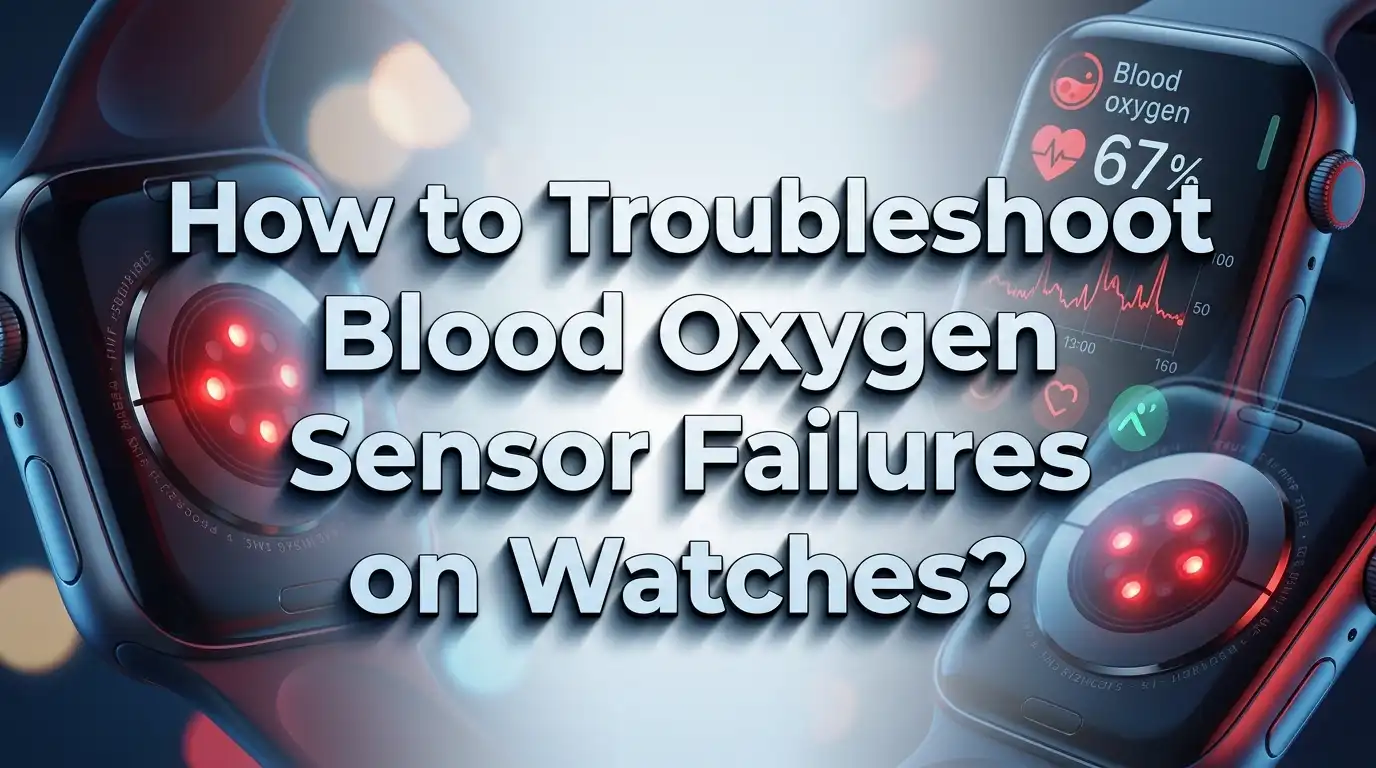
Understanding how the sensor works helps you troubleshoot it. The SpO2 sensor sits on the back of your smartwatch, pressed against your wrist. It uses red and infrared LED lights that shine into the blood vessels beneath your skin.
These lights pass through your skin and bounce off the blood flowing inside your veins. A small component called a photodiode then captures the reflected light. The watch’s software algorithm analyzes how much light was absorbed versus how much was reflected.
Oxygenated blood absorbs infrared light and reflects red light. Deoxygenated blood does the opposite. The ratio between these two measurements determines your SpO2 percentage. This is the same principle used in hospital grade finger clip pulse oximeters, except your watch uses reflective pulse oximetry instead of transmissive.
The key difference matters for troubleshooting. A finger clip sends light through your fingertip. A watch bounces light off your wrist. This makes the wrist based method more sensitive to fit, skin contact, dirt, and movement. Any gap between the sensor and your skin reduces accuracy or blocks the reading entirely.
Common Symptoms of a Failing SpO2 Sensor
Before you start fixing the problem, identify what type of failure you are experiencing. Different symptoms point to different root causes.
No reading at all means the sensor cannot capture enough reflected light. Your watch may display a message like “Measurement Unsuccessful” or “Try Again.” This typically points to poor skin contact, dirt on the sensor, or a software glitch.
Abnormally low readings (such as 80% to 85% when you feel perfectly fine) suggest the sensor is getting partial data. Common causes include a loose band, cold skin, or interference from a wrist tattoo. If a healthy person consistently sees readings below 90%, the watch is almost certainly producing inaccurate data.
Inconsistent readings that jump between high and low numbers within minutes indicate motion interference or unstable skin contact. The sensor struggles to lock onto a steady signal.
Background readings that stop recording during sleep often result from outdated firmware, disabled permissions, or battery saving modes that shut down the sensor overnight. Check your watch settings to confirm the feature is still enabled.
Knowing your specific symptom makes the next troubleshooting steps more efficient.
Clean the Sensor and Your Wrist
This is the single most effective fix for SpO2 sensor problems. Dirt, sweat, lotion, and skin oils build up on the back of your watch over time. Even a thin film of residue can block the light signals that the sensor depends on.
Remove your watch and wipe the sensor area on the back with a soft, lint free cloth. You can lightly dampen the cloth with water. Avoid harsh chemicals, alcohol wipes on sensitive coatings, or abrasive materials that could scratch the sensor glass.
Next, wash and dry your wrist thoroughly. Residue from sunscreen, moisturizer, or sweat on your skin blocks light just as much as dirt on the sensor. Pat dry completely before putting the watch back on.
Reddit users on the Galaxy Watch forum have reported that a quick cleaning of the watch back usually resolves recurring failed readings. This simple step is overlooked far too often.
Make cleaning a regular habit. If you wear your watch during workouts, wipe it down after each session. Weekly deep cleaning keeps the optical sensors performing at their best.
Adjust the Watch Band for Proper Fit
A loose watch band is a silent troublemaker. The SpO2 sensor emits light that must penetrate your skin and return to the photodiode. Any gap between the sensor and your wrist lets ambient light leak in, which confuses the reading.
Garmin’s official support page states clearly: “The SpO2 reading requires a snug fit on the wrist to function. It should be tight enough that, when the device is gently pulled away from the wrist, the skin follows slightly.”
Tighten the band by one notch. The watch should feel secure without cutting off circulation. You want firm skin contact, not a tourniquet. If the band is old and stretched out, consider replacing it with a new one that holds the watch securely.
Apple’s support documentation adds another important detail: the back of the watch needs to sit flush against the top of your wrist. If your wrist bone creates a gap, move the watch one to two inches higher up your arm, away from the bony area.
Also avoid wearing the watch over clothing. Even a thin sleeve between the sensor and your skin will block the optical signal entirely.
Check and Update Your Watch Software
Software bugs are a frequent cause of SpO2 sensor failures, especially after major operating system updates. Manufacturers have released patches specifically to fix blood oxygen measurement issues across multiple watch generations.
On Apple Watch, go to Settings > General > Software Update. Make sure both your iPhone and Apple Watch run the latest versions of iOS and watchOS. Apple Watch users reported widespread blood oxygen failures after certain watchOS updates. The fix was often as simple as updating and then toggling the Blood Oxygen feature off and on in Settings.
On Samsung Galaxy Watch, open the Galaxy Wearable app on your phone. Tap Watch Settings > Watch Software Update > Download and Install.
On Garmin watches, open the Garmin Connect app and sync your watch. The app will prompt you if an update is available. You can also connect your watch to a computer and use Garmin Express to update firmware.
On Fitbit and Pixel Watch, check for updates through the companion app. Recent reports showed that a software update removed SpO2 and temperature permissions on Pixel Watch models. The fix was to go to Settings > Apps & Notifications > App Info > System Apps > Fitbit and restore the permissions manually.
After updating, restart your watch. This clears temporary bugs that may linger after installation.
Toggle the Blood Oxygen Feature Off and On
This classic troubleshooting step works surprisingly well. Turning the SpO2 feature off and back on forces the watch to reinitialize the sensor connection. Think of it as a soft reset for the blood oxygen system specifically.
On Apple Watch, open the Watch app on your iPhone. Scroll down and tap Blood Oxygen. Toggle the feature off. Wait about 15 seconds. Toggle it back on. Multiple Apple Watch users on Reddit confirmed this fixed their sensor after a watchOS update broke it.
On Samsung Galaxy Watch, go to Samsung Health on the watch, find Blood Oxygen, and disable it. Wait, then re enable it.
On Garmin, navigate to the Pulse Ox widget on your watch. Disable it in Activity Tracking settings through the Garmin Connect app. Re enable it after a brief pause.
This step essentially forces the watch to re establish communication between its hardware sensor and software layer. It clears minor errors that accumulate during use.
If toggling the feature does not help, proceed to a full device restart or factory reset as described later in this guide.
Stay Still and Position Your Arm Correctly
The SpO2 sensor is extremely sensitive to motion. Even subtle movements during a reading can cause failure. This is not a design flaw. It is how reflective pulse oximetry works.
Rest your arm on a table or in your lap. Keep your wrist flat with the watch face pointing up. Do not clench your fist. An open, relaxed hand gives the best blood flow.
Apple’s official guidance says: “Stay still, and make sure your wrist is flat with the Apple Watch facing up.” They also note that a fist position or arms hanging at your sides will cause unsuccessful measurements.
Wait the full measurement time. Most watches need 15 to 30 seconds of stillness. Garmin recommends sitting quietly and selecting the Pulse Ox widget only after you are settled. Moving even slightly during this window forces the sensor to restart its calculation.
For overnight tracking, avoid wearing the watch too close to your wrist bone where it shifts during sleep. A slightly higher position on the forearm can improve nighttime readings.
If you consistently fail to get readings while active, try measuring immediately after sitting down and relaxing for at least two minutes.
Address Tattoo and Skin Tone Challenges
Smartwatch SpO2 sensors have known limitations related to skin characteristics. This is an important factor to consider during troubleshooting.
Wrist tattoos can block the light emitted by the sensor. Dark ink, dense patterns, and heavily saturated tattoos are most likely to interfere. The sensor light cannot penetrate the ink layer to reach the blood vessels beneath.
Apple confirms this directly: “The ink, pattern, and saturation of some tattoos can block light from the sensor, making it difficult for the Blood Oxygen app to get a measurement.”
If you have a tattoo on your wrist, try wearing the watch on the opposite wrist or position it above the tattooed area where bare skin is exposed.
Skin pigmentation also affects SpO2 accuracy. Research published in medical journals has shown that pulse oximeters, including those in smartwatches, tend to overestimate oxygen levels in people with darker skin tones. A study in JAMA Internal Medicine found this pattern across Black, Hispanic, and Asian patients.
The FDA has acknowledged this issue and is reviewing testing requirements for pulse oximeter devices. While you cannot change how the sensor works, you can cross reference your watch readings with a medical grade fingertip pulse oximeter if accuracy concerns you. This gives you a personal baseline for comparison.
Manage Temperature and Blood Flow Issues
Cold hands and poor circulation cause SpO2 failures more often than most people realize. The sensor depends on adequate blood flow through the capillaries in your wrist. When blood flow drops, there is not enough signal for the sensor to measure.
Cold temperatures constrict blood vessels in your extremities. If you are outside in winter or in a heavily air conditioned room, your wrist may not have enough blood flowing near the surface for the sensor to work.
Apple states: “If you are out in the cold, the skin perfusion in your wrist might be too low for the sensor to work.”
Warm your hands and wrists before taking a reading. Rub your hands together, tuck them under your arms, or go indoors. Even a few minutes of warming can restore enough blood flow for a successful measurement.
Dehydration also reduces blood volume and circulation. Drink water throughout the day, especially before sleep if you rely on overnight SpO2 tracking.
Medical conditions like Raynaud’s disease or peripheral artery disease reduce blood flow to the extremities. If you have circulation issues, wrist based SpO2 readings may be consistently unreliable. A fingertip pulse oximeter will produce better results in these cases.
Elevated heart rate above 150 bpm at rest also prevents successful readings on Apple Watch. The sensor cannot isolate the SpO2 signal at very high pulse rates.
Restart or Factory Reset Your Watch
When simpler fixes fail, a restart or factory reset often resolves deep software issues affecting the SpO2 sensor.
Start with a simple restart. Power off your watch completely, wait 30 seconds, and power it back on. This clears temporary files and resets all running processes.
On Apple Watch, press and hold the side button until the Power Off slider appears. Slide to power off. Press and hold the side button again to restart.
On Samsung Galaxy Watch, press and hold the Home key, then tap Restart.
On Garmin, hold the power button (usually the top left button) until the device shuts down. Press again to restart.
If a restart does not help, try a factory reset. This erases all data and settings on the watch and restores it to its original state. Back up your data first.
Go to Settings > General > Reset on most watches. Follow the prompts to complete the process. After the reset, set up the watch as a new device and enable blood oxygen tracking fresh.
A factory reset is particularly effective when problems started after a botched software update. It removes any corrupted files that may block the sensor from functioning.
Check App Permissions and Health Settings
Modern smartwatches require specific permissions for the SpO2 sensor to function. An update or accidental change can revoke these permissions silently.
On Pixel Watch and Fitbit devices, this became a widespread issue after a recent update. Users discovered that the fix was to open Settings > Apps & Notifications > App Info > System Apps > Fitbit on the watch itself, then restore the permissions for SpO2 and temperature.
On Apple Watch, make sure the Blood Oxygen app has not been deleted. If you cannot find it, open the App Store on your watch and search for “Blood Oxygen” to reinstall it. Also confirm your age in Health Profile is set to 18 or older, because the app is restricted for users under 18.
On Samsung Galaxy Watch, verify that the Blood Oxygen tile is active. Swipe left from the home screen through your tiles. If it is missing, tap Add Tile and select Blood Oxygen.
Also check battery saving modes. Many watches disable background health sensors to save power. Go to your watch’s battery or power settings and make sure SpO2 tracking is not excluded from background activity.
Regional restrictions apply too. The Blood Oxygen app is only available by default in certain countries. If you purchased your watch abroad, the feature may not appear.
Verify Overnight Tracking Settings
Many SpO2 failures only show up at night. Your watch seems fine during manual spot checks, but overnight data is missing or incomplete.
Background blood oxygen tracking requires specific settings to be active. On Apple Watch, open Settings > Blood Oxygen and make sure “In Sleep Focus” is enabled. If you have Sleep Focus or Theater Mode turned on, the watch may skip background readings unless you explicitly allow them.
Apple also notes that blood oxygen measurements during sleep only occur when the Track Sleep with Apple Watch setting is turned on. Check this under Settings > Sleep on your watch.
On Garmin, open the Garmin Connect app and go to Garmin Devices > Activity Tracking > Pulse Ox. Select “During Sleep” to enable overnight tracking. If you select “All Day,” be aware that this drains the battery significantly faster.
On Samsung, swipe up on the home screen and go to Settings > Samsung Health > Blood Oxygen Level during Sleep. Tap to enable it.
Make sure your watch is charged above 30% before bed. Many devices disable background sensors when the battery is low. Wearing the watch slightly higher on the wrist while sleeping also reduces signal interruption caused by wrist bone contact during sleep positions.
Know When to Seek Professional Help or Replacement
After completing every troubleshooting step, some watches still refuse to produce accurate SpO2 readings. This points to a hardware level failure that requires professional attention.
Signs of hardware damage include a visibly cracked or scratched sensor lens, persistent failures across all conditions, and readings that remain inaccurate even when compared to a medical pulse oximeter.
Contact the manufacturer’s support team. Apple, Samsung, Garmin, and Google all offer warranty service for defective sensors. If your watch is within its warranty period, a replacement or repair may be free.
For Apple Watch specifically, be aware of model specific issues. Certain Apple Watch models purchased in the United States after January 18, 2024 had their blood oxygen feature affected by a patent dispute with Masimo Corporation. Apple has since released software updates to restore this feature through a redesigned approach. Check your model number under Settings > General > About to verify your watch’s status.
Do not open the watch yourself. The optical sensors are delicate and sealed against water. Any tampering voids the warranty and likely damages the sensor beyond repair.
If your watch is out of warranty and the sensor has failed, weigh the cost of repair against buying a new device. SpO2 sensor repairs often cost nearly as much as a new watch.
SpO2 Readings Are Not Medical Diagnoses
One critical point applies to all smartwatch blood oxygen readings. These devices are wellness tools, not medical instruments. Every major manufacturer states this clearly.
Apple’s disclaimer reads: “Measurements taken with the Blood Oxygen app are not intended for medical use and are only designed for general fitness and wellness purposes.”
Research published in Mayo Clinic Proceedings Digital Health found that while smartwatches can provide SpO2 readings, their overall accuracy may not be sufficient to replace standard pulse oximetry technology.
Use your smartwatch SpO2 data to observe trends, not to diagnose conditions. If you notice consistently low readings over several days, consult a doctor and ask for a proper arterial blood gas test or clinical pulse oximeter reading.
If you have a respiratory condition like asthma, COPD, or sleep apnea, do not rely solely on your watch for monitoring. Pair it with a medical grade fingertip pulse oximeter for any reading that influences health decisions.
Your watch is excellent at alerting you to potential problems. But only a healthcare professional can turn those alerts into a diagnosis and treatment plan.
Frequently Asked Questions
Why does my smartwatch keep saying blood oxygen measurement failed?
The most common reasons are a dirty sensor, a loose watch band, or movement during the reading. Clean the back of your watch, tighten the band by one notch, and stay completely still for 15 to 30 seconds while the measurement runs. If the problem continues, check for software updates and restart the watch.
Can a wrist tattoo stop the blood oxygen sensor from working?
Yes. Dark, dense, or heavily saturated tattoos block the light that the SpO2 sensor uses to read your blood oxygen level. If you have a wrist tattoo, try wearing the watch on the opposite wrist or position it above the tattoo on bare skin.
How accurate are smartwatch blood oxygen readings compared to medical devices?
Smartwatch SpO2 sensors are reasonably accurate for general wellness monitoring. However, they are less precise than fingertip pulse oximeters used in clinical settings. Studies show wrist based readings can vary by 2% to 4% from medical devices. They should not be used for medical diagnosis.
Why is my SpO2 sensor accurate during the day but not at night?
Overnight tracking depends on specific settings being enabled. Make sure sleep tracking and background blood oxygen monitoring are both turned on in your watch settings. Also, the watch may shift during sleep, creating gaps between the sensor and your skin. Wearing the band snugly and placing the watch slightly higher on your wrist can help.
Should I do a factory reset to fix my blood oxygen sensor?
A factory reset should be your last resort after simpler fixes have failed. Try cleaning the sensor, updating software, toggling the SpO2 feature off and on, and restarting the watch first. If none of these work, a factory reset clears all corrupted data and restores default settings, which often resolves deep software issues.
Does cold weather affect blood oxygen readings on my watch?
Yes. Cold temperatures reduce blood flow to your wrist, making it harder for the sensor to get a reading. Warm your hands and wrists before taking a measurement. If you are outdoors in cold conditions, go inside and wait a few minutes before trying again.

Hi, I’m Simmy — the creator and writer behind ScaleMyPic.com. I’m a tech enthusiast who loves breaking down complex products into simple, honest reviews and guides. My goal? To help you make smarter tech decisions without the confusion. Got a question? Feel free to reach out!